Joinly by KoppelHet

User provisioning and lifecycle

IT onboarding checklist: from contract to first sign-in, in the right order

A good IT onboarding checklist follows the order in which systems wait for each other: first the account with the right HR data, then groups and licence, then the mailbox and the applications, and only on the first day the sign-in. Almost everything can be ready before day one, except the moment the employee sets up MFA themselves.

Start on the day HR records the contract

Most onboarding problems come down to time. IT hears about a new colleague on Friday afternoon, the laptop still has to be ordered, and the mailbox is not yet visible on Monday morning. Why day one matters is covered in IAM and onboarding. This is about the order.

The starting point is the moment HR records the employment, with start date, job title, department, location and manager. From then on you know everything you need. Each step below depends on the step before it: a licence needs an account with a country, a mailbox needs a licence, and an application needs an account in the right group.

IT onboarding, in the order in which systems wait for each other
StepWhatDepends onReady before day one?
1Create the account with the HR dataThe employment in HRYes
2Name, UPN and email addressThe naming conventionYes
3Groups based on the roleJob title, department, locationYes
4LicenceAccount with usage locationYes
5Mailbox, distribution lists, shared mailboxesLicence with Exchange OnlineYes
6ApplicationsGroups or a request to the application managerYes
7Laptop and phoneOrder and delivery timeYes
8Welcome email with instructionsA personal email address from HRYes, a few days ahead
9First sign-in and MFAThe employee themselvesOn the first day

The account with the right data, before anything else happens

Everything that comes after reads from the account. A dynamic group looks at the department, a licence at the country, an approval at the manager. So an account with empty fields later produces an employee without access.

  1. Create the account in the system where you manage identities. If you work hybrid with on-premises Active Directory, you create it there and it reaches Entra ID through synchronisation. If you work only in the cloud, you create it in Entra ID.
  2. Decide the username, the UPN and the email address according to your naming convention. Duplicate names and name prefixes are covered in username and email address.
  3. Fill in the fields from HR: job title (jobTitle), department (department), location, manager, employee number (employeeId) and start date (employeeHireDate). Which fields you need and what breaks when they are empty is in HR fields for provisioning.
  4. Set the usage location, the two-letter country code. Without a usage location you cannot assign a licence directly in Entra ID, and with group-based licensing Microsoft falls back to the tenant's country.
  5. Decide whether the account can already sign in before the start date. Many organisations create it well in time, so groups, licence and mailbox can land, and only let the employee sign in on the first day.

Letting groups, licence and mailbox land in time

Each of these three steps has a lead time you do not control. So do not plan them for the morning of the first day.

StepHowWhere it gets stuck
GroupsBased on the role: job title, department and location. Dynamic groups in Entra ID do this on the account's attributes; groups in AD you assign when creating the account.A department name spelt differently in HR than in the group's rule.
LicencePreferably through a group, so the licence follows the role. See group-based licensing.No usage location, or no free licences left in the subscription.
Mailbox in Exchange OnlineMicrosoft creates the mailbox automatically as soon as the account gets a licence with Exchange Online.Microsoft states a lead time of at least 24 hours for a new mailbox.
Mailbox with hybrid ExchangeWith New-RemoteMailbox on the on-premises Exchange server: that creates the user in AD and, after directory synchronisation, the mailbox in the cloud.The mailbox only arrives after the next synchronisation.

Once the mailbox is there, the team's distribution lists and shared mailboxes follow. Those belong to the role too. Permissions on shared mailboxes are covered in shared mailbox permissions.

First sign-in, applications and the laptop

The first sign-in. On day one the employee has to sign in and set up MFA, a passkey or Windows Hello themselves. A temporary password on a note is the weakest point there. With a Temporary Access Pass you give a temporary code that starts on the first day. How to set it up, how long it is valid and how to hand it over safely is in Temporary Access Pass.

Applications. Applications with single sign-on and SCIM follow the groups: whoever is in the group gets the account in the application. Applications without a connection need a request to the application manager, with the name, the role and the start date in it. Send that request at the same time as the account, because the application manager needs time too. How to set that up is in applications without SCIM.

Laptop and phone. Hardware has the longest delivery time on the whole list. Place the order or the service desk ticket at the moment HR records the contract, with the start date and the delivery address. Record which device belongs to which person, because it has to come back when they leave.

A welcome email that explains the first day

The new employee cannot open their work mailbox yet. So the welcome email goes to the personal email address HR holds, a few days before the start. What goes in it:

  • The username and the email address.
  • How the first sign-in works: where, with which code or through whom, and that they then set up MFA themselves.
  • Where and when they get the laptop.
  • Whom to call if it does not work, with a phone number that works without an account.

Joinly

The checklist that runs itself for every new employee

Nine steps, in order, for every new colleague. With ten starters a month that is a fixed task, and every step that is forgotten is noticed by the employee on their first day.

In Joinly a new employment in your HR system starts the provisioning. You decide how accounts are named and how many days before the start date they are ready, and placement and mail domain follow from the HR data. Whoever is new in HR gets an account with the right roles, groups and licences, a welcome email to their personal address and a ticket for the laptop. In on-premises Active Directory that runs through the Joinly Agent, including Exchange remote mailboxes.

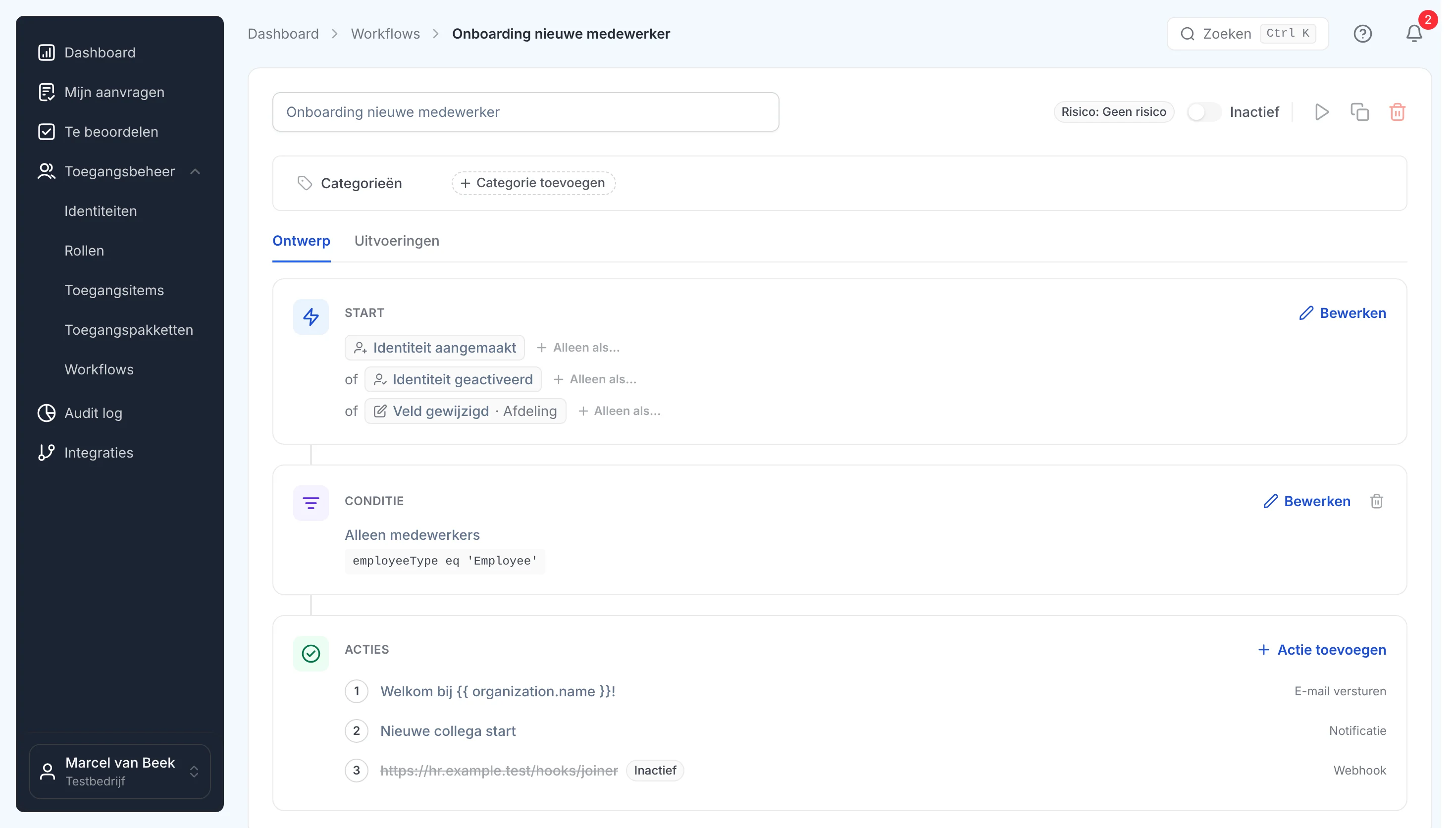
The steps sit in a workflow, with a Temporary Access Pass on the first working day if you want one. You see beforehand whom it runs for, and every step is logged.

Een workflow in Joinly met triggers, condities en actiesSee workflows in Joinly

What you can count on

  • No vendor lock-inYour identities and your configuration stay yours.
  • Your data out whenever you wantYou can export your data at any time.
  • Standard SLAOur standard SLA is available on request.
  • Support during implementationOur specialists set it up together with you.
  • ISO 27001 certifiedInformation security to an internationally recognised standard.

IT onboarding checklist

Frequently asked questions

  • What does IT need to arrange for a new employee?

    An account with the right HR data, name and email address, groups based on the role, a licence, the mailbox, the applications, a laptop, a welcome email and the first sign-in with MFA. In that order, because each step waits for the one before.

  • How far in advance do you create an account?

    Early enough for groups, licence and mailbox to land. Microsoft states a lead time of at least 24 hours for a new Exchange Online mailbox. Only let the employee sign in on the first day, for example with a Temporary Access Pass that starts then.

  • Why does a new employee not have a mailbox yet?

    Usually because the licence with Exchange Online was assigned too late, or because the usage location is missing and the licence fails. With hybrid Exchange the mailbox only arrives after the next directory synchronisation.

  • May I copy a colleague's rights?

    Better not. A colleague often still has access from a previous job or an old project. Grant access based on the new employee's role: job title, department and location.

  • Where do you send the welcome email?

    To the personal email address from HR, a few days before the start. The employee cannot open the work mailbox yet. Do not send the sign-in code in the same email.

Let accounts move along by themselves

Joiners, movers and leavers from HR, with every step in the audit log. Start with demo data in the free trial environment.

No credit card, nothing to install.

Rather talk to someone first? Talk to an IAM specialist