
Joinly by KoppelHet

User provisioning and lifecycle

Privilege creep on a job change: how someone keeps only what the new role needs

Privilege creep happens when someone gets new access on a job change and the old access stays. After a few moves, an employee has more rights than any single role needs. You prevent it by explicitly ending the old access on every move, with a short transition period for what is still needed.

Why old access stays when someone changes role

An employee in customer service becomes team lead in finance. He gets access to the accounting package, the folder with budgets and the financial reports. His access to the ticketing system, the customer service shared mailbox and the folder with customer files simply stays. Two years later he moves to purchasing, and it happens again.

This is called privilege creep: access grows with every job change and never shrinks. It is rarely deliberate. There are three recurring causes:

  • A job change reaches IT as a request for new access. The manager asks what needs to be added. Nobody asks what can be removed, because the old manager is no longer involved and the new one does not know what is there.
  • Removing access feels risky. Whoever removes access that turns out to be needed gets an angry colleague on the phone. Whoever leaves it in place never hears about it again.
  • Rights are copied. "Give him the same rights as Sanne" is quick, but Sanne has already been through three roles herself.

The risk is in the sum. An account with the rights of four roles is an attractive target, an employee can reach data that has nothing to do with his work, and combinations that should check each other (purchasing and approving payments) end up with one person. The principle you want is least privilege: everyone has the access their current role needs, and no more. How moves fit into the bigger picture is covered in joiner, mover, leaver explained.
Finding accumulated access in Entra ID and Active Directory

Before you remove anything, you want to know what is there. Start with one person who has changed roles a few times, and put his memberships next to those of a colleague who has had the same role for years.

Group memberships of one user in Entra ID and in Active Directory
# Entra ID (Microsoft Graph PowerShell)
Connect-MgGraph -Scopes "User.Read.All", "GroupMember.Read.All"
Get-MgUserMemberOf -UserId "jan.devries@company.com" -All |
  ForEach-Object { $_.AdditionalProperties.displayName } | Sort-Object

# On-premises Active Directory
Get-ADPrincipalGroupMembership -Identity "jdevries" |
  Select-Object -ExpandProperty Name | Sort-Object

Compare the two lists. Whatever the colleague in the same role does not have is a candidate. For the whole organisation the same question works the other way round: per department and role, list what share of the group has a particular piece of access. Access that almost everyone in the group has belongs to the role. Access that only one or two people have is an exception or a leftover.

Signs of privilege creep
SignWhat you check
Member of groups from two or more departmentsDoes the role really span departments, or does the second department come from a previous role?
Access to a shared mailbox or folder of a previous teamDoes the employee still read there? Ask the owner of the mailbox or folder.
Admin rights in an application that belonged to the previous roleWhoever is an admin in the application can give themselves and others access. This comes first.
A licence the new role does not useFor example Visio or Project from a previous role. This also simply costs money.

Removing old access without anyone losing anything

The fear of removing something that is still needed is justified. A few rules make it safe:

  1. Record where each piece of access comes from. Does a group belong to the old role, to the new one, or to something separate from the role (a project group, a works council, a first-aid role)? Only what belongs to the old role is removed.
  2. Check whether another source covers the same access. Is someone in a SharePoint site through the old department group, and does the new role also give access through another group? Then the old group can go without anything noticeable changing.
  3. Let the old and the new manager take a look. The old manager knows what belonged to the role, the new one knows what is still needed. A short list of "this goes on that date" to both prevents surprises.
  4. Remove instead of hiding. Taking a group out of a list in an application while the membership stays solves nothing. The membership itself has to go, in on-premises AD too.
  5. Record what you did. What was removed, when and on whose approval. If a question comes up later, you put it back in a minute, and in an audit you show that moves are handled.

Dynamic groups in Entra ID help here. A group with a rule like user.department -eq "Finance" removes someone automatically as soon as the department in their profile changes. You cannot add or remove members of such a group by hand, so nothing can be left behind either. Two caveats: dynamic groups need a Microsoft Entra ID P1 licence for every member, and they are only as reliable as the attributes they run on. Whoever can change the department in Entra ID decides who is in the group.

A transition period with a fixed end date

Someone who changes role often still has a few things to wrap up: an open customer question, a handover to a successor, a report on the last quarter. Removing everything on the first day of the new role is too harsh. Leaving everything in place until someone thinks of it is how privilege creep starts.

The middle ground is a transition period with an end date that you record straight away. The new access starts on the day of the move. The old access stays for an agreed period, for example a few weeks, and is removed on a fixed date. Agree that date with the old and the new manager, and put it somewhere it will not be forgotten.

What happens when
MomentNew accessOld access
Date of the move in HRStartsStays, with an end date
During the transitionFullOnly what is needed to wrap up
End date of the transitionStaysIs removed, old manager and employee know in advance
After thatStays as long as the role staysA new need goes through a normal request with approval

Access that follows the role, so it can no longer accumulate

Cleaning up helps once. If you want it not to come back, let access depend on the role someone has now. That means:

  • Access per role, department and location, recorded as a role or as a group with a rule. Whoever changes role leaves the old role and joins the new one. More about that model in authorisation management.
  • The job change comes from HR. HR records the move with an effective date. If IT only hears about it through a ticket from the new manager, the step "remove old access" is always missed. Why HR should be the source is covered in HR as the source of truth.
  • Exceptions get an end date and a reason. What does not belong to the role but is needed becomes a request with approval and a date on which it expires.
  • No copying rights from a colleague. A new role gets the access recorded for the role. The colleague already in that role often still has rights from an earlier role.

The HR fields this runs on, role, department and location, then have to be correct and filled in on time. How to set up HR-driven moves is covered in HR-driven provisioning.

Joinly

A job change in HR that revokes the old access

By hand this works as long as someone goes through the list on every move. With dozens of moves a year, spread across HR, IT and managers, it slips sooner or later.

In Joinly, roles depend on fields from your HR system: department, job title, location or contract type. If the job title or department changes in HR, the roles that no longer fit are removed, the new ones are added and the manager is updated. Access that another source still covers stays. What needs to stay for a while you give as a separate right or temporary role with an end date, and on that date it expires automatically. Every step is in the audit log.

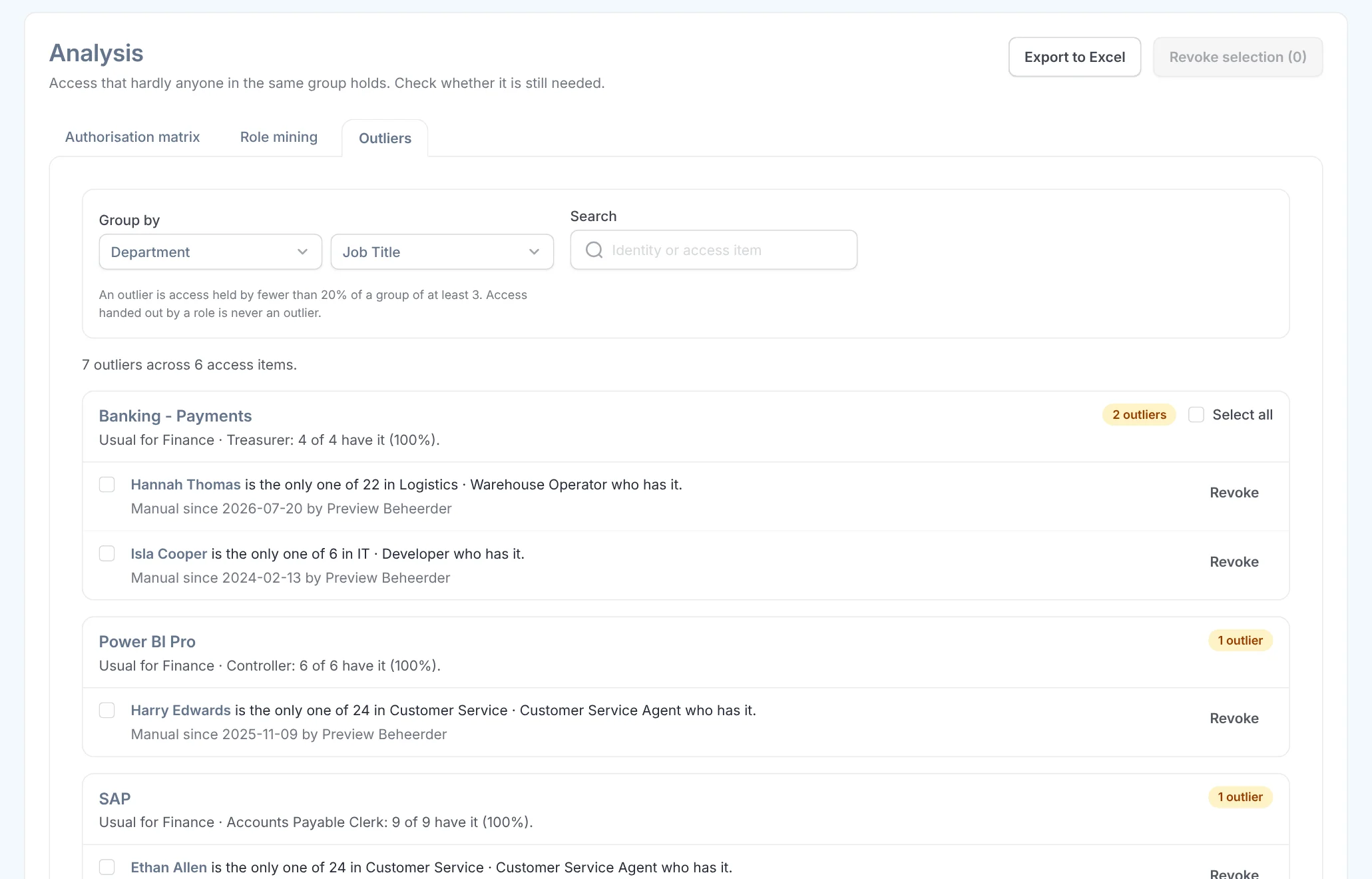
For what has already accumulated, Joinly shows under Deviations the access that almost nobody in the same group has, with who has it, since when and who granted it. After a confirmation you remove it.

Afwijkingen in Joinly: toegang die bijna niemand in dezelfde groep heeft, met bron, datum en wie het toekendeSee roles and RBAC in Joinly

What you can count on

  • No vendor lock-inYour identities and your configuration stay yours.
  • Your data out whenever you wantYou can export your data at any time.
  • Standard SLAOur standard SLA is available on request.
  • Support during implementationOur specialists set it up together with you.
  • ISO 27001 certifiedInformation security to an internationally recognised standard.

Privilege creep on job change

Frequently asked questions

  • What is privilege creep?

    The build-up of access over an employee's career: on every job change access is added, and the access of the previous role stays. After a few moves, someone has more rights than their current role needs.

  • When do you remove the old access after a job change?

    On a fixed date after the move. The new access starts on the day of the move, the old access stays for an agreed transition period for the handover and is removed after that. Record that date at the moment of the move.

  • How do I see which groups an employee has in Entra ID?

    In the Entra admin centre on the user under Groups, or with Microsoft Graph PowerShell: Get-MgUserMemberOf -UserId <user> -All. For on-premises Active Directory you use Get-ADPrincipalGroupMembership.

  • What is least privilege?

    The principle that everyone has exactly the access their current work needs, and no more. On a job change that means: add the access of the new role and remove that of the old one.

  • Do dynamic groups solve privilege creep?

    For the groups you make dynamic, yes: if the department or job title in the profile changes, someone leaves the group automatically. It only works if those attributes are correct, it needs Microsoft Entra ID P1, and it does not cover rights that sit in applications themselves or in on-premises AD.

Let accounts move along by themselves

Joiners, movers and leavers from HR, with every step in the audit log. Start with demo data in the free trial environment.

No credit card, nothing to install.

Rather talk to someone first? Talk to an IAM specialist