
Joinly by KoppelHet

Entra ID and Active Directory

Temporary Access Pass: a safe start for new employees without a password on a sticky note

The laptop is ready, but how does a new colleague sign in safely when MFA has not been set up yet? Emailing a password to the manager is not ideal. Microsoft Entra ID has the Temporary Access Pass for this: a temporary code that lets someone set up a secure sign-in method themselves.

Letting a new colleague sign in safely without a shared password

The first working day should above all go smoothly. A Temporary Access Pass makes it possible to start safely without IT having to send round a temporary password.

A new employee has a problem on their first day: to register MFA they have to sign in, and to sign in they need a password someone has given them. That password often goes by email to the manager or on a note with the laptop. A Temporary Access Pass (TAP) solves this differently. It is a time-limited code that Entra ID counts as a strong sign-in. The employee signs in with it and immediately registers their own methods: Microsoft Authenticator, a passkey, Windows Hello for Business.

A TAP does not replace the password. If the user has one, they can still sign in with it as well. But if you want to start passwordless, there never has to be a password. With a federated domain the TAP takes precedence: the user signs in to Entra ID and is not redirected to the external identity provider.

There are two moments when you use it: the first working day, and recovery, when someone has lost their phone or security key. How to set up the rest of the first day is covered in IAM and onboarding. What MFA is exactly is explained in what is multi-factor authentication.
First decide who may use a temporary access code

You want this method to be available to new employees, but with clear limits.

You can create a TAP for anyone, but only users who are in the policy can actually sign in with it. So enable the policy first.

  1. Sign in to the Microsoft Entra admin center as at least Authentication Policy Administrator.
  2. Go to Entra ID, Authentication methods, Policies and choose Temporary Access Pass.
  3. Switch on Enable and choose which users or groups are included. Start with a group for new employees and one for IT, and widen it once it works.
  4. Choose Configure to set the lifetime, the length and one-time use (see below), and click Update.
  5. Click Save.
The policy settings and their limits
SettingDefaultAllowedWhat it does
Minimum lifetime1 hour10 to 43,200 minutes (30 days)A TAP cannot be valid for less than this.
Maximum lifetime8 hours10 to 43,200 minutes (30 days)A TAP cannot be valid for longer than this.
Default lifetime1 hour10 to 43,200 minutes (30 days)The validity if you choose nothing when creating it.
One-time useOffOn or offOn: every TAP in the tenant is single-use. Off: you choose per TAP.
Length8 characters8 to 48 charactersThe length of the code.

Creating a temporary access code

Once the policy is set correctly, an administrator can issue a TAP for an employee.

An Authentication Administrator can create a TAP for ordinary users, a Privileged Authentication Administrator for administrators too. Neither can do it for themselves. A Global Reader can see that a TAP exists, but not the code.

  1. Go to Entra ID, Users and choose the user.
  2. Choose Authentication methods, Add authentication method and then Temporary Access Pass.
  3. Set a start time or a duration and click Add.
  4. Write down the code. After OK you will not see it again.
A single-use TAP that starts at 08:00 on the first working day and is valid for 10 hours
Connect-MgGraph -Scopes "UserAuthenticationMethod.ReadWrite.All"

$tap = @{
  startDateTime     = "2026-12-01T08:00:00+01:00"
  lifetimeInMinutes = 600
  isUsableOnce      = $true
}
$resultaat = New-MgUserAuthenticationTemporaryAccessPassMethod -UserId "sanne.bakker@bedrijf.nl" -BodyParameter $tap
$resultaat.TemporaryAccessPass

# Check that it is there (you no longer see the code itself here)
Get-MgUserAuthenticationTemporaryAccessPassMethod -UserId "sanne.bakker@bedrijf.nl" |
  Select-Object StartDateTime, LifetimeInMinutes, IsUsableOnce, IsUsable, MethodUsabilityReason
The same through Microsoft Graph
POST https://graph.microsoft.com/v1.0/users/sanne.bakker@bedrijf.nl/authentication/temporaryAccessPassMethods
Content-Type: application/json

{
  "startDateTime": "2026-12-01T08:00:00+01:00",
  "lifetimeInMinutes": 600,
  "isUsableOnce": true
}

The lifetime must fall within the policy's minimum and maximum, otherwise Entra ID rejects the TAP. A user can only have one at a time: if you create a new one, it replaces the old one. You remove an expired TAP with Remove-MgUserAuthenticationTemporaryAccessPassMethod.

What the employee does on the first working day

The aim is for someone to set up their own secure sign-in method straight away. After that the temporary code is no longer needed.

The employee goes to mysignins.microsoft.com/security-info, enters their username and, if they are in the policy, gets a field for the TAP. They then register their methods. There are three common routes:

  • Microsoft Authenticator. Add a work or school account in the app and sign in with the TAP. From the app they register a passkey and phone sign-in.
  • A new Windows laptop. While joining it to Entra ID (Entra join) they sign in with the TAP, without a password, and set up Windows Hello for Business. On a laptop that is already joined, or hybrid joined, they first have to sign in with another method, such as a password.
  • A security key (FIDO2). Sign in to Security info with the TAP and add the key.

If the user also falls under the self-service password reset registration policy or the Entra ID Protection MFA registration policy, Entra ID sends them to the mandatory registration screen after signing in with the TAP. According to Microsoft, they cannot register a FIDO2 key or phone sign-in there. If you want to start passwordless, take new employees out of those policies or have them register through the Authenticator app.

Tokens from a sign-in with the TAP are valid at most until the TAP expires. A session that is already running does not stop when the TAP expires; how long it lasts is decided by your Conditional Access settings. If you want someone to sign in again soon after the TAP with their own method, set a sign-in frequency.

Getting the code safely to the right person

A secure code does little good if you send it through an insecure or wrong channel.

A TAP is a strong sign-in: whoever has the code can take over the account until it expires. So treat it as you would a password, or more strictly. The obvious route does not work: a new employee cannot open their work mailbox yet, because that is exactly what they need the TAP for.

RouteWhat you need to know
In person, on the first dayThe safest: IT or the manager hands over the code when the employee is there, and they register on the spot. It does take someone who sits down for it at that moment.
Through the managerMicrosoft does this itself in Lifecycle Workflows: the task creates a TAP with the start date as its start time and emails it to the manager. Requires Entra ID Governance, and a manager who is present on the first day.
To the personal email addressWorks if HR has a personal address that is correct. Use a single-use TAP with a short validity that only starts on the first day, so an intercepted code is worth little.
In the email to the IT departmentAvoid this. The code then sits in a shared mailbox and in the sent items of whoever forwards it.

A TAP for a lost phone, and the error messages

If someone loses their phone, they can no longer complete MFA and so cannot register a new phone themselves either. A TAP solves that without switching MFA off:

  1. Check who is calling. Issuing a TAP to the wrong person is exactly the attack you want to prevent. Have the manager confirm, for example.
  2. Remove the old Authenticator registration, so the lost phone can no longer give approvals: Remove-MgUserAuthenticationMicrosoftAuthenticatorMethod.
  3. Create a single-use TAP with a short validity and pass it on through a route that does not go through that phone.
  4. The employee signs in with the TAP and registers their new phone or passkey. Then check that no old methods have been left behind.
Error messages and what to check
What the user seesWhat you check
No field for the TAP appearsIs the user in the TAP policy? Do they have a valid TAP that has already started? Has a single-use TAP already been used? Just created: wait a few minutes, changes take time.
Temporary Access Pass sign in was blocked due to User Credential PolicyIs the user in the policy? Does the policy require one-time use while this TAP is multi-use? Has a single-use TAP already been used?
Temporary Access Pass cannot be added to an external guest userThe account is an external guest. A TAP is only possible for members and internal guests.
Registering a passkey or Windows Hello no longer worksWas the single-use TAP used more than 10 minutes ago? Issue a new one.

A TAP does not work with the NPS extension or the AD FS adapter. If you use those for VPN or older applications, a TAP will not help there.

Joinly

A good first working day starts before the first sign-in

A Temporary Access Pass solves the sign-in problem, but someone still has to create that code at the right moment and hand it over safely. Especially with many new employees, that is a recurring task.

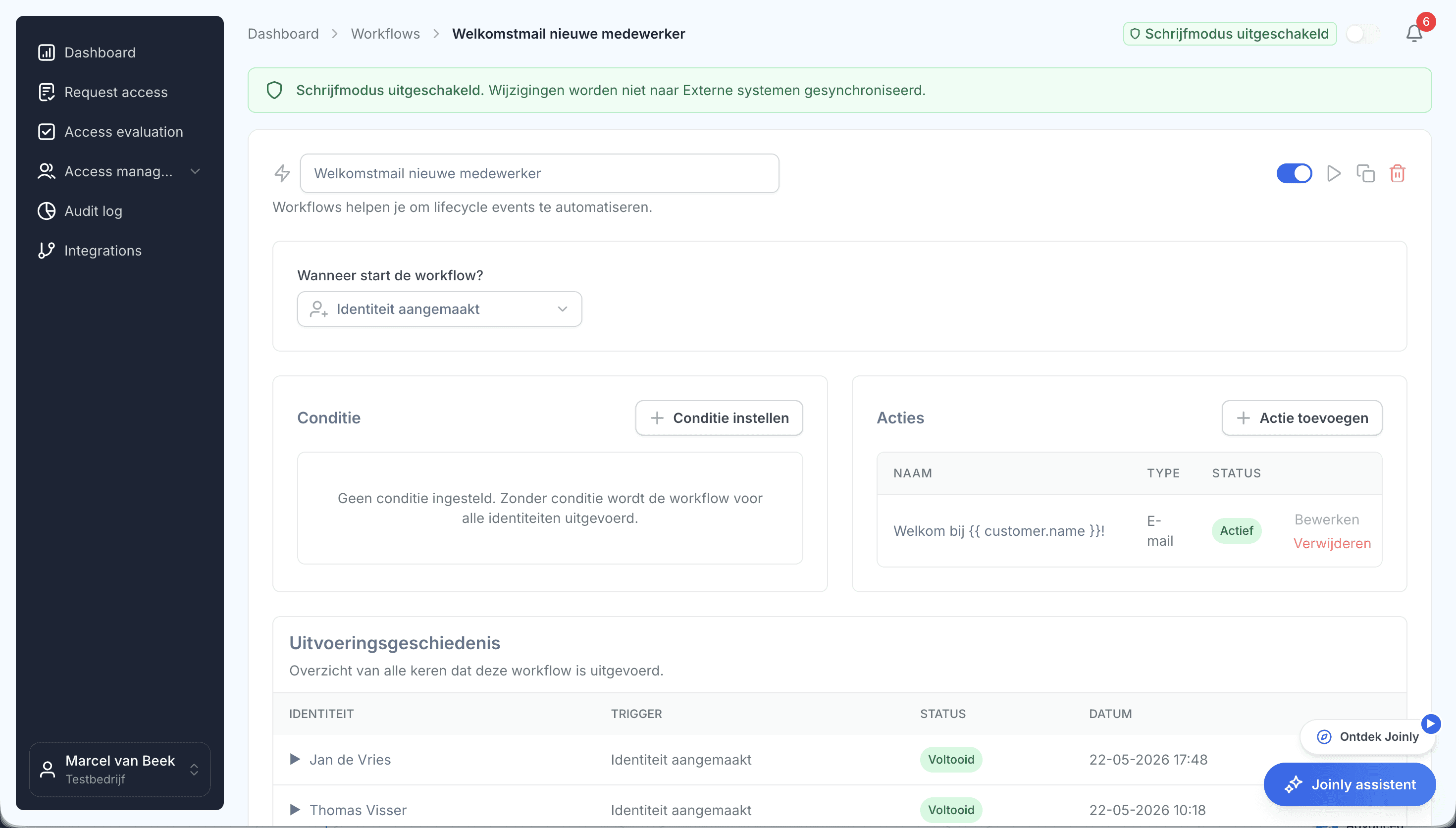
With Joinly you can use the start date from HR to run an onboarding workflow. In it you can line up the account, the access needed and the issuing of a Temporary Access Pass.

Een workflow in Joinly met triggers, condities en actiesSee workflows in Joinly

What you can count on

  • No vendor lock-inYour identities and your configuration stay yours.
  • Your data out whenever you wantYou can export your data at any time.
  • Standard SLAOur standard SLA is available on request.
  • Support during implementationOur specialists set it up together with you.
  • ISO 27001 certifiedInformation security to an internationally recognised standard.

Temporary Access Pass

Frequently asked questions

  • How long is a Temporary Access Pass valid?

    As long as you set, between 10 minutes and 30 days (43,200 minutes), within the policy's minimum and maximum. By default the minimum is 1 hour, the maximum 8 hours and the default lifetime 1 hour.

  • Can a Temporary Access Pass be used more than once?

    Yes, unless you make it single-use or the policy requires one-time use. By default one-time use is off in the policy. With a single-use TAP, a passwordless method has to be registered within 10 minutes of signing in.

  • What does "Temporary Access Pass sign in was blocked due to User Credential Policy" mean?

    That the TAP may not be used. Usually the user is not in the TAP policy, a single-use TAP has already been used, or the policy requires one-time use while this TAP is multi-use.

  • Who can create a Temporary Access Pass?

    An Authentication Administrator for ordinary users, and a Privileged Authentication Administrator for administrators too, not for themselves. Enabling the policy is done by an Authentication Policy Administrator.

  • Does a TAP replace the password?

    No. If the user has a password, it keeps working. A TAP is a temporary way to sign in and register MFA, a passkey or Windows Hello for Business yourself.

Try Joinly on top of your own Microsoft environment

Roles, workflows, external staff and an audit log for Entra ID and Active Directory. Start with demo data in the free trial environment.

No credit card, nothing to install.

Rather talk to someone first? Talk to an IAM specialist