Joinly by KoppelHet

Entra ID and Active Directory

Group-based licensing: fewer clicks, more overview

Giving every new employee a Microsoft 365 licence by hand? There is a smarter way. With group-based licensing, Microsoft handles the assignment based on group membership. But then everyone does have to be in the right group. Here you can read how it works and what to watch out for.

Handling a licence through a group: how group-based licensing works

Instead of giving every new employee a licence separately, you can tie it to group membership. That saves manual work, as long as the right people end up in the right group.

Without groups you assign a licence per user: in the Microsoft 365 admin center, with PowerShell or through a script. That is called a direct assignment. With group-based licensing you assign the licence to a group once. Entra ID then works out for itself who is a member and gives those people the licence. That is called an inherited assignment: the user has the licence because they are in the group.

If someone joins the group, they get the licence. If they leave it, they lose it, unless they also have the same licence through another group or directly. You can attach a licence to a security group, a mail-enabled security group or a Microsoft 365 group, and the group can come from your own Active Directory or be dynamic. How those groups differ is covered in the difference between security groups and Microsoft 365 groups.

You can also turn off service plans per group. A group "Office" then gets Microsoft 365 E3 without, for example, Sway or Viva Engage, while the licence itself stays the same. That applies to everyone who gets the licence through that group.

Direct or through a group
Direct assignmentThrough a group
Who decidesAn administrator, per userMembership of the group
Licence requirementNo extra licenceEntra ID P1 or higher for every user who benefits from it
On departure or transferSomeone has to remove itFollows the membership
Turning off service plansPer userPer group, for everyone at once
Where it goes wrongForgetting to remove itWrong membership and silent errors

What needs to be in place before you start

The principle is simple, but a few conditions decide whether the assignment actually succeeds.

  • Entra ID P1 or higher for every user who gets a licence through a group. P1 is also included in Microsoft 365 E3, E5 and Business Premium, so many organisations already have it.
  • Enough licences for all members. You do not have to assign them per person, but you do need enough of them. If the pool is empty, the last members get an error instead of a licence.
  • An administrator role that may assign licences: Groups Administrator, License Administrator or User Administrator.
  • A usage location on every user. If it is missing, group-based licensing uses the tenant's country. If that country is wrong for an employee abroad, a licence or a service plan may not be allowed there.

How to set it up

  1. Create one group per licence combination, with a name that says what it does: LIC-M365-E3-Kantoor, LIC-M365-F3-Werkvloer. A licence group that is also used for permissions on a folder becomes unmanageable within a year.
  2. Open the group in the Microsoft 365 admin center, or go to the group in the Entra admin center and choose Licenses. Choose the product and, under "Apps and services", turn off what this group does not need.
  3. Add the members, or make it a dynamic group based on an attribute such as department or job title. How to write that rule is covered in dynamic groups based on HR attributes.
  4. After processing, check whether the group has members with errors (see below). For a large group this can take a while; Microsoft gives no fixed time, it depends on the size of the tenant and how busy it is.
Attaching a licence to a group with Microsoft Graph PowerShell, without Sway and Viva Engage
Connect-MgGraph -Scopes "Group.ReadWrite.All","Directory.Read.All"

$sku   = Get-MgSubscribedSku | Where-Object SkuPartNumber -eq "SPE_E3"
$uit   = $sku.ServicePlans | Where-Object ServicePlanName -in "SWAY","YAMMER_ENTERPRISE"
$groep = Get-MgGroup -Filter "displayName eq 'LIC-M365-E3-Kantoor'"

Set-MgGroupLicense -GroupId $groep.Id `
  -AddLicenses @(@{ SkuId = $sku.SkuId; DisabledPlans = $uit.ServicePlanId }) `
  -RemoveLicenses @()

When someone still does not get a licence

Automatic does not mean error-free. Fortunately the messages usually tell you where to look.

A licence that cannot be assigned through a group sends no message to your mailbox. It stays on the user as an error, and that user misses the licence. In the admin center you see it on the group as a warning; in Microsoft Graph it is in the user's licenseAssignmentStates. These are the errors you will come across:

ErrorWhat is going onWhat you do
CountViolationThere are not enough licences for all members.Buy more licences, or remove people from the group who do not need it. Look first at disabled accounts that are still members.
MutuallyExclusiveViolationA service plan in this licence conflicts with a plan the user already has through another licence.Turn off the conflicting plan in one of the two assignments, or remove the duplicate licence.
DependencyViolationA licence or plan cannot be removed because another licence depends on it. Or an add-on was assigned without its base licence.Assign the base licence in the same group, or remove the dependent licence first.
ProhibitedInUsageLocationViolationThe licence or a plan is not available in the user's country.Set the correct usage location on the user, or turn off the plan for this group.
UniquenessViolationTwo users have the same proxy address, and Exchange Online cannot create the mailbox.Find the duplicate address and remove it from one of the two.
OtherSomething else, often temporary.Have the user processed again (Reprocess). If it persists, open a ticket with Microsoft.
All groups with licence errors, and per user which error
Get-MgGroup -Filter "hasMembersWithLicenseErrors eq true" -All |
  Select-Object Id, DisplayName

Get-MgUser -UserId "jan.jansen@bedrijf.nl" -Property LicenseAssignmentStates |
  Select-Object -ExpandProperty LicenseAssignmentStates |
  Where-Object State -eq "Error" |
  Select-Object SkuId, Error, AssignedByGroup

From direct assignment to groups, without interruption

If someone has the same licence directly and through a group, they use one of them. That makes the switch safe: you first add people to the group, check that the licence has arrived through the group, and only then remove the direct assignment. The same order applies when someone moves from one licence group to another: first add them to the new one, then remove them from the old one. Do it the other way round and someone loses their mailbox for a while.

  1. Create the licence groups and add the people who currently have the licence directly.
  2. Wait until processing is complete and check per user that the licence also arrives through the group (AssignedByGroup is filled).
  3. Remove the direct assignment, in small batches, and check that no errors appear.
  4. Agree that no new direct assignments are added. Otherwise in a year you will have two systems side by side again.

Groups distribute licences, but do not decide the right role on their own

The real question often sits one step earlier: who belongs in which group, and who keeps that up to date when someone changes role?

Group-based licensing handles the assignment. It does not handle who belongs in the group. With a manual group that is an administrator who has to remember it, and with a dynamic group it is a field such as department or job title that someone has to fill in correctly and keep up to date. A leaver who is still a member keeps their licence. A new employee with an empty department field gets none.

On top of that, a licence group only handles a licence. The account itself, the other groups, the shared mailbox and the applications that go with the same role are handled separately. How to make those move together is covered in setting up Entra ID groups for role-based access.

Joinly

The right group starts with the right role

Group-based licensing saves admin work, as long as group membership stays up to date. That is often the weak spot: HR knows someone is changing team, but IT still has to process it.

Joinly connects those two worlds. Based on the job title, department or location from HR, Joinly can add someone to the right groups and remove old group memberships. Microsoft then takes care of the licence assignment. Prefer to assign licences directly? That is possible from roles in Joinly too.

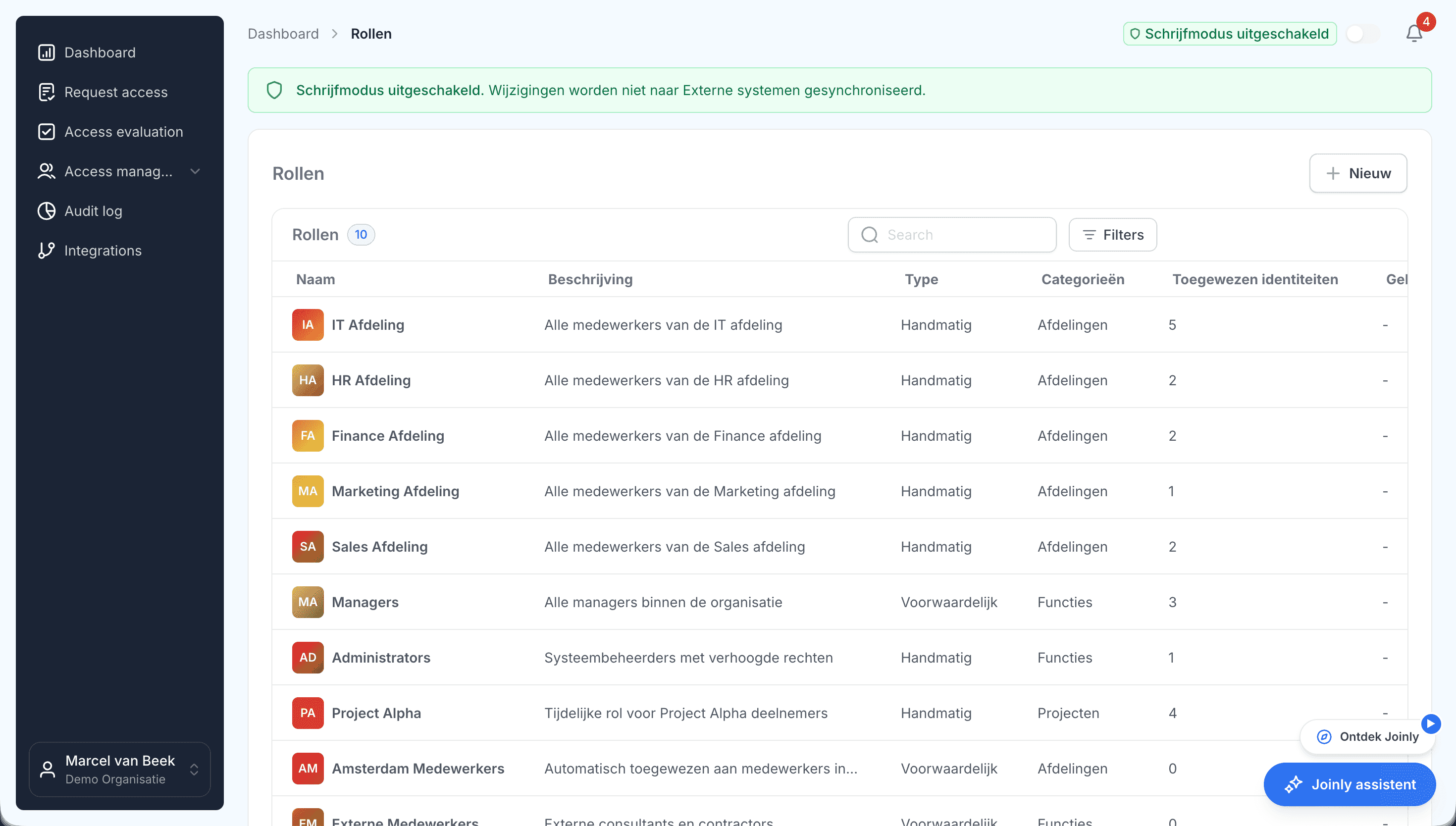
Voorwaardelijke rollen in Joinly die de functie van een medewerker volgenMore about roles and permissions

What you can count on

  • No vendor lock-inYour identities and your configuration stay yours.
  • Your data out whenever you wantYou can export your data at any time.
  • Standard SLAOur standard SLA is available on request.
  • Support during implementationOur specialists set it up together with you.
  • ISO 27001 certifiedInformation security to an internationally recognised standard.

Group-based licensing

Frequently asked questions

  • Which licence do I need for group-based licensing?

    Microsoft Entra ID P1 or higher, for every user who gets a licence through it. P1 is also included in Microsoft 365 E3, E5 and Business Premium.

  • Do nested groups work with group-based licensing?

    No. Only the direct members of the group the licence is attached to get it. People in a group that is itself a member of that group get nothing.

  • What happens when someone leaves the licence group?

    They lose the licence, unless they also have the same licence through another group or directly. If someone moves to another licence group, add them to the new group first and only then remove them from the old one.

  • What does CountViolation mean?

    That there are not enough licences for all members of the group. The last members then get an error instead of a licence. Buy more licences, or remove disabled accounts and people who do not need it from the group.

  • Can I turn off parts of a licence per group?

    Yes. When assigning to the group you turn each service plan on or off for what the members get, for example E3 without Sway. That then applies to everyone who gets the licence through that group.

Try Joinly on top of your own Microsoft environment

Roles, workflows, external staff and an audit log for Entra ID and Active Directory. Start with demo data in the free trial environment.

No credit card, nothing to install.

Rather talk to someone first? Talk to an IAM specialist