Joinly by KoppelHet

User provisioning and lifecycle

Long-term leave or suspension: access temporarily closed, without offboarding

Someone goes on leave for six months, or is suspended with immediate effect. The account may then need to be closed, but the employee is coming back. Block sign-in and revoke the sessions, leave the licence and the mailbox in place, and record who decides and when the account opens again.

Decide per situation whether access should be closed

Long-term leave and suspension look alike, because someone is away for a while. For IT they are two different questions. With leave it is about tidiness and risk: an account that is not used for months goes unnoticed if it is misused. With a suspension it is about trust, and then access often has to be closed within the hour.

There is no rule that fits every organisation. What does help is agreeing in advance what happens in each situation, so IT does not have to ask what is intended every time a request comes in.

A starting point for your own agreements
SituationUsual choiceWhat to watch for
Pregnancy and maternity leaveAccess often stays open, or is closed at the employee's requestMany people want to check their mail or the intranet now and then. Agree it with the employee herself.
Parental leaveAccess stays openOften taken part-time: the employee simply works part of the week.
Long-term illnessOpen, or closed after an agreed periodDuring reintegration people often work part of the time again. A block must then be quick and painless to lift.
Sabbatical or unpaid leaveClosed for the duration of the leaveThere is a known start and end date, so you can schedule the return straight away.
SuspensionClosed immediatelyConfidential and urgent. Also the systems outside Microsoft 365 and shared passwords the employee knows.

Record who decides and who carries it out

IT is rarely the first to know that someone is going on leave, and would rather only hear about a suspension at the moment access has to be closed. That is why the decision lies with HR or the manager. IT carries it out, and both steps can be traced.

QuestionWhoWhat you record
Is access being closed?HR, for leave in consultation with the manager and the employeeThe decision, the date and the expected return date
Is it a suspension?HR or management, possibly with a lawyerOnly that access must be closed immediately, not why
Who may access mail and files in the meantime?The manager, with HRWho, until when, and for what
When does it open again?HRThe date, and whether anything has changed in role or department

For a suspension, a fixed agreement on the channel helps: one person at HR may make the request, and IT confirms back when access has been closed. That way nobody can lock a colleague out with an email in HR's name, and the reason does not have to go through the service desk.

Blocking sign-in, and the sessions that are already running

Temporarily closed means: the account stays as it is, with everything attached to it, but nobody can sign in with it. In Microsoft Entra ID you do this in two steps, and Microsoft describes them in this order.

  1. In the Microsoft Entra admin center, go to Entra ID, Users, All users and select the user. You need at least the User Administrator role, or Privileged Authentication Administrator if the user is an administrator.
  2. Under Account status, select Edit, clear Account enabled and save. New sign-ins no longer succeed.
  3. On the user's overview page, select Revoke sessions. This invalidates the refresh tokens, so a laptop or phone that is already signed in is also logged out.
  4. If the account comes from on-premises Active Directory, disable it there as well. For hybrid environments Microsoft describes Disable-ADAccount in AD.
The same with Microsoft Graph PowerShell, and in on-premises AD
Connect-MgGraph -Scopes "User.ReadWrite.All","Directory.AccessAsUser.All"

$user = Get-MgUser -UserId "sanne.bakker@bedrijf.nl"
Update-MgUser -UserId $user.Id -AccountEnabled:$false
Revoke-MgUserSignInSession -UserId $user.Id

# Hybrid: also in on-premises Active Directory
Disable-ADAccount -Identity sbakker

Exchange Online, SharePoint Online and Teams respond to a disabled account within minutes through Continuous Access Evaluation; Microsoft mentions up to 15 minutes. Other apps keep your access token until it expires, by default after one hour. An application with its own session decides entirely by itself when someone has to go back to Entra ID.

For ordinary leave you do not need to reset the password. Then everything the employee had works again as soon as the account is enabled, and that is exactly the intention.

The licence and the mailbox stay in place

A licence that goes unused for months looks like money you can recover. For temporary leave that is an expensive saving. If you remove the licence, Microsoft keeps the Exchange Online data for 30 days and then it is gone, unless a retention policy holds it. Without a licence the mailbox can also no longer be searched with eDiscovery. OneDrive stays as long as the user is not deleted.

What you do with licence, mailbox and files
ItemDuring leaveDuring suspension
LicenceLeave it in placeLeave it in place
Groups and rolesLeave them in place, so everything is right on returnLeave them in place; the blocked account cannot use them
Automatic replyWith the return date and a replacementNeutral, without a reason and without a date
Mail and filesA colleague or the manager gets access if the work requires itOnly on HR's decision
Calendar and existing meetingsThe employee cancels them before leaving, or the manager doesA colleague takes over meetings with customers

As an administrator you can set the automatic reply for someone else, with a start and end time. After the end time it stops by itself.

An automatic reply for the duration of the leave, in Exchange Online PowerShell
Set-MailboxAutoReplyConfiguration -Identity sanne.bakker@bedrijf.nl `
  -AutoReplyState Scheduled `
  -StartTime "01-12-2026 08:00" -EndTime "01-06-2027 08:00" `
  -InternalMessage "I am on leave until 1 June. For questions, please contact Mark de Vries." `
  -ExternalMessage "I am away until 1 June. For questions, please contact Mark de Vries, mark.devries@bedrijf.nl." `
  -ExternalAudience All

You enter the dates in the short date format of the computer you run the command on; here that is the Dutch format. For a suspension, keep the text neutral, for example "I am not available. For questions, please contact ...", without an end date.

On the first working day after the leave, everything works again

The return is the moment that goes wrong most often. Nobody scheduled it, the employee is sitting in front of a laptop that will not open on Monday morning, and the service desk has to work out why the account is closed. So schedule the re-enabling at the moment you disable it.

  1. Enable the account again on the working day before the return. Microsoft states that it takes a while after enabling before services see it: SharePoint Online and Teams typically 15 minutes, Exchange Online typically 35 to 40 minutes.
  2. Enable it in on-premises AD as well if it was disabled there.
  3. Check whether anything changed in role, department or manager during the leave. A reorganisation during someone's leave is exactly when permissions get left behind; see privilege creep on a job change.
  4. If the password was reset or the employee has a new phone, arrange a secure first sign-in with a Temporary Access Pass.
  5. Remove colleagues' temporary access to the mailbox and files again.
Enabling again
Update-MgUser -UserId "sanne.bakker@bedrijf.nl" -AccountEnabled:$true

# Hybrid: also in on-premises Active Directory
Enable-ADAccount -Identity sbakker

Let the HR status set the moment

Most HR systems already record leave: as an absence with a start and end date, or as a status on the employment. That is the most reliable trigger you have, because HR records it anyway for payroll. An email to the service desk easily gets lost.

  • Agree which field counts. Not every absence is a reason to block. Choose one leave type or status that means: access closed.
  • Use the end date too. The same source that starts the block can schedule the return. An open end date means: the account only opens again once HR enters a date.
  • Watch for backdated entries. HR sometimes registers leave only afterwards. A block that starts on a date in the past must then still be carried out immediately.
  • Keep suspension separate. A suspension is often not in the HR system, or only later. For that you need a manual route that is just as fast, and recorded just as well.

How HR data works as the source for accounts in general is covered in HR as the source of truth and in which HR fields you need.

Joinly

Leave and suspension in the same lifecycle

Long-term leave and suspension are exceptions, and exceptions are exactly what goes wrong by hand: the block comes too late, or nobody enables the account again.

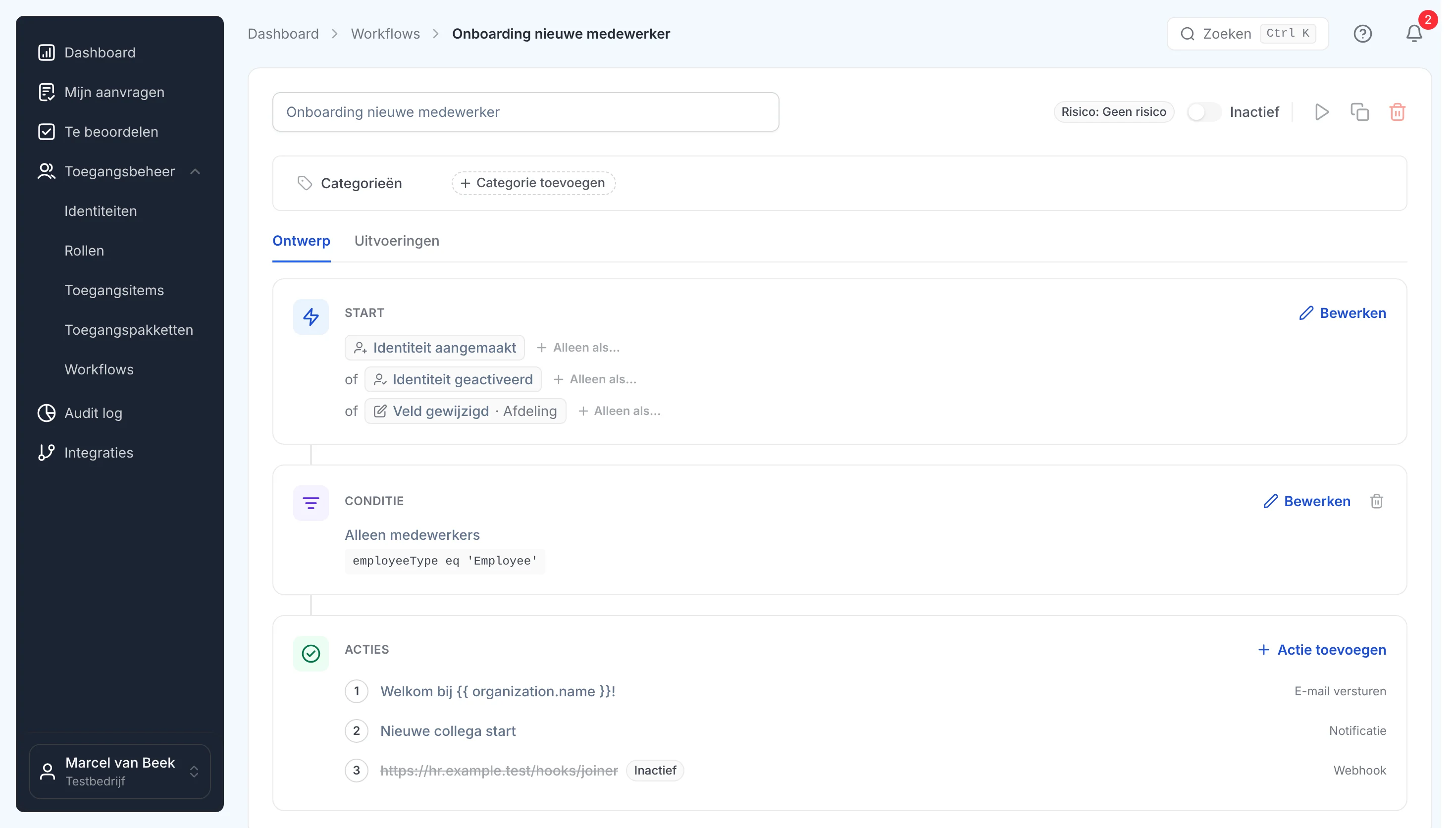
In Joinly your HR system is the source. A workflow can start on Field changed, with a condition on the field in which your HR system records leave or the status of the employment. You put the actions in order yourself: disabling the account, revoking sessions, the out-of-office referring to the manager, a ticket for the service desk or a task that waits for approval. You build the workflow for the return in the same way.

With conditions you filter on department, job title, location or any other field, and the preview shows in advance which people match. If part of your environment still runs on on-premises Active Directory, the Joinly Agent does the same there. If a step fails, Joinly retries it and a failing workflow appears on the dashboard, so a block or a return does not quietly get stuck.

If a suspension cannot wait, the emergency block closes the account immediately: sessions revoked and MFA reset. Every step is in the audit log, with time, system and who performed it, so you can later show when access was closed and when it opened again.

Een workflow in Joinly met triggers, condities en actiesSee workflows in Joinly

What you can count on

  • No vendor lock-inYour identities and your configuration stay yours.
  • Your data out whenever you wantYou can export your data at any time.
  • Standard SLAOur standard SLA is available on request.
  • Support during implementationOur specialists set it up together with you.
  • ISO 27001 certifiedInformation security to an internationally recognised standard.

Long-term leave and suspension

Frequently asked questions

  • Should you block an account during maternity leave?

    There is no fixed rule; it is an agreement within your organisation. Many organisations leave access open, or close it at the employee's request. If you do block it, leave the licence and the mailbox in place, so everything works again when she returns.

  • Can you remove the Microsoft 365 licence during long-term leave?

    Better not. Without a licence Microsoft keeps the Exchange Online data for 30 days; after that it is gone, unless a retention policy holds it. During leave, block sign-in and leave the licence in place.

  • What is the difference between blocking sign-in and deleting an account?

    A blocked account still exists, with its mailbox, OneDrive, groups and licence, but nobody can sign in with it. A deleted account is gone and belongs to a departure. For leave and suspension, you block.

  • How quickly does an account work again after you enable it?

    According to Microsoft, SharePoint Online and Teams typically see it after 15 minutes, and Exchange Online after 35 to 40 minutes. So enable the account again on the working day before the return.

  • How do you block access during a suspension?

    Disable the account in Entra ID and in on-premises AD, and revoke the sessions. Also think of applications with their own password, VPN, the access badge and shared passwords the employee knows. The decision comes from HR, and IT confirms when access has been closed.

Let accounts move along by themselves

Joiners, movers and leavers from HR, with every step in the audit log. Start with demo data in the free trial environment.

No credit card, nothing to install.

Rather talk to someone first? Talk to an IAM specialist