Joinly by KoppelHet

Entra ID and Active Directory

Offboarding in Entra ID: make sure former employees do not keep access

An employee has left and the account is set to blocked. Done? Not quite. Existing sessions, permissions on shared mailboxes and access to other applications need attention too. With this checklist you make offboarding in Microsoft Entra ID complete and make sure important steps are not forgotten.

Blocking an account is only the first step

You have disabled the account of a colleague who left. That stops new sign-ins, but existing sessions and permissions still need attention during offboarding in Entra ID.

In the Microsoft Entra admin center you switch off Account enabled for a leaver, or in the Microsoft 365 admin center Block sign-in. From that moment they get no new tokens. That is the most important part, but it is not everything, because anyone who was already signed in has tokens that stay valid for a while. This article covers the Entra technical side of a departure. The wider process, with HR and the manager, is on offboarding and in automatic deprovisioning.

An app that works with Entra ID gets an access token for access and a refresh token to fetch a new access token later. An access token is valid for one hour by default. Once the account is disabled, refreshing no longer works, but the access token the app already has works until it expires. Apps in the browser often use their own session cookie. That app decides for itself when the user has to go back to Entra ID, and Entra ID cannot revoke that session on the app's behalf.

What still works after disabling
Type of accessAfter disabling onlyAfter disabling and revoking sessions
New sign-inBlockedBlocked
Access token the app already hasWorks until it expires, one hour by defaultWorks until it expires, except in apps that support CAE
Refresh tokenRefreshing no longer worksInvalidated
Entra ID session cookie in the browserValid until the next checkInvalidated
An app's own sessionUntil the app sends the user back to Entra IDSame; the app has to sign out itself or the account has to be removed in the app

Ending existing sign-ins as well

Think of Outlook on a phone that is still signed in. Revoking sessions is an important extra step in shutting off access.

Revoke sessions invalidates all of the user's refresh tokens, and the session cookies in their browser as well. Technically it sets the property signInSessionsValidFromDateTime to now: anything issued before that no longer counts. Every app that wants a new token has to make the user sign in again, and with a disabled account that fails.

  • In the admin center: Entra ID, Users, choose the user and click Revoke sessions on the overview page.
  • In PowerShell: Revoke-MgUserSignInSession -UserId <id or UPN> from the Microsoft.Graph.Users.Actions module.
  • Through Microsoft Graph: POST /users/{id}/revokeSignInSessions, with the permission User.RevokeSessions.All.

Microsoft notes that revoking can take a few minutes. There are two things it does not do: access tokens already issued stay valid until they expire, except in apps that support Continuous Access Evaluation (see below). And it does not work for guest users, because they sign in at their own organisation.

When does access stop sooner than the token expires?

Some Microsoft services respond faster to a blocked account than other applications. That difference matters if you want to know for certain when access ends.

With Continuous Access Evaluation (CAE), Entra ID talks directly to the service that receives the token. For a number of critical events, Entra ID tells the service that this user's tokens no longer apply, even if they have not expired yet. The client then gets a claim challenge and has to sign in again. Microsoft lists these events:

  • the account has been deleted or disabled;
  • the password has been changed or reset;
  • MFA has been enabled for the user;
  • an administrator has revoked all refresh tokens (revoke sessions);
  • Entra ID Protection detects a high user risk.

This works for Exchange Online, SharePoint Online and Teams, with clients that support it, such as the current versions of Outlook, Teams and OneDrive. It is independent of Conditional Access and so works in every tenant. Microsoft aims for near-instant, but mentions a delay of up to 15 minutes.

What access can still be left after that?

An account is more than a username and password. Think about shared mailboxes, devices and access in other systems as well.

Once the tokens are gone, direct access is closed. But there is more to an account than signing in. This stays in place until someone cleans it up:

WhatWhy it matters
MFA methodsThe Authenticator on a personal phone, a passkey or a phone number stay attached to the account. If the account is later enabled again, for a returner or by mistake, that old phone simply works again.
Forwarding and inbox rulesA rule that forwards mail to a personal address runs on the server. As long as the mailbox exists, it keeps working, even with a disabled account.
Ownership of groups, Teams and app registrationsIf the leaver was the only owner, nobody in that team can add members or change settings any more, until an administrator steps in.
DevicesRegistered devices stay enabled in Entra ID, and the local files on a laptop stay where they are. A wipe through Intune only works when the device comes online.
Consent for appsApps the user consented to themselves keep that consent. With revoked sessions they get no new token, but the consent stays in your tenant.
Accounts in other applicationsAn app with its own user management knows nothing about your disabled Entra account. The account has to be removed there separately, or through provisioning.
Shared accounts and passwordsThe reception login, an admin account, a password vault: whatever the leaver knew, you change, even if their own account is closed.
External staff and contractorsThey are often not in HR, so nobody gets a signal when the assignment ends. See cleaning up guest accounts.

The offboarding checklist: what to do, in which order

A fixed order keeps access from staying open and important data from disappearing too early.

The order matters: first close the door, then get rid of the tokens, then clean up. If you work hybrid, with accounts from Active Directory, start in AD. You disable a synchronised account in AD; the status reaches Entra ID at the next sync, and with the steps in Entra ID you do not have to wait for that. For an ordinary departure you do everything on the last working day; for a departure after a dispute or with a suspicion of misuse you do steps 1 to 4 straight away.

  1. Hybrid: in Active Directory. Disable the account with Disable-ADAccount and reset the password. Microsoft recommends resetting it twice, against pass-the-hash; if you can assume the account has not been taken over, once is enough.
  2. Block sign-in in Entra ID (AccountEnabled set to false).
  3. Revoke sessions with Revoke-MgUserSignInSession.
  4. Disable devices registered to the user, and where needed wipe them through Intune. If it is a personal phone, only wipe the company data from the managed apps.
  5. Remove MFA methods, so that an account reopened later has to register again.
  6. The mailbox: remove forwarding and inbox rules that forward, set an automatic reply with the new contact, and convert the mailbox to a shared mailbox or give the successor permissions. How that works is in shared mailbox permissions.
  7. Transfer ownership of groups, Teams and app registrations the leaver owned, and remove the account from groups and application assignments.
  8. Revoke consent for apps that the user granted themselves.
  9. Free up licences. Mail, contacts and calendar are then kept for 30 days. See removing licences when employees leave.
  10. Delete after the retention period. A deleted account stays among the deleted users for 30 days and can be restored during that time. You delete a synchronised account in AD.
Steps 1 to 4: account closed, tokens gone, devices off
# Hybrid: Active Directory first
Disable-ADAccount -Identity "jan.jansen"
Set-ADAccountPassword -Identity "jan.jansen" -Reset -NewPassword (Read-Host -AsSecureString "Nieuw wachtwoord 1")
Set-ADAccountPassword -Identity "jan.jansen" -Reset -NewPassword (Read-Host -AsSecureString "Nieuw wachtwoord 2")

# Entra ID
Connect-MgGraph -Scopes "User.ReadWrite.All","Directory.AccessAsUser.All"
$user = Get-MgUser -UserId "jan.jansen@bedrijf.nl"

Update-MgUser -UserId $user.Id -AccountEnabled:$false
Revoke-MgUserSignInSession -UserId $user.Id

Get-MgUserRegisteredDevice -UserId $user.Id -All | ForEach-Object {
  Update-MgDevice -DeviceId $_.Id -AccountEnabled:$false
}
Step 5: removing MFA methods
Connect-MgGraph -Scopes "UserAuthenticationMethod.ReadWrite.All"

Get-MgUserAuthenticationMicrosoftAuthenticatorMethod -UserId $user.Id | ForEach-Object {
  Remove-MgUserAuthenticationMicrosoftAuthenticatorMethod -UserId $user.Id -MicrosoftAuthenticatorAuthenticationMethodId $_.Id
}
Get-MgUserAuthenticationFido2Method -UserId $user.Id | ForEach-Object {
  Remove-MgUserAuthenticationFido2Method -UserId $user.Id -Fido2AuthenticationMethodId $_.Id
}
Get-MgUserAuthenticationSoftwareOathMethod -UserId $user.Id | ForEach-Object {
  Remove-MgUserAuthenticationSoftwareOathMethod -UserId $user.Id -SoftwareOathAuthenticationMethodId $_.Id
}
Get-MgUserAuthenticationPhoneMethod -UserId $user.Id | ForEach-Object {
  Remove-MgUserAuthenticationPhoneMethod -UserId $user.Id -PhoneAuthenticationMethodId $_.Id
}
Step 6: forwarding and inbox rules, automatic reply, conversion (Exchange Online PowerShell)
Connect-ExchangeOnline
$mb = "jan.jansen@bedrijf.nl"

Set-Mailbox -Identity $mb -ForwardingSmtpAddress $null -ForwardingAddress $null -DeliverToMailboxAndForward $false

Get-InboxRule -Mailbox $mb -IncludeHidden |
  Where-Object { $_.ForwardTo -or $_.ForwardAsAttachmentTo -or $_.RedirectTo } |
  ForEach-Object { Remove-InboxRule -Mailbox $mb -Identity $_.Identity -Confirm:$false }

Set-MailboxAutoReplyConfiguration -Identity $mb -AutoReplyState Enabled `
  -InternalMessage "Jan werkt hier niet meer. Neem contact op met Petra de Vries." `
  -ExternalMessage "Jan werkt hier niet meer. Neem contact op met Petra de Vries."

Set-Mailbox -Identity $mb -Type Shared
Steps 7 and 8: ownership and consent for apps
# Groups and Teams the leaver owns
Get-MgUserOwnedObject -UserId $user.Id -All |
  Where-Object { $_.AdditionalProperties["@odata.type"] -eq "#microsoft.graph.group" } |
  ForEach-Object { $_.AdditionalProperties["displayName"] }

# Add a new owner
$opvolger = Get-MgUser -UserId "petra.devries@bedrijf.nl"
New-MgGroupOwnerByRef -GroupId "<groep-id>" -BodyParameter @{
  "@odata.id" = "https://graph.microsoft.com/v1.0/users/$($opvolger.Id)"
}

# Consent the user granted to apps themselves
Get-MgUserOauth2PermissionGrant -UserId $user.Id -All | ForEach-Object {
  Remove-MgOauth2PermissionGrant -OAuth2PermissionGrantId $_.Id
}

Why the leave date from HR makes the difference

If IT only hears afterwards that someone has left, the security backlog has started before the first action is taken.

The commands are not the hard part. The hard part is that they have to run on the right day, for everyone who leaves, even if HR passes it on a day late or the administrator who always does it is on holiday. You do not notice a missed step: a forwarding rule that keeps running gives no error message.

Microsoft has Lifecycle Workflows in Microsoft Entra ID Governance for this. A leaver workflow starts on the leave date (employeeLeaveDateTime) and has tasks such as disabling the account, removing it from groups and Teams, removing licences, revoking all refresh tokens and deleting the user after a number of days. That requires a Governance licence, and a leave date that is reliably in Entra ID. Who fills it in, and whether it is correct, is the question that remains. Mailbox rules and accounts outside Microsoft remain a separate step alongside it.

Joinly

Make sure a departure does not depend on a one-off email to IT

Disabling an account is quickly done. The harder part is knowing that someone is leaving, and carrying out every step on time. HR usually knows the end date earlier.

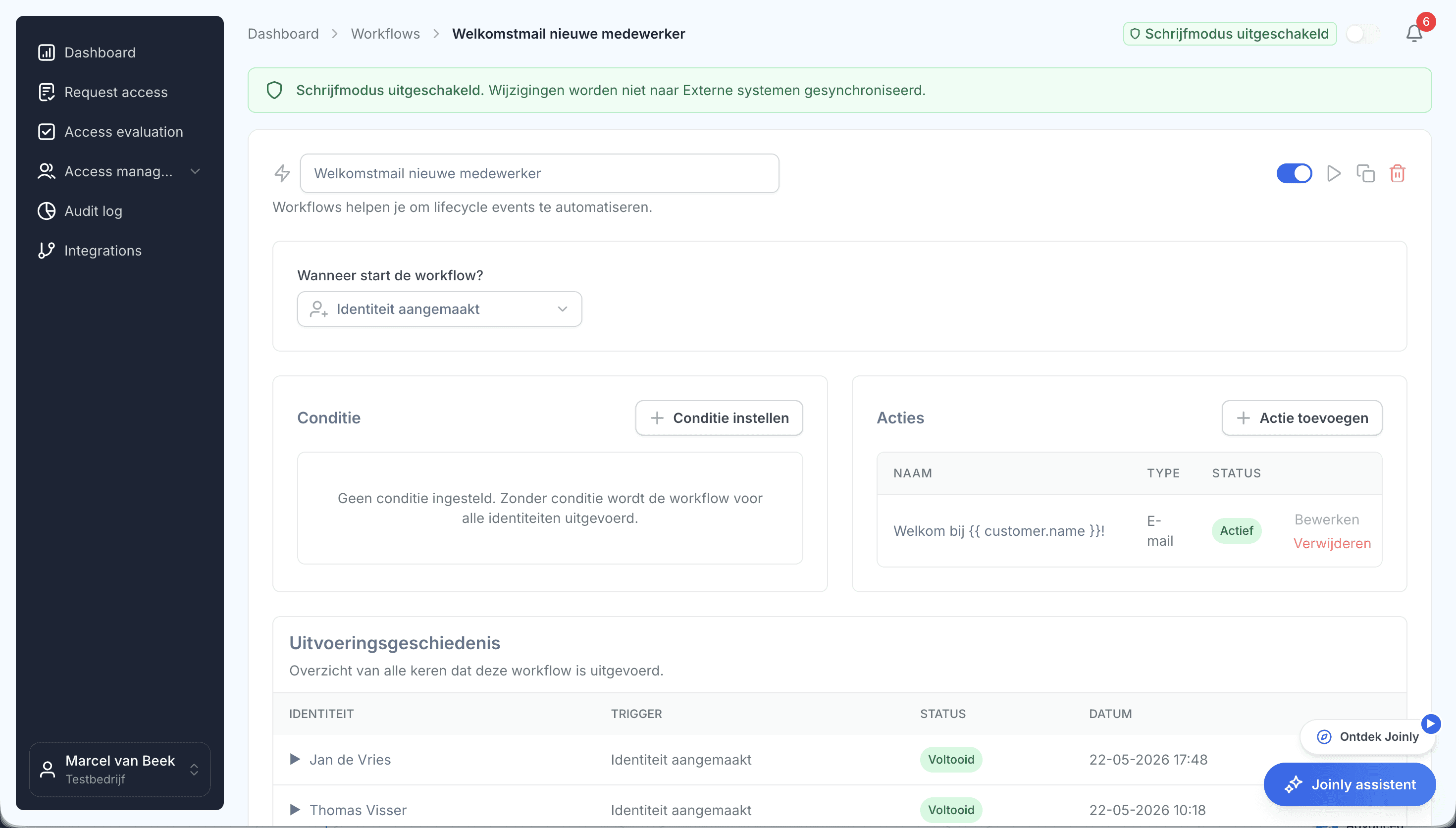
Joinly can use that date to start an offboarding workflow. Think of disabling accounts, revoking sessions, adjusting groups and licences, and tasks for the service desk. What used to be a checklist for an administrator becomes a repeatable process with insight into the steps carried out. In an emergency you block straight away with the emergency block.

Een workflow in Joinly met triggers, condities en actiesDiscover automatic offboarding with Joinly

What you can count on

  • No vendor lock-inYour identities and your configuration stay yours.
  • Your data out whenever you wantYou can export your data at any time.
  • Standard SLAOur standard SLA is available on request.
  • Support during implementationOur specialists set it up together with you.
  • ISO 27001 certifiedInformation security to an internationally recognised standard.

Offboarding in Entra ID

Frequently asked questions

  • Is a disabled account in Microsoft 365 signed out everywhere straight away?

    No. It gets no new tokens, but tokens already issued stay valid until they expire, one hour by default. In Exchange Online, SharePoint Online and Teams, Continuous Access Evaluation revokes them sooner, with a delay of up to 15 minutes. Apps with their own session only notice when they send the user back to Entra ID.

  • What exactly does Revoke-MgUserSignInSession do?

    It invalidates all of the user's refresh tokens and browser sessions, by setting `signInSessionsValidFromDateTime` to now. Every app then has to make the user sign in again. Access tokens already issued stay valid until they expire, except in services that support CAE.

  • Should I disable first or revoke the sessions first?

    Disable first, then revoke. If you revoke the sessions first, the user can sign straight back in as long as the account is still enabled.

  • Do forwarding rules keep working when the account is disabled?

    Yes. Forwarding and inbox rules run on the server as long as the mailbox exists. Remove them with `Set-Mailbox` and `Remove-InboxRule` before you convert the mailbox or hand it to a successor.

  • Should I delete the account or only disable it?

    Disable it first. You delete it after the retention period you have agreed, once the mailbox and the files have been dealt with. A deleted account can then still be restored for 30 days; a synchronised account is deleted in Active Directory.

  • How do I make sure offboarding happens even if HR passes it on too late?

    Have it start on the leave date instead of on a notification. With Lifecycle Workflows in Entra ID Governance that can be done on `employeeLeaveDateTime`. In Joinly the end date from the HR system starts the workflow, and in an emergency there is an emergency block that does not wait for the date.

Try Joinly on top of your own Microsoft environment

Roles, workflows, external staff and an audit log for Entra ID and Active Directory. Start with demo data in the free trial environment.

No credit card, nothing to install.

Rather talk to someone first? Talk to an IAM specialist