
Joinly by KoppelHet

Entra ID and Active Directory

Reduce Microsoft 365 licence costs: stop paying for accounts nobody uses

How many Microsoft 365 licences are you paying for employees who have already left, hardly ever sign in or have since moved to another role? To reduce Microsoft 365 licence costs, look at the small mismatches that linger for months. This is how you find those licences and keep the waste from coming back.

Six places where you pay for Microsoft 365 unnecessarily

You do not have to sign a new contract straight away to reduce Microsoft 365 licence costs. It often starts with finding out which licences no longer fit the employees who use them.

Anyone searching for a "Microsoft 365 licence overview" or for unused licenses usually wants to know one thing: what are we paying for that nobody uses? In practice it almost always comes down to one of these places.

  • Disabled accounts with a licence. The account was blocked when the person left, but nobody freed up the licence.
  • People who have already left, with an active account. The departure never reached IT, or reached it too late.
  • A heavier licence than needed. E3 for someone who only works in Teams and Outlook on their phone.
  • Licences that stay after a change of role. The new role came with one, the old one never came off.
  • Shared mailboxes with a licence that are under 50 GB and need no hold or archive.
  • Unassigned licences in the subscription. Nobody uses them, and you pay for them anyway.

Duplicate assignments (the same licence directly and through a group) cost you nothing extra, by the way: the user consumes one. How to see where a licence comes from is covered in assigning Microsoft 365 licences.
How to find the licences nobody uses any more

An unused account is not always a redundant account. So look at both activity and the current HR data.

You have three sources, and you need all three: what you have bought, who uses something, and when someone last signed in.

  1. What you have: Billing > Licenses in the Microsoft 365 admin center shows per product how many licences you have and how many are assigned. You pay for the difference without anyone using it.
  2. Who uses it: Reports > Usage shows the activity per service over 7, 30, 90 or 180 days. The Active Users report gives the last activity per user in Exchange, OneDrive, SharePoint and Teams. By default you see codes there instead of names; a Global Administrator changes that via Settings > Org Settings > Services > Reports. That change is recorded in the audit log.
  3. When someone signed in: in the Entra admin center, add the Last interactive sign-in time column under Users and filter on a date. Through Microsoft Graph this is signInActivity on the user object.
The Active Users report over 90 days as a CSV
Connect-MgGraph -Scopes "Reports.Read.All"

Invoke-MgGraphRequest -Method GET -Uri "https://graph.microsoft.com/v1.0/reports/getOffice365ActiveUserDetail(period='D90')" -OutputFilePath ".\actieve-gebruikers-90d.csv"

Import-Csv ".\actieve-gebruikers-90d.csv" |
  Where-Object { $_."Has Exchange License" -eq "True" -and -not $_."Exchange Last Activity Date" -and -not $_."Teams Last Activity Date" } |
  Select-Object "User Principal Name", "Assigned Products"
Licensed members who have not signed in successfully for 90 days
Connect-MgGraph -Scopes "User.Read.All","AuditLog.Read.All"

$grens = (Get-Date).AddDays(-90)

Get-MgUser -All -Filter "userType eq 'Member'" -Property DisplayName, UserPrincipalName, AssignedLicenses, SignInActivity |
  Where-Object { $_.AssignedLicenses.Count -gt 0 -and $_.SignInActivity.LastSuccessfulSignInDateTime -lt $grens } |
  Select-Object DisplayName, UserPrincipalName, @{ n = "Laatst"; e = { $_.SignInActivity.LastSuccessfulSignInDateTime } }

Disabled accounts that still have a licence

This is the quickest win, because there is no debate about it: an account that cannot sign in does not use the licence. Do watch the exceptions. A converted shared mailbox over 50 GB, or with a hold, needs the licence. The same goes for a mailbox you keep with litigation hold. Before you remove the licence from an employee who has left, read what happens to the mailbox and OneDrive in removing licences when employees leave.

Disabled accounts with a licence, including the licence names
Connect-MgGraph -Scopes "User.Read.All","Organization.Read.All"

$skus = Get-MgSubscribedSku -All

Get-MgUser -All -Filter "accountEnabled eq false" -Property DisplayName, UserPrincipalName, AssignedLicenses |
  Where-Object { $_.AssignedLicenses.Count -gt 0 } |
  Select-Object DisplayName, UserPrincipalName,
    @{ n = "Licenties"; e = { ($_.AssignedLicenses | ForEach-Object { $id = $_.SkuId; ($skus | Where-Object SkuId -eq $id).SkuPartNumber }) -join ", " } }

Not every employee needs the same package

A colleague in the office works differently from someone on the shop floor. The right licence follows the work, not a standard package for everyone.

The second saving is in the type of licence. Microsoft 365 has roughly three families, and you may mix them in one tenant. What matters is that you choose per type of employee, and that the choice moves along when someone changes role.

Comparing Microsoft 365 licences on what makes the difference
F3 (frontline)E3Business Basic / Premium
For whomEmployees on the shop floor, often on a shared or mobile deviceOffice workers in an organisation of any sizeOrganisations of up to 300 users
Office appsWeb and mobile, no desktop appsDesktop, web and mobileBasic: web and mobile. Premium: desktop as well
Mailbox2 GB, no archive100 GB with archive100 GB
OneDrive2 GBFullFull
Entra ID P1YesYesBasic: no. Premium: yes
Watch outAnyone who does work in Word on a PC gets stuckOften the default for everyone, even when it is not neededThe limit of 300 applies to all Business licences together

A few rules of thumb that work in practice. Do not give everyone the same licence because that is easy in the onboarding form. Before a move to F3, check in the Microsoft 365 Apps usage report whether someone really uses the desktop apps. And record the choice against the role, not the person; otherwise you forget it at the next change of role.

Seasonal work, temporary staff and your subscription

With seasonal work and agency staff the leak is in two places. The first is freeing up licences: at the end of the season twenty people leave at once, and the clean-up gets pushed back until there is time. The second is the subscription itself. Removing a licence from a user frees it up for the next person, but does not lower the bill. For that, you have to reduce the number of licences in the subscription.

  • You cannot reduce while all licences are assigned. Remove them first, then lower the number.
  • Reducing is not always possible. Under a Microsoft Customer Agreement you can only remove licences within seven days of buying or renewing; after that the change only takes effect on the renewal date. If you buy through a partner, the arrangements with that partner apply.
  • So plan around the renewal date. If you know the season ends in October, make sure the licences have been removed by then and that the number in the subscription matches.

How an agricultural services company with seasonal work solved this, you can read in the agricultural services company's customer story.

A one-off clean-up helps. Keeping track automatically saves for good.

If you put all licences right today, they can be wrong again in three months. New employees, changes of role and leavers keep changing things.

Everything above looks back. A report shows which licences went unused over the last 90 days; you have already paid for those 90 days. After a clean-up it builds up again, because the cause is not in Microsoft 365: leavers and changes of role reach IT late or not at all, and the choice between F3 and E3 hangs on a person instead of on a role. The saving that lasts is therefore in the moment of assigning and removing. For MSPs who do this for several customers, the approach is in Microsoft 365 licences for MSPs.

Joinly

Saving starts at the moment something changes

Cleaning up unused licences once helps, but a few months later the same mismatches appear again. That is why it is smarter to let licences move along with the HR records.

Joinly uses HR data and roles to determine which licence belongs to an employee. When someone changes role, the assignment can be adjusted; when they leave, the licence can be freed up according to the offboarding workflow you have set up. That makes licence management more predictable and helps prevent unnecessary assignments. Note: the actual saving on the invoice also depends on your Microsoft subscription.

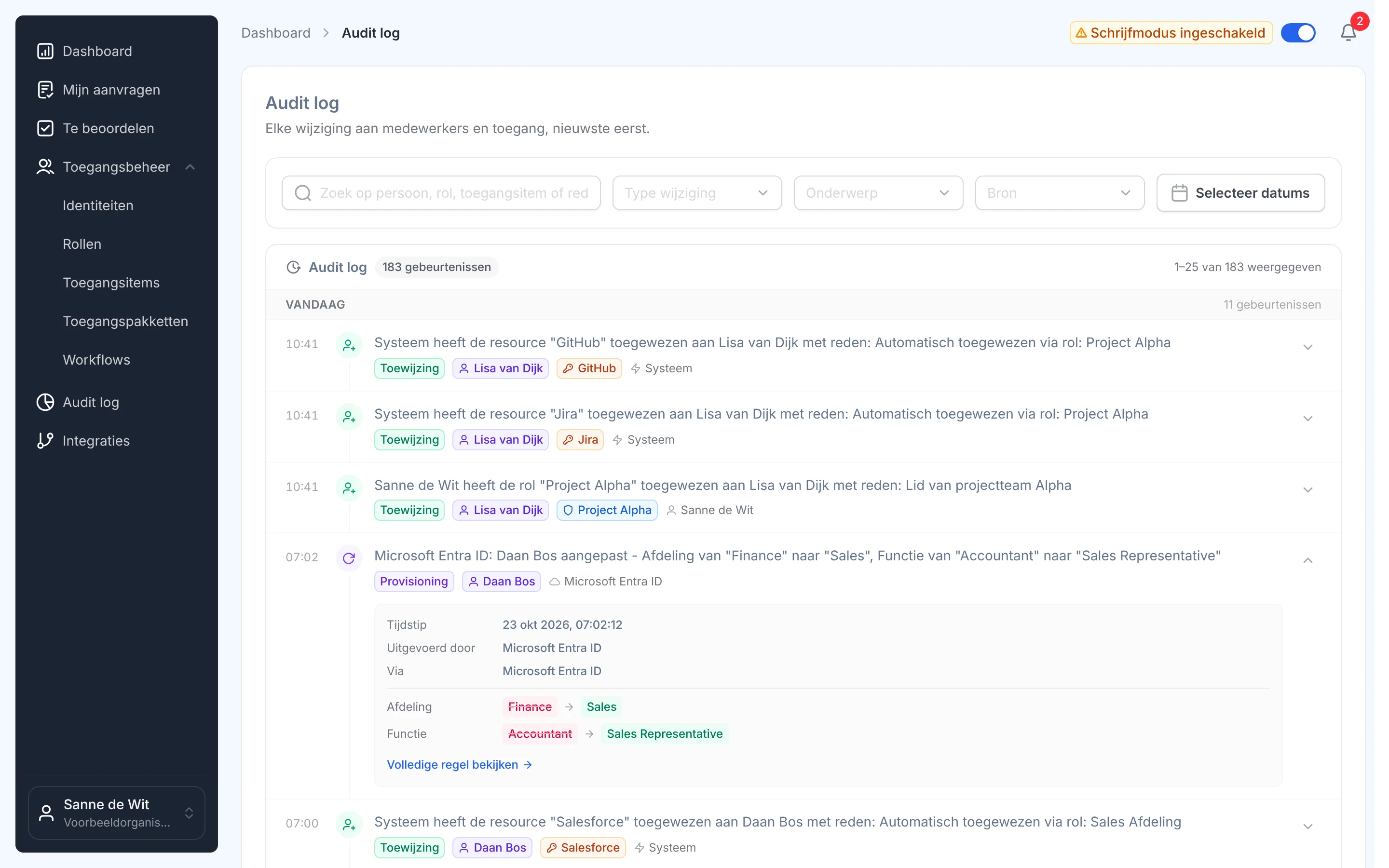
Het auditlog in Joinly: elke wijziging aan identiteiten en toegang, met wie het deed en waaromSee identity lifecycle management

What you can count on

  • No vendor lock-inYour identities and your configuration stay yours.
  • Your data out whenever you wantYou can export your data at any time.
  • Standard SLAOur standard SLA is available on request.
  • Support during implementationOur specialists set it up together with you.
  • ISO 27001 certifiedInformation security to an internationally recognised standard.

Reducing Microsoft 365 licence costs

Frequently asked questions

  • How do I find unused Microsoft 365 licences?

    Compare what you have with what is assigned under Billing > Licenses, look at the Active Users report over 90 or 180 days in Reports > Usage, and find the users in Entra ID who have not signed in for a long time. Start with disabled accounts that still have a licence.

  • Why do I see codes instead of names in the usage reports?

    Microsoft hides names by default. A Global Administrator turns that off via Settings > Org Settings > Services > Reports. The change is recorded in the audit log, so check first whether it fits your privacy arrangements.

  • What is the difference between F3 and E3?

    F3 is meant for employees on the shop floor: Office on web and mobile, a 2 GB mailbox without archive and 2 GB of OneDrive. E3 has the desktop apps, a 100 GB mailbox with archive and full OneDrive. Both include Entra ID P1.

  • Does my bill go down if I remove a licence from a user?

    Not by itself. The licence becomes available for someone else, but you pay for it until you lower the number in the subscription. Under a Microsoft Customer Agreement you can do that within seven days of buying or renewing; otherwise it takes effect on the renewal date.

  • After how many days without a sign-in is an account inactive?

    Microsoft calls 90 to 180 days a reasonable threshold, but it depends on your organisation. Always hold the list up against HR: someone on leave or long-term sick leave does not sign in either, and they want their account back when they return.

Try Joinly on top of your own Microsoft environment

Roles, workflows, external staff and an audit log for Entra ID and Active Directory. Start with demo data in the free trial environment.

No credit card, nothing to install.

Rather talk to someone first? Talk to an IAM specialist