
Joinly by KoppelHet

Entra ID and Active Directory

Assign Microsoft 365 licences without needless manual work

A new colleague starts but cannot get into Outlook or Teams yet. Or someone changes role and needlessly keeps an expensive licence. Assigning Microsoft 365 licences looks like a small admin task, but with many employees it quickly becomes hard to keep track of. These are the options in Microsoft 365, including the technical steps.

Three ways to assign Microsoft 365 licences

A new colleague needs to be able to work straight away. You want to assign a licence quickly, and avoid it still being wrong months after a change of role.

A user cannot use a single Microsoft 365 service until they have a licence. You can assign Microsoft 365 licences in three ways, and in most tenants they are mixed together. That is exactly where things go wrong later: nobody knows any more why someone has a licence, so nobody dares to remove it.

Directly, by group or automatically
DirectBy groupAutomatic (auto-claim)
How it worksAn administrator or script assigns the licence per userThe licence is attached to a group, every direct member gets itThe user claims the licence themselves on first sign-in to the app
ForAll licencesAll licencesOnly products that support it, per product
Extra licence requirementNoneEntra ID P1 or higherNone
RemovalManualFollows the group membershipManual; turning off the policy leaves claimed licences in place
Biggest pitfallForgetting to remove itWho is in the groupLicences for people who opened the app once

Group-based licensing has its own rules and error messages. Those are covered in group-based licensing in Entra ID; below we mainly cover direct assignment, because it always works and because every script and every integration ends up using it.
Why Microsoft talks about SKUs and service plans

In the admin center you see recognisable product names. In scripts you come across technical codes. They belong to the same licences.

What the admin center calls "Microsoft 365 E3" is a SKU in PowerShell and Graph: a product with a technical name (SkuPartNumber) and a GUID (SkuId). Each SKU consists of service plans: Exchange Online, SharePoint, Teams, Sway, Viva Engage and so on. You always assign a SKU, and per assignment you can turn off individual service plans with disabledPlans. The SKU stays the same and still counts as one licence.

Common SKUs and their technical name
Product in the admin centerSkuPartNumber
Microsoft 365 E3SPE_E3
Microsoft 365 E5SPE_E5
Microsoft 365 F3SPE_F1
Microsoft 365 Business PremiumSPB
Microsoft 365 Business BasicO365_BUSINESS_ESSENTIALS
Office 365 E3ENTERPRISEPACK

Note that the technical name does not always resemble the product name: Microsoft 365 F3 is called SPE_F1. Microsoft publishes the full list, with every service plan, as a CSV on the page "Product names and service plan identifiers for licensing". What your own tenant has, and how much of it is in use, you retrieve with Get-MgSubscribedSku.

Which SKUs you have and how many are assigned
Connect-MgGraph -Scopes "Organization.Read.All"

Get-MgSubscribedSku -All |
  Select-Object SkuPartNumber, SkuId, ConsumedUnits,
    @{ n = "Gekocht"; e = { $_.PrepaidUnits.Enabled } }

No licence? Check the user's country first

A missing country code looks like a detail, but it can block a licence assignment.

Assigning a licence to a user without a usage location fails. Microsoft wants to know in which country someone uses the services, because not every service is available in every country. The value is a two-letter country code under ISO 3166-1 alpha-2: NL, BE, DE.

If you create a user in the Microsoft 365 admin center, the form asks for the location. Accounts synchronised from on-premises Active Directory have no location by default. In a hybrid environment this is therefore the first place to look when a licence does not arrive. With group-based licensing it is less noticeable: there a user without a location gets the tenant's country. For an employee in Germany in a Dutch tenant, that is wrong. How usage location relates to the other fields on the user object is covered in Entra ID user attributes.

Finding members without a usage location and setting it
Connect-MgGraph -Scopes "User.ReadWrite.All"

Get-MgUser -All -Property Id, DisplayName, UserPrincipalName, UsageLocation, UserType |
  Where-Object { -not $_.UsageLocation -and $_.UserType -eq "Member" } |
  Select-Object DisplayName, UserPrincipalName

Update-MgUser -UserId "jan.jansen@bedrijf.nl" -UsageLocation "NL"

Assigning in the Microsoft 365 admin center

You need at least the License Administrator or User Administrator role. There are two ways in, and which one you choose depends on whether you work from the person or from the product.

  1. From the user: go to Users > Active users, choose the user and open Licenses and apps. Tick the licence and expand the apps per licence to turn off service plans. Choose Save changes. For several people at once, select them in the list and choose Manage product licenses.
  2. From the product: go to Billing > Licenses, choose the product and then Assign licenses. You add up to 20 users or groups at a time. Under Turn apps and services on or off you turn off service plans.
  3. If something goes wrong, you see it on the product's Errors & issues tab: no licences left, conflicting service plans or an invalid usage location. Fix the cause, choose the user and then Reprocess.

Some services, such as Sway, are assigned by Microsoft automatically; you do not have to turn them on separately. If you do not want them, turn off the service plan.

Assigning with PowerShell and Microsoft Graph

For more than a handful of people, or as part of an onboarding script, you use Microsoft Graph PowerShell. Microsoft now only describes licence management in its documentation with this module. Convert scripts that still use Set-MsolUserLicense or Set-AzureADUserLicense to Set-MgUserLicense.

Assigning Microsoft 365 E3 without Sway and Viva Engage (Yammer Enterprise)
Connect-MgGraph -Scopes "User.ReadWrite.All","Organization.Read.All"

$sku = Get-MgSubscribedSku -All | Where-Object SkuPartNumber -eq "SPE_E3"
$uit = $sku.ServicePlans |
  Where-Object ServicePlanName -in "SWAY","YAMMER_ENTERPRISE" |
  Select-Object -ExpandProperty ServicePlanId

Set-MgUserLicense -UserId "jan.jansen@bedrijf.nl" -AddLicenses @(@{ SkuId = $sku.SkuId; DisabledPlans = $uit }) -RemoveLicenses @()

-RemoveLicenses is required, even if you are not removing anything; in that case pass an empty list. The same request in Microsoft Graph, for an integration or a Logic App, looks like this. The app needs at least the LicenseAssignment.ReadWrite.All permission.

assignLicense in Microsoft Graph
POST https://graph.microsoft.com/v1.0/users/jan.jansen@bedrijf.nl/assignLicense
Content-Type: application/json

{
  "addLicenses": [
    {
      "skuId": "05e9a617-0261-4cee-bb44-138d3ef5d965",
      "disabledPlans": []
    }
  ],
  "removeLicenses": []
}

Moving from E3 to E5 is a RemoveLicenses of one SKU and an AddLicenses of the other. Afterwards, check with Get-MgUserLicenseDetail what the user really has.

Why does this employee actually have this licence?

If you want to clean up or automate, you first need to know where a licence comes from.

Before you remove a licence, you want to know where it comes from. If you remove a direct assignment while the same licence also arrives through a group, nothing changes. A licence that arrives through a group only disappears when the user leaves that group or the licence is removed from the group. In the admin center, under Billing > Licenses, a group assignment shows the group name instead of the individual users. Per user it is in licenseAssignmentStates: if assignedByGroup is empty, the licence was assigned directly; otherwise it holds the ID of the group.

For each of a user's licences: direct or through which group
$u = Get-MgUser -UserId "jan.jansen@bedrijf.nl" -Property LicenseAssignmentStates
$skus = Get-MgSubscribedSku -All

$u.LicenseAssignmentStates | ForEach-Object {
  $id = $_.SkuId
  [pscustomobject]@{
    Licentie = ($skus | Where-Object SkuId -eq $id).SkuPartNumber
    Bron     = if ($_.AssignedByGroup) { (Get-MgGroup -GroupId $_.AssignedByGroup).DisplayName } else { "Direct" }
    Status   = $_.State
  }
}

Where assigning stops

All three methods answer the question of how a licence reaches someone. None of the three answers the question of who should have it. With direct assignment that lives in the administrator's head or in an onboarding form, with a group in the membership and with auto-claim with the user themselves. If someone moves from the office to the shop floor, someone has to remember to replace E3 with F3. If they leave, someone has to release the licence, preferably in the right order: see licences when employees leave.

If you manage this for several customers as an MSP, the same applies per tenant. That is covered in Microsoft 365 licences for MSPs.

Joinly

Let licences match the work someone does

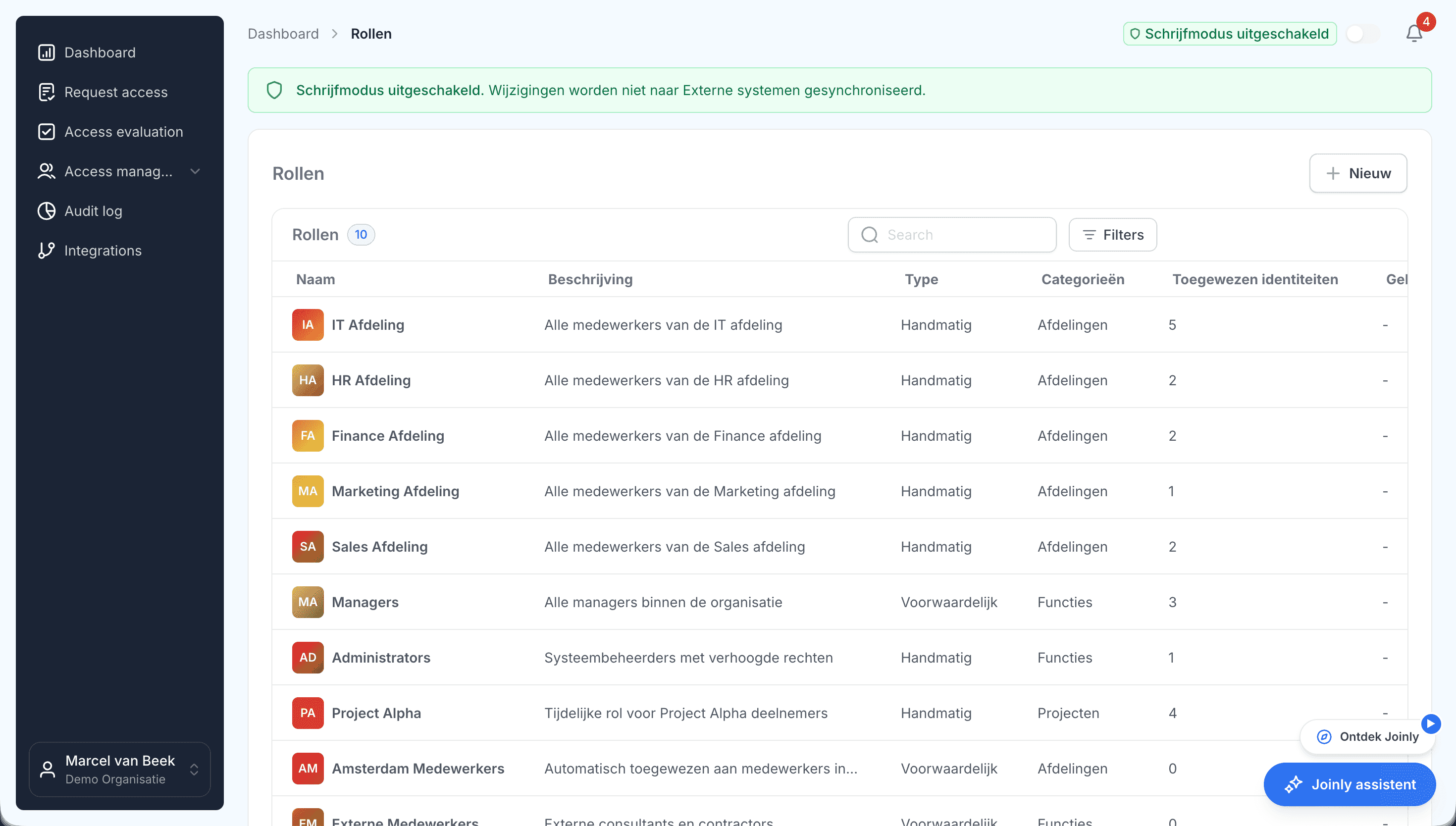
Assigning a licence is done quickly. The harder part is keeping that licence right after a change of role or a departure. Joinly links licences to roles based on HR data, such as job title, department or location.

If someone starts in the office, the matching Microsoft 365 licence can be assigned automatically. If that employee moves to another role, the assignment changes with them. Joinly can handle that directly in Entra ID or through existing licence groups. You keep insight into the changes that were made.

Voorwaardelijke rollen in Joinly die de functie van een medewerker volgenSee roles and permissions in Joinly

What you can count on

  • No vendor lock-inYour identities and your configuration stay yours.
  • Your data out whenever you wantYou can export your data at any time.
  • Standard SLAOur standard SLA is available on request.
  • Support during implementationOur specialists set it up together with you.
  • ISO 27001 certifiedInformation security to an internationally recognised standard.

Assign Microsoft 365 licences

Frequently asked questions

  • Why can't I assign a licence to a user?

    Usually the usage location is missing. Set it with `Update-MgUser -UsageLocation NL` or in the user's profile. Other causes are that there are no licences left in the subscription, or that a service plan conflicts with a licence the user already has.

  • What is the difference between a SKU and a service plan?

    A SKU is the product you buy and assign, for example Microsoft 365 E3 (`SPE_E3`). A service plan is a part of it, such as Exchange Online or Sway. You can turn off service plans per assignment; the SKU then still counts as one licence.

  • Which PowerShell command do I use to assign a licence?

    `Set-MgUserLicense` from the Microsoft Graph PowerShell SDK, with `-AddLicenses` and `-RemoveLicenses`. If an old script still uses `Set-MsolUserLicense` from the MSOnline module, convert it: Microsoft now only documents licence management with Microsoft Graph.

  • Can I see whether a licence was assigned directly or through a group?

    Yes. In the user's `licenseAssignmentStates`, `assignedByGroup` is empty for a direct assignment and holds the group ID for a licence through a group. Under Billing > Licenses in the admin center, a group assignment shows the group name.

  • Which administrator role do I need to assign licences?

    At least License Administrator or User Administrator. For an integration through Microsoft Graph, `LicenseAssignment.ReadWrite.All` is the least privileged permission.

Try Joinly on top of your own Microsoft environment

Roles, workflows, external staff and an audit log for Entra ID and Active Directory. Start with demo data in the free trial environment.

No credit card, nothing to install.

Rather talk to someone first? Talk to an IAM specialist