Joinly by KoppelHet

Entra ID and Active Directory

Lifecycle Workflows in Entra ID: how it works, what it needs and where it stops

Lifecycle Workflows is the feature in Microsoft Entra ID Governance that carries out tasks around joiners, movers and leavers: enabling an account, adding groups, creating a Temporary Access Pass, and removing everything again when someone leaves. A workflow runs on a date or on a changed field on the user object. You need an Entra ID Governance licence for it, and the dates have to be in Entra ID before anything happens.

What Lifecycle Workflows do

Microsoft divides an employee's lifecycle into three moments: joiner (comes in), mover (changes department or role) and leaver (goes). Lifecycle Workflows automate the tasks at those moments in Entra ID. A workflow has three parts: a trigger (when), a scope (for whom) and a series of tasks (what).

An example from Microsoft's own templates: seven days before the start date, a workflow creates a Temporary Access Pass and emails it to the manager. On the start date a second workflow enables the account, adds it to a group and sends a welcome email. A week later a third workflow follows with extra groups and Teams.

What you need
What Microsoft lists
LicenceMicrosoft Entra ID Governance (or Entra Suite or Microsoft 365 E7), for all member users in the scope of a workflow. P1 and P2 are not enough.
RoleAt least Lifecycle Workflows Administrator
Populated fieldsThe attribute a workflow runs on, for example employeeHireDate, has to be in Entra ID
ScheduleSwitched on per workflow; workflows run every three hours by default, configurable from 1 to 24 hours
For custom tasksAn Azure subscription with a Logic App

Triggers and scope: when and for whom

There are four kinds of trigger, plus the option to start a workflow by hand:

TriggerRuns whenTypical use
Time on an attributeA date on the user object is reached: employeeHireDate, createdDateTime or employeeLeaveDateTime, up to 180 days before or afterJoiner and leaver
Attribute changeA field changes, for example department or jobTitleMover
Group membershipSomeone is added to or removed from a groupMover, or a workflow per team
InactivitySomeone has not signed in for a number of daysCleaning up dormant accounts
On-demandAn administrator starts it for selected usersUrgent cases, or testing

The scope is a rule on attributes, just like a dynamic group: department -eq "Zorg" or employeeType -eq "Employee". On every run the workflow checks again who meets the rule; anyone who no longer meets it is skipped. How to build such rules on HR data is covered in dynamic groups based on HR attributes.

The tasks, and what falls outside them

Microsoft supplies more than thirty built-in tasks. A workflow can have up to 25. The most important:

MomentBuilt-in tasks
JoinerEnable the account, add groups and Teams, assign licences, create a Temporary Access Pass and email it to the manager, welcome email, request an access package
MoverEmail the manager about the move, remove groups, Teams, licences and access packages, request a new access package, update attributes
LeaverDisable the account, revoke refresh tokens, remove from all groups and Teams, remove licences, emails before and after the last day, delete the user

The tasks come with conditions you only run into when something goes wrong:

  • Adding groups works for Microsoft 365 groups and cloud-only security groups. Mail-enabled groups, distribution lists, dynamic groups and groups from Active Directory fall outside it.
  • Assigning licences requires a usageLocation on the user. How that works is in assigning licences.
  • The Temporary Access Pass goes to the manager by email. If the manager does not have an account or an email address yet, the code never arrives. More on the TAP in Temporary Access Pass.
  • Enabling or disabling an account does not work for users with an Entra administrator role.

Everything beyond that, such as converting a mailbox to a shared mailbox, a ticket at the service desk or an account in an application without SCIM, you handle with a custom task extension. That calls an Azure Logic App, which you build, host and maintain yourself.

The mover: the hardest moment

Joiners and leavers have a date. A move does not. Microsoft's mover templates therefore run on a changed field or a changed group membership, and their tasks are mainly: informing the manager and removing old access packages.

Which access belongs with the new role is a question the workflow does not answer. You design that separately, usually in access packages or in groups per role. Without that design, someone who changes department only gets an email sent to their manager, and the old access stays until someone cleans it up. How to set up groups so that they match a role is covered in Entra ID groups for role-based access.

Setting up your first workflow

  1. Check that the dates are filled. Retrieve a few users with Get-MgUser -UserId <upn> -Property employeeHireDate,employeeLeaveDateTime and see whether the dates match HR.
  2. In the Entra admin center, go to Identity Governance → Lifecycle workflows → Create workflow and choose a template, for example "Onboard new-hire employee".
  3. Set the trigger (for example 0 days on employeeHireDate) and the scope (for example employeeType -eq "Employee").
  4. Adjust the tasks: which groups, which Teams, which licence.
  5. Test with Run on demand on a test user and read the result in the workflow history.
  6. Switch the schedule on. Only then does the workflow run by itself, every three hours by default.
Checking which employees start next week and whether their date is there
Connect-MgGraph -Scopes "User.Read.All","User-LifeCycleInfo.Read.All"

$vanaf = (Get-Date).ToUniversalTime().ToString("yyyy-MM-ddTHH:mm:ssZ")
$tot   = (Get-Date).AddDays(7).ToUniversalTime().ToString("yyyy-MM-ddTHH:mm:ssZ")

Get-MgUser -All -Property displayName,department,employeeHireDate `
  -Filter "employeeHireDate ge $vanaf and employeeHireDate le $tot" `
  -ConsistencyLevel eventual -CountVariable aantal |
  Select-Object DisplayName, Department, EmployeeHireDate

Where Lifecycle Workflows stop

Lifecycle Workflows are a good executor within Entra ID. Three things lie outside the feature:

  • The starting signal. The workflows read dates and fields; they do not fetch them from your HR system. For Workday and SAP SuccessFactors Microsoft has its own connector, for other HR systems you build it yourself, for example with API-driven inbound provisioning.
  • The roles. Which groups, licences and applications belong with a role is set out in a separate design outside the workflow, and that design has to be updated with every reorganisation.
  • Everything outside Entra ID. On-premises Active Directory, the mailbox, the service desk and applications without SCIM each need a Logic App per task.

If Entra ID is your only target, your HR data is already tidy in Entra and you have the Governance licence anyway, Lifecycle Workflows will take you a long way. How Microsoft's route and Joinly relate to each other is in Joinly alongside Entra ID Governance.

Joinly

With Joinly you no longer need Lifecycle Workflows

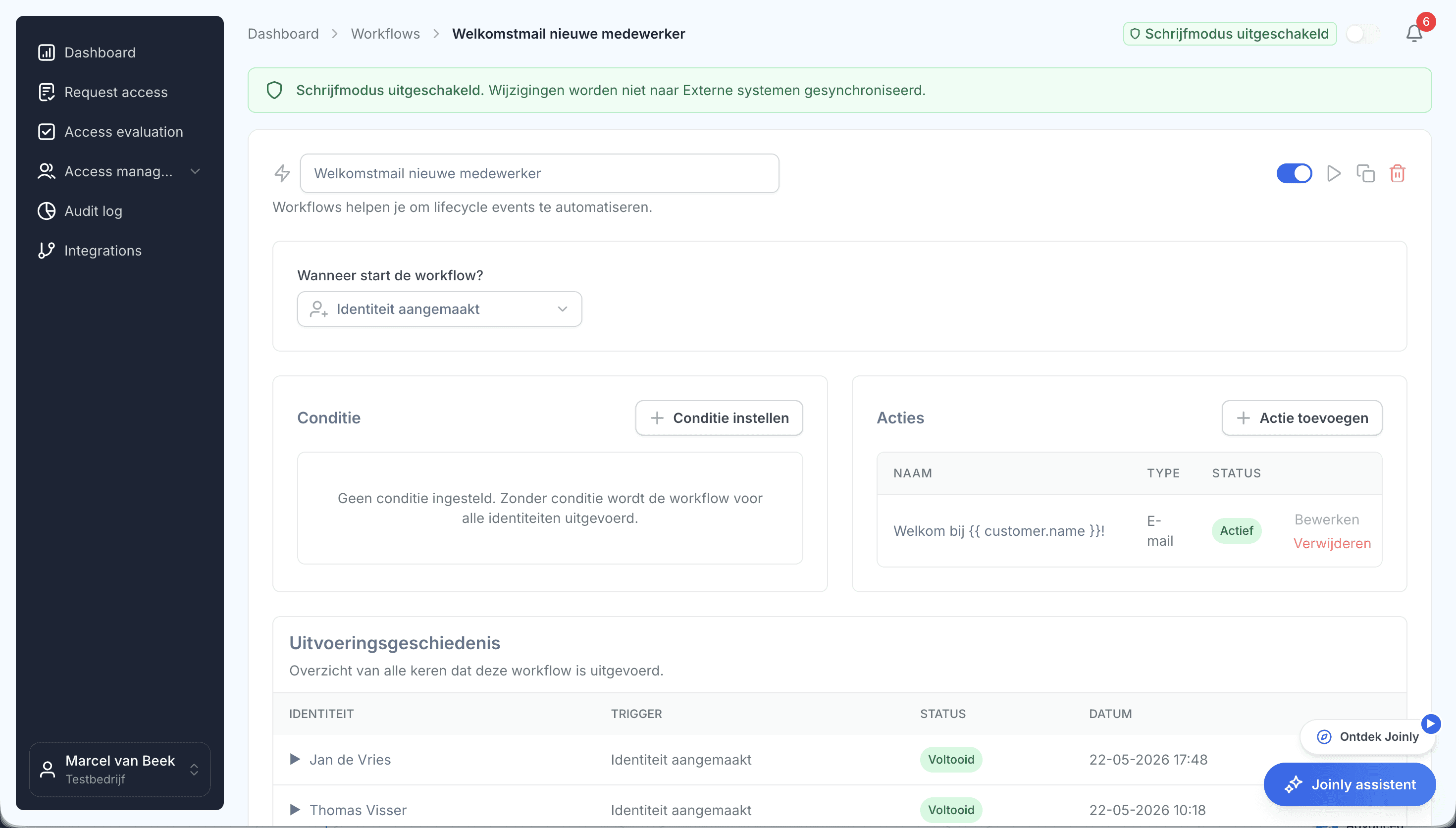
Joinly takes over the work of Lifecycle Workflows completely, and starts one step earlier: at the HR system. A new starter, a move or a departure in HR is the trigger in Joinly, and the workflow that belongs to it carries out every step, in Entra ID and beyond.

  • Everything Lifecycle Workflows do, Joinly does too. Enabling and disabling the account, groups and Teams, assigning and removing licences, a Temporary Access Pass, revoking sessions and the emails to the new employee, the manager or the service desk. You no longer need Lifecycle Workflows, so no Entra ID Governance licence for them either.
  • The mover is taken care of. Roles on job title, department and location decide the access. When the job changes in HR, the old access goes and the new access arrives, with segregation of duties warning you.
  • Beyond the directory. On-premises Active Directory through the Joinly Agent, converting the mailbox, an out-of-office message and a ticket in TOPdesk or Freshservice are steps in the same workflow, without Logic Apps.
  • A brake and a trail. A trial import shows in advance what will change, a threshold stops a faulty HR export, and every step is in the audit log.

Already using Lifecycle Workflows? Then you switch over at your own pace. Joinly writes the hire and leave dates from HR into Entra ID, so existing workflows keep running until you turn them off.

Een workflow in Joinly met triggers, condities en actiesHow workflows work in Joinly

What you can count on

  • No vendor lock-inYour identities and your configuration stay yours.
  • Your data out whenever you wantYou can export your data at any time.
  • Standard SLAOur standard SLA is available on request.
  • Support during implementationOur specialists set it up together with you.
  • ISO 27001 certifiedInformation security to an internationally recognised standard.

Lifecycle Workflows

Frequently asked questions

  • Which licence do I need for Lifecycle Workflows?

    Microsoft Entra ID Governance, or Microsoft Entra Suite or Microsoft 365 E7, which include it. Entra ID P1 and P2 are not enough. The licence applies to the member users in the scope of your workflows.

  • Why does my joiner workflow not run?

    Usually `employeeHireDate` is not in Entra ID, or the user falls outside the scope. Also check that the workflow's schedule is switched on: without a schedule a workflow only runs on demand.

  • How often do Lifecycle Workflows run?

    Every three hours by default, once you have switched the schedule on. You can set that from every hour to once every 24 hours.

  • Can a Lifecycle Workflow do anything in on-premises Active Directory?

    Not with the built-in tasks: those work in Entra ID. For on-premises AD you need a custom task extension with a Logic App, or another route.

  • Do I still need Lifecycle Workflows if I use Joinly?

    No. Joinly carries out every joiner, mover and leaver step itself, from accounts, groups and licences to the emails and the Temporary Access Pass. If you already use Lifecycle Workflows, they keep running until you turn them off: Joinly sets the dates they trigger on.

Try Joinly on top of your own Microsoft environment

Roles, workflows, external staff and an audit log for Entra ID and Active Directory. Start with demo data in the free trial environment.

No credit card, nothing to install.

Rather talk to someone first? Talk to an IAM specialist