
Joinly by KoppelHet

Entra ID and Active Directory

Entra ID user attributes: the right access starts with good employee data

An employee moves to another department but keeps their old permissions. Or someone starts on Monday without their Microsoft 365 licence. Often the cause is a field that is wrong. In this article you will find out which Entra ID user attributes really matter, what goes wrong when they are empty and how to check them.

Why a small mistake in HR can have big consequences

You can build the finest automation, but if the department or start date is wrong, someone still ends up with the wrong access. That is why reliable user management starts with the data Entra ID bases its decisions on.

The user object in Microsoft Entra ID has dozens of properties, the Entra ID user attributes. Most of them are for the address book: phone number, street, postcode. A small group does more. Those fields are read by features that act on them: a dynamic group that adds someone, a licence that is assigned, a workflow that starts on a date, an approval that goes to the manager.

That makes them the input of your entire automation. A rule such as user.department -eq "Finance" is exactly as good as the department field. If it says "Financien", "Fin." or nothing at all, someone falls outside the group, without an error message. How to write such rules is covered in dynamic groups based on HR attributes. This article is about the fields themselves: which ones matter, where they come from and how to check that they are right.

We deliberately leave two fields aside here: the userPrincipalName and the email address. How to build those and what to do when someone changes their name is covered in account naming.
These user attributes decide who gets access

Not every field matters equally. These are the attributes that directly affect accounts, permissions, licences and workflows.

Attribute, who reads it and what happens when it is empty
AttributeWho reads itWhen it is empty or wrong
departmentDynamic groups, the address book, filters in GraphSomeone falls outside the department group and misses the permissions and the licence attached to it.
jobTitleDynamic groups, the address book and the profileRole-based groups do not fill; colleagues see an outdated job title.
usageLocationLicence assignmentA direct licence assignment fails. Through a group, Entra ID uses the tenant's country, which can cause an error for an employee abroad.
employeeIdHR integrations, dynamic groups, scriptsYou cannot reliably link the account to the employee in HR. A name change or a second John Smith is where it goes wrong.
employeeHireDateLifecycle Workflows (joiner), dynamic groups (preview)The onboarding workflow has no date to start on.
employeeLeaveDateTimeLifecycle Workflows (leaver)The offboarding workflow does not start. The account stays open until someone closes it by hand.
managerApprovals, Lifecycle Workflows, the org chart, the Direct Reports ruleA request does not know who to go to; the org chart has a gap; the group "team of X" is wrong.
companyNameDynamic groups, the address bookWith several operating companies you cannot separate by company.
employeeTypeYour own scripts and reportsYou cannot tell employees, contractors and interns apart.
accountEnabledSign-in, Conditional Access, reportsA leaver who is still set to true can still sign in.

Start date, leave date and manager: three fields with a big impact

These are exactly the attributes that change regularly. And when nobody updates them, IT often only notices when an onboarding or an approval gets stuck.

`employeeHireDate` and `employeeLeaveDateTime` are the two fields Lifecycle Workflows schedule on. A joiner workflow runs a number of days before or on the start date, a leaver workflow on or after the leave date. The time counts too. Workflows never run before the time in the field, and the tenant processes them on its own schedule, which runs every three hours by default. Microsoft therefore recommends a time early in the day for the start date and late in the day for the leave date.

Writing employeeLeaveDateTime is better protected than the other fields. An app needs the User-LifeCycleInfo.ReadWrite.All permission, and anyone setting the field by hand in a delegated session needs the Global Administrator role. Reading it works with the Lifecycle Workflows Administrator or Global Reader role. If you do not know this, you can spend a long time looking for the reason a script cannot set the field.

`manager` points to another user object; it holds no name. You set it with a separate call, and it is only right once the manager has an account of their own. The org chart in Microsoft 365, the approvals in access packages, the tasks in Lifecycle Workflows that email the manager and the dynamic rule Direct Reports for all read this reference. After a reorganisation it is the field that stays wrong the longest.

Setting fields with Microsoft Graph PowerShell, including the manager
Connect-MgGraph -Scopes "User.ReadWrite.All"

$upn = "jan.jansen@bedrijf.nl"
Update-MgUser -UserId $upn `
  -Department "Financiële administratie" `
  -JobTitle "Medewerker crediteuren" `
  -EmployeeId "100482" `
  -UsageLocation "NL" `
  -EmployeeHireDate "2026-12-01T05:00:00Z"

$manager = Get-MgUser -UserId "petra.smit@bedrijf.nl"
Set-MgUserManagerByRef -UserId $upn -BodyParameter @{
  "@odata.id" = "https://graph.microsoft.com/v1.0/users/$($manager.Id)"
}

Recording extra data without a tangle of fields

Sometimes you need more than the standard fields, a cost centre for example. Microsoft offers two places for that. They look alike and are often confused.

extensionAttribute1 to 15Directory extensions
OriginThe Exchange custom attributes from on-premises ADYou register them yourself on an app registration in Entra ID
NameFixed: extensionAttribute1 to extensionAttribute15extension_<appId without hyphens>_<name>, for example extension_b7d8e6..._costcentre
NumberFifteen, cannot be extendedAt most 100 per object
TypeText, up to 1024 charactersText, number, date and more
For a synchronised userRead-only in Graph, you change them in ADCan come across from AD if you enable them in the sync
In a dynamic ruleYes, as user.extensionAttribute15Yes, as user.extension_<appId>_<name>

If you use the fifteen extension attributes, record somewhere which one serves what purpose. The names say nothing, and a second administrator who finds extensionAttribute7 "free" unknowingly overwrites the cost centre that three dynamic groups run on. Microsoft also points out that you should not put sensitive personal data in them, such as a national identification number or medical data.

Where you change them: in AD or in Entra ID

In a hybrid environment this is the first thing administrators run into. A user synchronised from Active Directory has AD as its source. You then change fields such as department, jobTitle and the extension attributes in AD; in Entra ID they are read-only for that account, and the next synchronisation would overwrite your change anyway. How that sync works and what source of authority per object means is covered in Entra Connect or Cloud Sync.

The AD attribute and where it ends up in Entra ID
Active DirectoryMicrosoft Entra IDNote
departmentdepartmentSynchronised by default
titlejobTitleA different name on each side
companycompanyNameSynchronised by default
physicalDeliveryOfficeNameofficeLocationIn dynamic rules it is called physicalDeliveryOfficeName
employeeIDemployeeIdSynchronised by default
managermanagerOnly comes across correctly if the manager is synchronised too
extensionAttribute1-15onPremisesExtensionAttributesSynchronised by default
No attribute of its ownemployeeHireDate, employeeLeaveDateTimeYou pick a free text field in AD, such as msDS-cloudExtensionAttribute1, in the format yyyyMMddHHmmss.fZ, and set up a sync rule

Check that Entra ID sees the same reality as HR

A one-off check helps, but it is better still when changes from HR are passed on automatically.

Start with an overview of active accounts where one of the driving fields is missing. Those are the people for whom the automation is already failing silently.

Active users with an empty driving field, as CSV
Connect-MgGraph -Scopes "User.Read.All","User-LifeCycleInfo.Read.All"

$velden = "Id","UserPrincipalName","AccountEnabled","Department","JobTitle",
          "UsageLocation","EmployeeId","EmployeeHireDate","UserType"

Get-MgUser -All -Property $velden -ExpandProperty Manager |
  Where-Object { $_.AccountEnabled -and $_.UserType -eq "Member" } |
  Where-Object { -not $_.Department -or -not $_.JobTitle -or -not $_.UsageLocation -or
                 -not $_.EmployeeId -or -not $_.Manager } |
  Select-Object UserPrincipalName, Department, JobTitle, UsageLocation, EmployeeId,
    @{ n = "Manager"; e = { $_.Manager.AdditionalProperties.userPrincipalName } } |
  Export-Csv .\ontbrekende-attributen.csv -NoTypeInformation -Encoding UTF8
  1. Run the overview and sort by department. Empty fields are rarely scattered at random: often it is one team, one site or everyone who started after a certain date.
  2. Look at the spelling. Count how many people there are per department. "ICT", "IT" and "I.C.T." side by side means three dynamic groups that each miss some people.
  3. Record which system is the source for each field. For department, job title, start date and manager that is almost always the HR system, not the administrator who creates the account.
  4. Repeat the check every month. A field that was right at creation is often wrong after the first transfer.

Joinly

From correct data to access that moves along by itself

You do not want IT to check department, manager, groups and licences again with every change of role. With Joinly you take the data HR already keeps as your starting point. A new role or department is processed in Entra ID and, where needed, in Active Directory. The roles and permissions that go with it can then change along with it.

That makes a correct department field more than a tidy entry in the address book: it helps decide what someone needs to do their work. In Joinly you can see which changes from HR have been processed.

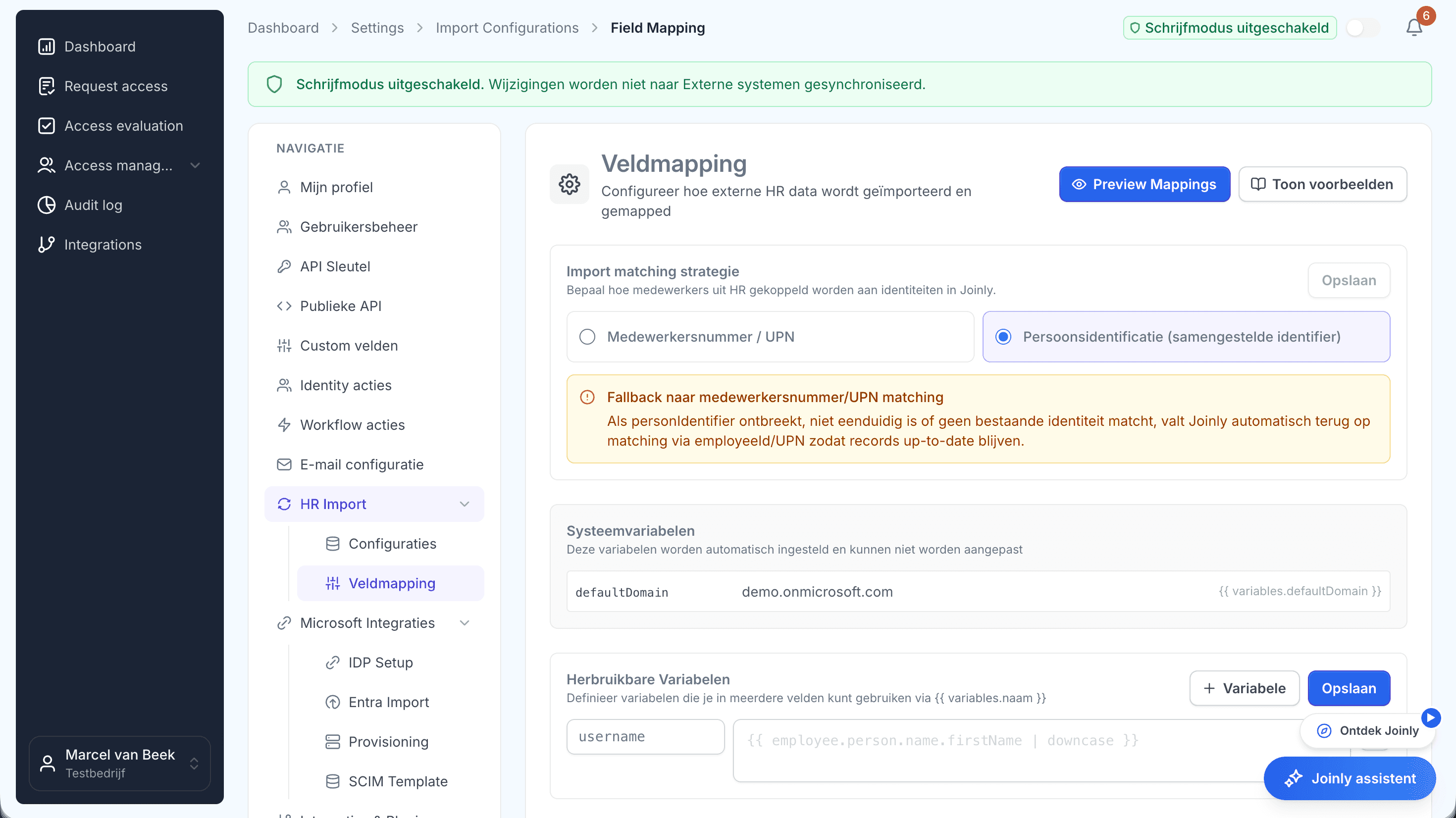
Het lifecycle-overzicht in Joinly: accounts die elke HR-mutatie automatisch volgenDiscover identity lifecycle management in Joinly

What you can count on

  • No vendor lock-inYour identities and your configuration stay yours.
  • Your data out whenever you wantYou can export your data at any time.
  • Standard SLAOur standard SLA is available on request.
  • Support during implementationOur specialists set it up together with you.
  • ISO 27001 certifiedInformation security to an internationally recognised standard.

User attributes

Frequently asked questions

  • What is the difference between employeeId and the object ID in Entra ID?

    The object ID is a GUID that Entra ID assigns itself and that never changes. `employeeId` is your own employee number, at most 16 characters, and is the key you use to link the account to the employee in HR. The object ID knows nothing about HR; the employee number does.

  • Why can't I change a user's department in Entra ID?

    Because the account is synchronised from Active Directory. AD is then the source, and fields such as `department` and `jobTitle` are read-only in Entra ID. Change the field in AD; the next synchronisation takes it across.

  • What should I enter for usage location?

    The two-letter country code of the country where the employee uses the services, for example `NL` or `BE`. Without a usage location you cannot assign a licence directly, and for a licence through a group Entra ID uses the tenant's country.

  • How do I set employeeHireDate from Active Directory?

    AD has no attribute of its own for the start date. You pick a free text field, for example `msDS-cloudExtensionAttribute1`, fill it in the format `yyyyMMddHHmmss.fZ` and create a sync rule that sends it to `employeeHireDate`. Recent versions of Entra Connect already have `employeeHireDate` in the default outbound rule; you create the inbound rule yourself.

  • Can I use extensionAttribute1 to 15 freely?

    Yes, they are meant for your own data, but they have no name that says what they are for. Record which number serves what purpose, because a colleague who reuses an "empty" attribute breaks the groups that run on it. Do not put sensitive personal data in them.

Try Joinly on top of your own Microsoft environment

Roles, workflows, external staff and an audit log for Entra ID and Active Directory. Start with demo data in the free trial environment.

No credit card, nothing to install.

Rather talk to someone first? Talk to an IAM specialist