
Joinly by KoppelHet

User provisioning and lifecycle

Preventing provisioning errors: stop a faulty HR export before it does damage

Automated provisioning carries out what the source says, even when the source is wrong. A half-empty HR export can disable hundreds of accounts in a single night. You prevent that with a dry run beforehand, a threshold that stops a run that is too large, a preview of who a rule affects, and logging that lets you trace what happened.

How one error in the source hits hundreds of accounts

A provisioning process is as reliable as its source. It does exactly what it is asked, and it does so quickly and for everyone at once. That is the strength of automation, and also the risk.

Four common errors
What happensWhat the automation makes of itWhat you see the next morning
The HR export is half empty, for example because of a time-out or a wrong filterAnyone missing has left, according to the sourceHundreds of colleagues cannot sign in
A reorganisation changes the department of a whole group at onceDepartment-based roles are removed and new ones assigned, for everyone at the same timePeople lose access they still need, or get too much
A field in the integration is swapped or the matching field is wrongExisting accounts are not recognisedDuplicate accounts, or wrong names and email addresses
A filter or an OU is changed or renamedObjects fall out of scope and are treated as deletedAccounts disappear from Entra ID

Microsoft names the last example itself: a renamed OU in Active Directory can lead to a mass deletion in Entra ID unless you select the OU again in Entra Connect. What generally needs to come out of HR to prevent this is covered in HR fields for provisioning.
First see what would change, then run it

The best protection is a run that changes nothing. In a dry run, the system works out what it would do and shows you, without carrying anything out.

  1. Run the dry run on the real HR data. The surprises are precisely in the real data.
  2. Count per type of action: how many accounts are created, changed, activated and disabled. Compare that with what you normally see in a day or a week.
  3. Review the disables person by person. Everyone on that list should demonstrably have left.
  4. Put the list in front of HR or the process owner. They spot an error in the source faster than IT.
  5. Only run it once the list is right.

If you use the Entra ID provisioning service to an application, test an integration first with Provision on demand. You pick one user and see, usually within 30 seconds, the five steps the service takes: the connection, retrieving the user, whether they are in scope, which account they are matched with and which action follows. For a group this works with up to five members. That way you find a wrong mapping or a matching field that is not unique before it runs for everyone.

A threshold stops a run that is too large

You do a dry run at the start or before a major change. For every day after that you need a threshold: a limit above which the system stops and waits until someone has looked.

Microsoft has two. Entra Connect by default stops an export with more than 500 deletions, before anything is deleted, and sends an email. The Entra ID provisioning service has the setting Prevent accidental deletions, with a threshold you choose yourself. It counts deletions and disables per cycle. If a cycle goes over it, the job goes into quarantine and an administrator chooses Allow deletes or looks for the cause in the provisioning logs.

Viewing and setting the Entra Connect threshold
# Current threshold
Get-ADSyncExportDeletionThreshold -AADUserName "admin@company.co.uk"

# Adjust the threshold to the size of your organisation
Enable-ADSyncExportDeletionThreshold -DeletionThreshold 100 -AADUserName "admin@company.co.uk"
  • Base the limit on your normal volume. With 800 employees, 100 rarely leave on a single day. A threshold just above your busiest normal day catches errors and lets ordinary changes through.
  • Set separate limits for new accounts and for disables. An error in the source can also produce hundreds of duplicate accounts.
  • Announce a large change. If you know a reorganisation is coming, run a dry run first and then release the run deliberately.

Know who a rule affects before you switch it on

Not every error comes from HR. A new rule for a role, a dynamic group or a workflow can just as easily be too broad. "Department contains Sales" also catches Sales Support.

  1. Before saving, look at who currently meets the rule. Does the number match what you expect?
  2. Look at the edges: people with a second employment, externals, someone who has just changed jobs.
  3. Switch a new rule on for a small group or one department first, and expand once it works.
  4. Let a rule that removes permissions run automatically last of all. Creating is recoverable; access removed in the middle of a working day costs work straight away.

If something goes wrong along the way, you can trace it

Even a good run can get stuck halfway: an application that briefly does not respond, an expired key, a network fault. Two things then decide whether it stays a small problem.

  • Trying again. A temporary fault should be absorbed automatically. A step that keeps failing has to stand out, and the process has to know whether the next steps may still go ahead.
  • Logging with the cause. For each change you want to know what happened, to whom, when and why: an HR change, a manual action or a rule. Without that cause you do not know whether to fix the source or the rule.

Entra ID does this for the provisioning service with quarantine. If almost all calls fail, for example because of invalid credentials, or more than 40% of events fail, the job goes into quarantine. The service then tries less and less often, down to once a day, and sends a one-time email to the address under Notification Email. If a job stays in quarantine for more than four weeks, Entra ID disables it.

Joinly

Brakes built into the integration itself

In Joinly you can dry-run every import. You see at two levels of detail which accounts would be created, changed, activated or deactivated, and export that list to Excel to go through with HR. Per integration you set thresholds for new accounts, activations and deactivations per run. If a run goes over them, Joinly blocks it, keeps the details and waits for explicit approval. An evaluation that would remove more than 20% of assignments in one go stops by itself.

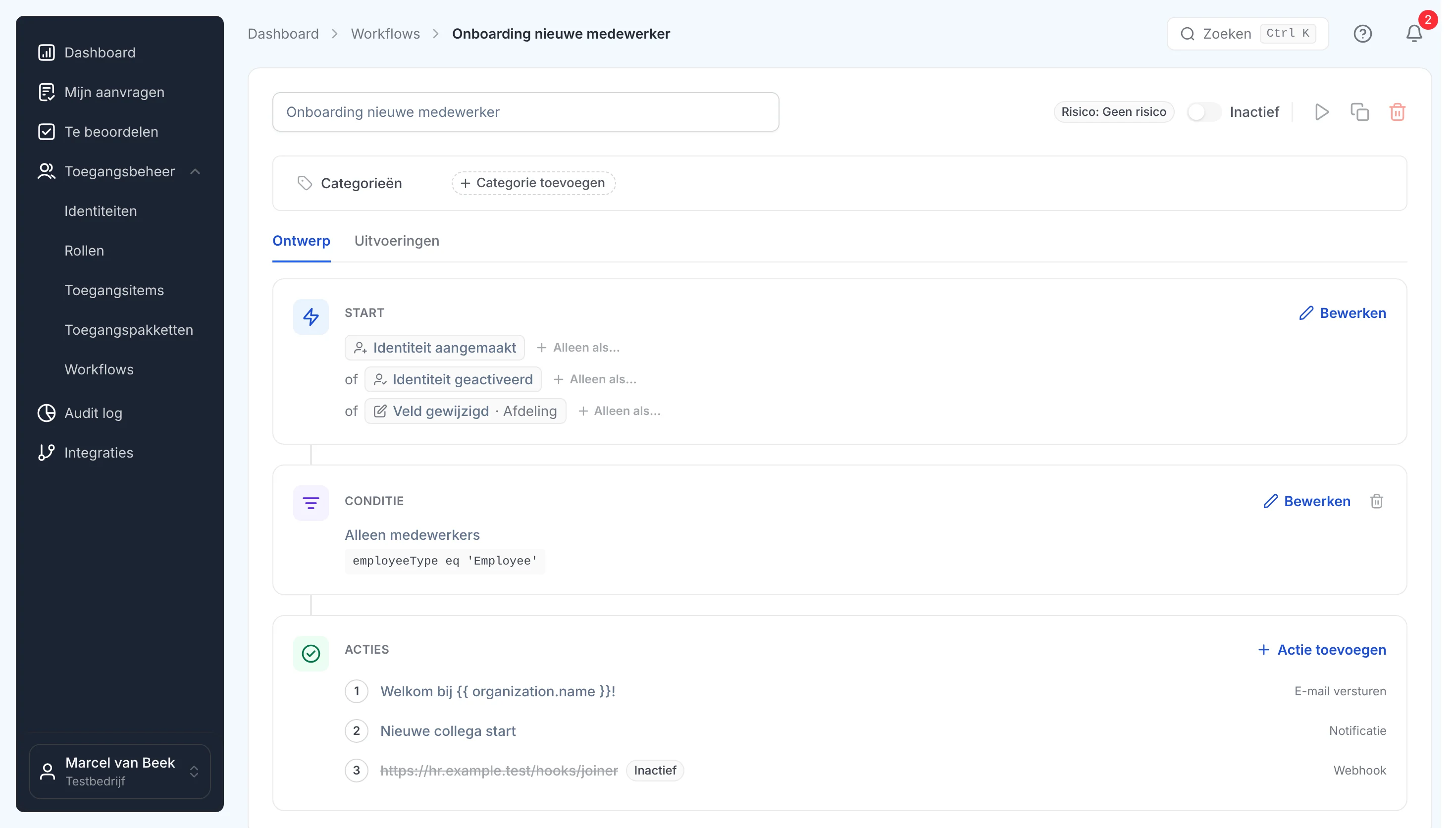
For a workflow, the preview shows which people meet your conditions, and "run for everyone" has a preview of its own. If a step fails, Joinly tries again: three times straight away, then after five minutes and after an hour. You decide per step whether the workflow stops, and failing workflows appear on the dashboard. Every change is in the audit log with its source, such as HR, Entra, a manual action or the system. If you want to see how it works out first, you let Joinly observe: everything is calculated and shown, without changing anything in Entra ID or Active Directory.

Een workflow in Joinly met triggers, condities en actiesSee workflows in Joinly

What you can count on

  • No vendor lock-inYour identities and your configuration stay yours.
  • Your data out whenever you wantYou can export your data at any time.
  • Standard SLAOur standard SLA is available on request.
  • Support during implementationOur specialists set it up together with you.
  • ISO 27001 certifiedInformation security to an internationally recognised standard.

Preventing provisioning errors

Frequently asked questions

  • What is a provisioning threshold?

    A limit on the number of changes in a single run, for example the number of accounts that are disabled. If a run goes over it, the system does not carry it out and waits until an administrator has looked. That way a faulty export does not lock out hundreds of accounts at once.

  • What is the default deletion threshold in Entra Connect?

    500. On installation, protection against accidental deletes is on, and an export with more than 500 deletions stops before anything is deleted. You change the value with Enable-ADSyncExportDeletionThreshold.

  • How do you stop an empty HR export from disabling everyone?

    With a threshold for disables just above your normal daily volume. A half-empty export then produces far more disables than the limit allows, and the run is stopped before anything happens.

  • What is a dry run?

    A run that works out what would change without carrying anything out. You see which accounts are created, changed and disabled, and put that in front of HR before you let it run for real.

  • What does quarantine mean for provisioning in Entra ID?

    That the provisioning service has marked an integration as unhealthy, for example because of invalid credentials or more than 40% failed events. The service tries less and less often, down to once a day, and disables the job after more than four weeks. A run stopped above the accidental deletions threshold also goes into quarantine.

  • How do you test an integration for one user?

    In Entra ID with Provision on demand on the Provisioning page of the Enterprise app. You pick one user and see step by step what the service does, usually within 30 seconds.

Let accounts move along by themselves

Joiners, movers and leavers from HR, with every step in the audit log. Start with demo data in the free trial environment.

No credit card, nothing to install.

Rather talk to someone first? Talk to an IAM specialist