
Unit4 → Microsoft Entra ID (formerly Azure AD)
Connect Unit4 to Microsoft Entra ID
When someone joins, moves or leaves in Unit4, you want that change reflected in Microsoft Entra ID without anyone touching it by hand. To connect Unit4 to Microsoft Entra ID, Joinly reads each HR change in Unit4 ERPx at the source — through the Unit4 REST API — and applies it automatically to the right account. Unit4 stays your source of truth; Joinly is the engine that keeps every action accurate and traceable.
Key takeaways
Unit4 ERPx stays your source of truth; Joinly applies every joiner, mover and leaver to Entra ID automatically.
Joinly maps Unit4’s own structures — resources, positions, cost centres and VITA dimensions — to the right Entra ID groups and licences, work that Unit4 has no first-party Entra provisioning connector to do.
A single resource can hold more than one position; Joinly picks the primary appointment to drive the account, so secondary or parallel roles add access instead of breaking sign-in.
Joinly reads effective-dated records, so future-dated starts are provisioned exactly on the start date and not the moment HR enters them.
Every action is logged for a complete audit trail, aligned with NIS2 and ISO 27001.


Quick facts
Source system | Unit4 (ERPx HCM / Core HR) |
Target system | Microsoft Entra ID (formerly Azure AD) |
Connection method | Unit4 ERPx REST API → Entra ID |
Supported events | Joiner, mover, leaver (incl. rehire, multiple positions, fixed-term contracts) |
Synced attributes | Name, email / UPN, position, department, manager, cost centre, organisation / company, dimensions, start and end date |
Authentication | OAuth 2.0 / OpenID Connect via Unit4 Identity Services |
Real-time or batch | Frequent sync, multiple times per day |
Compliance | ISO 27001, NIS2-ready, GDPR (EU data centre) |
Liever in het Nederlands? Unit4 koppelen met Microsoft Entra ID
How does Joinly sync Unit4 to Microsoft Entra ID?
Joinly reads each HR change in Unit4 ERPx through the REST API and applies it to the matching Entra ID account automatically. Unit4 holds the authoritative resource record, so it is the starting point for each identity action.
Joiner. HR completes the hire in Unit4, creating the resource and its position. Joinly reads the new resource and determines the role from attributes like position, cost centre, organisation unit and dimensions. It then creates the account in Entra ID, assigns the right licences and maps the person into the correct groups — timed to the effective start date.
Mover. When a resource changes position, cost centre or organisation unit in Unit4, Joinly updates their group membership, permissions and licences to match. Access that no longer fits the new position is revoked, so permissions stay aligned with the actual job.
Leaver. On the end date recorded in Unit4, Joinly disables the Entra ID account automatically. There are no orphaned accounts left active after someone has left, and where a resource holds more than one position the account is only disabled once the last active appointment ends.
Example: A higher-education institution hires a lecturer in Unit4 with a start date next Monday, attached to the Faculty of Science cost centre. Joinly reads the effective-dated record, waits until the start date, creates the Entra ID account, assigns an Office E3 licence and adds the lecturer to the Science-Staff group. When that lecturer later picks up a second, parallel position with a research centre, Joinly keeps the primary appointment as the driver of the UPN and adds the extra group without breaking sign-in.
What manual user management costs
Without automation, every account starts as a Unit4 ticket or a line in a spreadsheet that IT works through by hand. Unit4 has no first-party inbound provisioning app for Entra ID — Unit4 Identity Services handles sign-on, but joiner/mover/leaver provisioning is left to a custom Extension Kit build or generic middleware — so the part that actually decides access still falls to people.
Onboarding delays. New joiners wait for accounts, licences and group access while a ticket sits in a queue, losing productive days in their first week.
Permissions that don’t keep up (privilege creep). When resources change position or cost centre, old access often stays attached, so people accumulate rights they no longer need.
Forgotten offboarding. Accounts that aren’t disabled on time are both a security and audit risk, and unused licences keep costing money — and where someone holds more than one position it is easy to disable an account while another appointment is still active.
Joinly vs. a custom Unit4 integration
Unit4 gives you a REST API, Unit4 Identity Services for SSO and an Extension Kit to build against, but no ready-made HR-driven provisioning to Entra ID. Here’s how Joinly compares with rolling your own from those parts.
Joinly | Custom Extension Kit / middleware build | |
|---|---|---|
Source | Reads the Unit4 ERPx REST API directly | You build and maintain the API integration |
Role-to-group mapping | Built in, rule-based on positions, cost centres and dimensions | Hand-coded per rule; no role-to-group out of the box |
Multiple positions per resource | Resolves the primary appointment for the UPN | Custom logic; easy to drive off the wrong position |
Future-dated starts | Times account creation to the effective start date | Needs custom date-window scheduling |
Licence assignment | Driven by role / attributes | Manual or scripted |
On-premise AD | Yes, own agent plus the native Microsoft agent | Extra build; no standard path |
Audit trail | Per-action logging tied to the HR source | Only what you build and keep |
Watch-outs when connecting Unit4 to Microsoft Entra ID
A few Unit4-specific details decide whether this connection stays reliable at scale.
Multiple positions per resource. In Unit4 a single resource can hold more than one position at once — parallel appointments are common in higher education and local government. A naive rule can drive the account from the wrong appointment. Joinly applies explicit rules to pick the primary position as the driver of the UPN, while still reflecting the extra access.
Mapping cost centres and VITA dimensions to Entra groups. Unit4’s flexible VITA model means cost centres, organisation units and dimensions differ from tenant to tenant and don’t translate one-to-one to Entra ID groups. Joinly builds explicit mapping rules from your dimension model to the correct groups and licences, so role drives access rather than manual assignment.
Effective-dated future starts and fixed-term contracts. Unit4 stores a start as an effective-dated record before the first working day, and seasonal and fixed-term contracts are common in services and the public sector. Joinly reads the effective start and end dates and times account creation and disabling to them, so access is ready on the right day and removed on time.
UPN format with duplicate names. When two resources share a name, a naive UPN rule produces collisions. Joinly applies custom transformation rules — a suffix, organisation code or controlled tiebreaker — so every UPN is unique and predictable from day one.
Custom dimensions and fields. Because organisations extend the VITA model with their own dimensions, the fields you need aren’t all exposed the same way twice. Joinly maps the specific dimensions and fields you need via Liquid templates, so attributes like a local employee number or faculty code land in the right place.
Joinly handles each of these by default with custom mapping and transformation.
Always audit-ready
Every account action Joinly performs is logged: who was affected, when it happened, which access changed and which Unit4 change triggered it. For NIS2 that matters directly: access can be traced back to an authorised HR source rather than an ad-hoc request. Joinly is ISO 27001 certified, runs in an EU data centre in Amsterdam, applies least-privilege by default, and is built to meet NIS2 and ISO 27001.
Example case
Picture a higher-education institution with around 4,500 staff across several faculties, running Unit4 as its HR and finance core while its identity provisioning never quite keeps up. Unit4 Identity Services handles single sign-on, but there is no ready-made path from HR to Entra ID, so a lightly maintained script and a queue of tickets do the actual provisioning. Lecturers with a second, parallel appointment end up driven off the wrong position, and future-dated starts are created the moment HR saves the record rather than on the actual start date.
Connect Unit4 to Microsoft Entra ID with Joinly and that work disappears. Joinly reads each HR change in Unit4 ERPx at the source and acts on it automatically: new starters have their account, Office licence and group access ready on their effective start date, transfers between faculties swap the right groups the same day, a second appointment just adds access on one stable UPN, and leavers are disabled on their end date with a 30-day soft-delete grace window.
“Parallel appointments used to be the thing that broke every sync. Now an account is simply ready on the start date, a second position just adds access, and we can show the auditor exactly which Unit4 change created every bit of access.” — Head of IT, higher-education institution
The outcome this setup is designed for: onboarding drops from days to zero touch, appointment-related access errors stop entirely, and the team can walk into its next NIS2 assessment with a complete, source-backed audit trail.
Installation guide
Follow these steps to connect Unit4 to Microsoft Entra ID with Joinly. The entire cloud setup happens in the platform, with no scripts or local software required.
1. Create your account
Go to platform.joinly.app and create your account.
Note: charges may apply for using the platform after the trial period ends.
Sign up at platform.joinly.app to get started.
2. Connect your Microsoft account
Open platform.joinly.app/settings/provisioning/idp-setup and connect your Microsoft tenant. Select the scopes you need. For provisioning you don’t need any additional scopes.
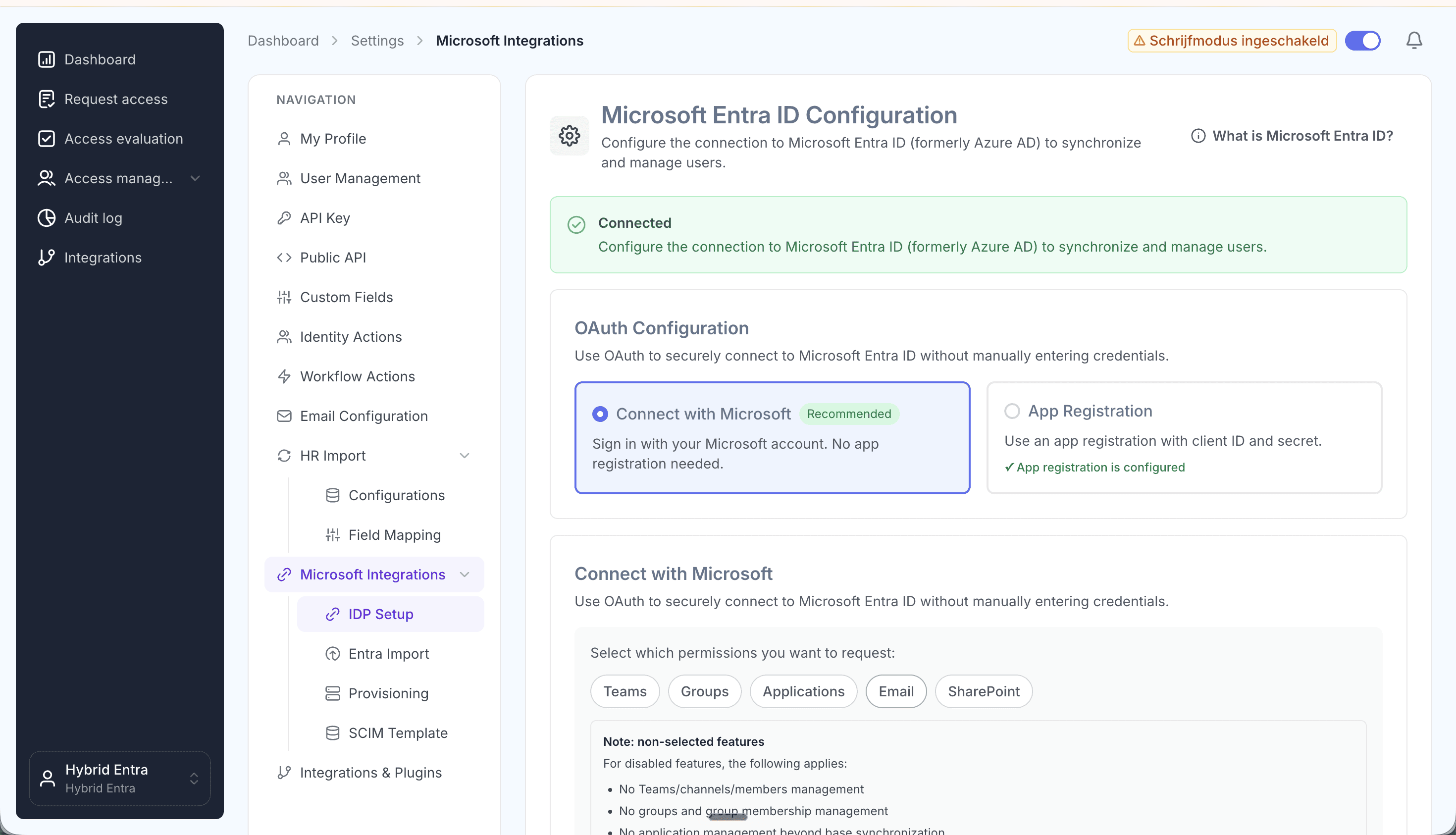
Connect your Microsoft tenant and pick your scopes.
3. Import your existing accounts from Entra ID
Import all existing accounts from Entra ID at platform.joinly.app/settings/provisioning/entra-import. This gives Joinly a baseline of every account that already exists, so it can match people to their current account instead of creating duplicates.
4. Find the Unit4 integration in the Joinly marketplace
Open the Joinly marketplace and search for the Unit4 integration.
Don’t see your system listed? Get in touch at support@koppelhet.nl and we’ll help you out.
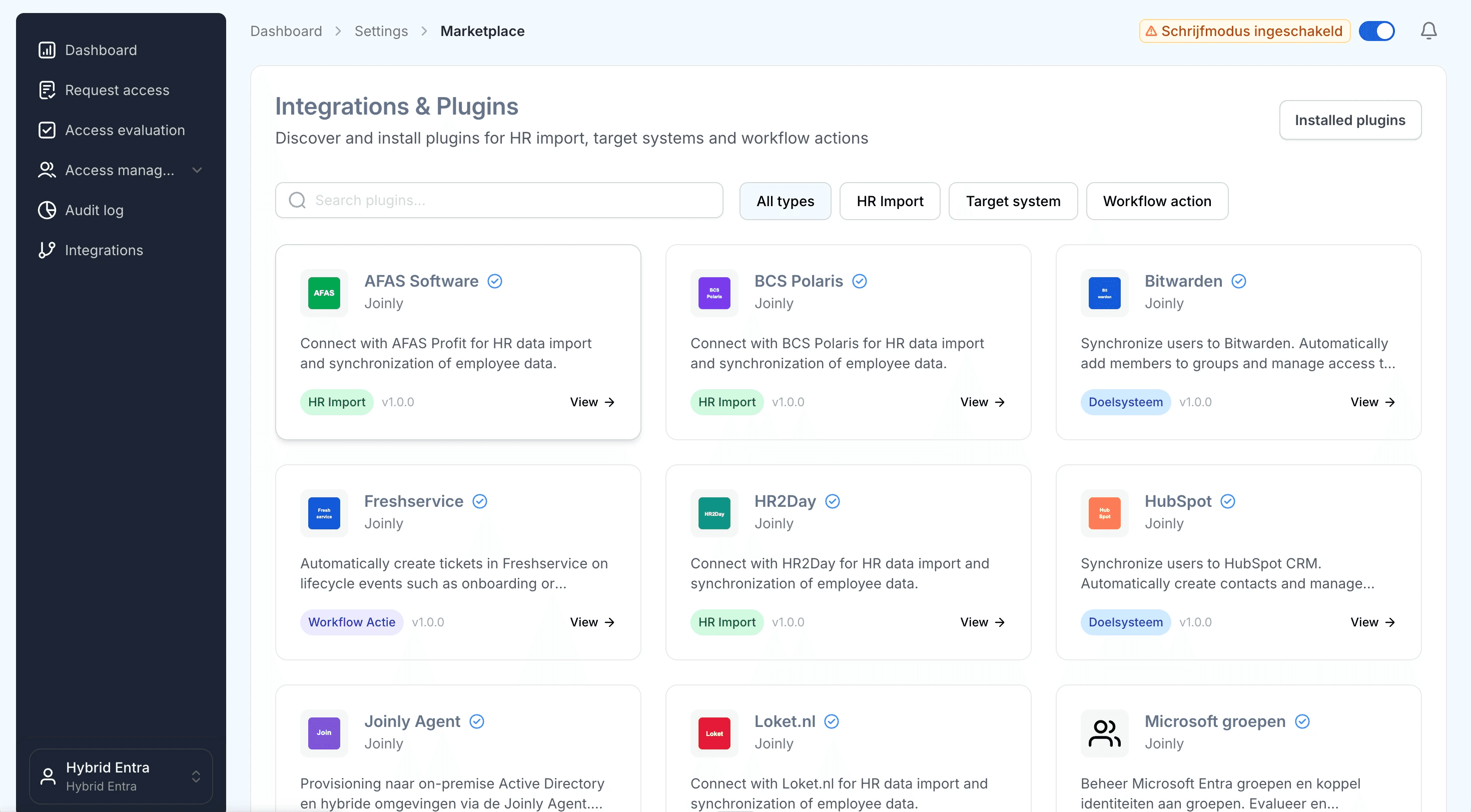
Search the marketplace for the Unit4 integration.
5. Follow the installation wizard
You may be redirected to integrations.joinly.app. Create an account there and enter your Unit4 connection details: your ERPx API base URL, tenant / company identifier, and OAuth credentials issued through Unit4 Identity Services. We only ask for the information needed to establish a successful connection with Unit4. All data is encrypted and stored securely.
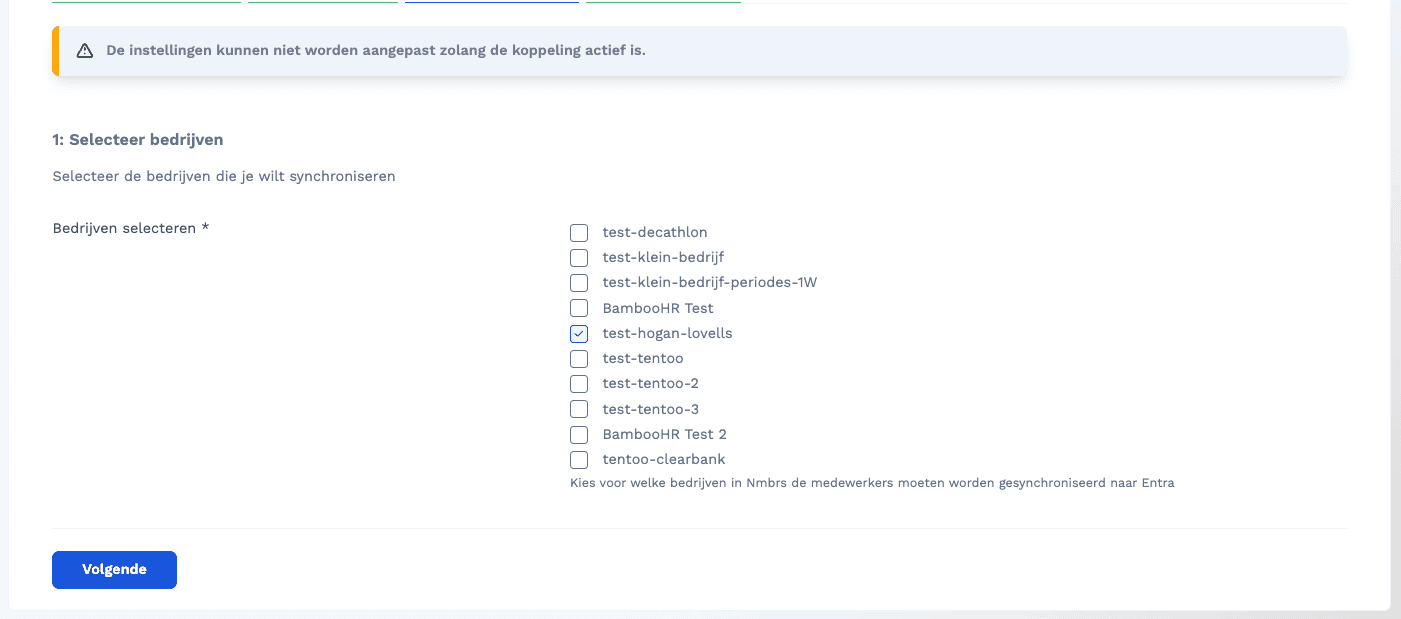
Enter your Unit4 ERPx API endpoint, tenant identifier and OAuth credentials in the wizard.
6. Configure your field mapping
Set up all your field mappings here. Templates support Liquid, so you can build your display name, UPN and other attributes dynamically from Unit4 fields.
Frequently asked questions
How do I map the manager? Reference the manager on the resource or position and Joinly resolves the link to the right manager automatically.
How do I handle multiple positions? Pick the primary position as the driver for the UPN; Joinly exposes the active positions so you can choose the primary one.
How do I prevent duplicate usernames? Use the
generateUniqueUsernamehelper, which falls back to the next pattern when the first one is already taken:{{ generateUniqueUsername: “{firstName}.{prefix}.{lastName}”, “{initials}.{prefix}.{lastName}” }}
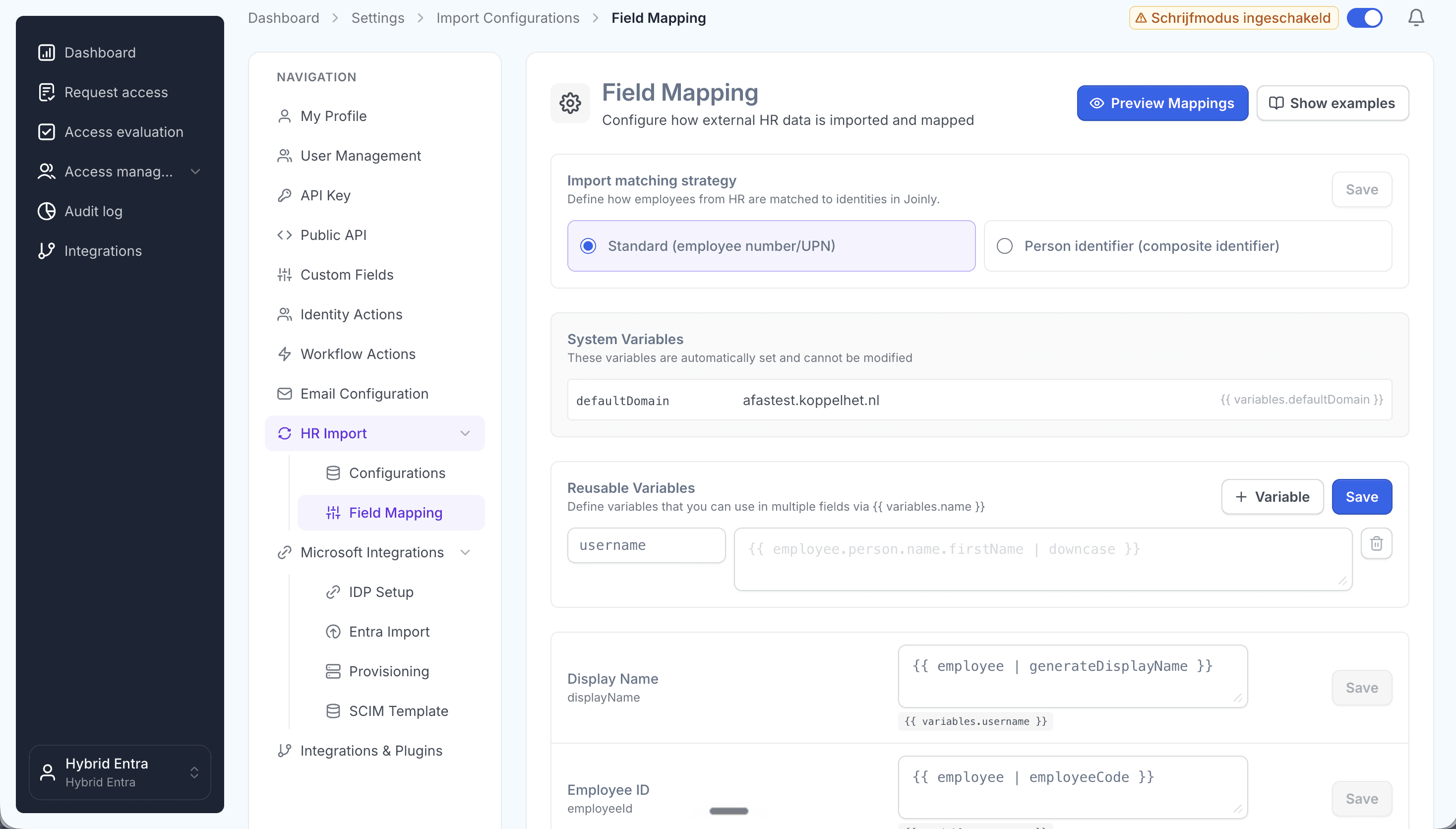
Map Unit4 fields to Entra ID attributes with Liquid templates.
7. Configure the scheduled import
At platform.joinly.app/settings/import-configs, configure how often the import from Unit4 should run.
8. Configure your workflows
Workflows are where Joinly turns each HR change into the right action in Entra ID. Create an onboarding (joiner) and offboarding (leaver) workflow with trigger-based execution, then an Identity updated workflow with a Create/update employee in Entra action so every change in Unit4 flows straight through to Entra ID. Finally, add a threshold workflow with the Entra soft delete action that runs a set period after the end date (for example 30 days) to retire accounts safely.
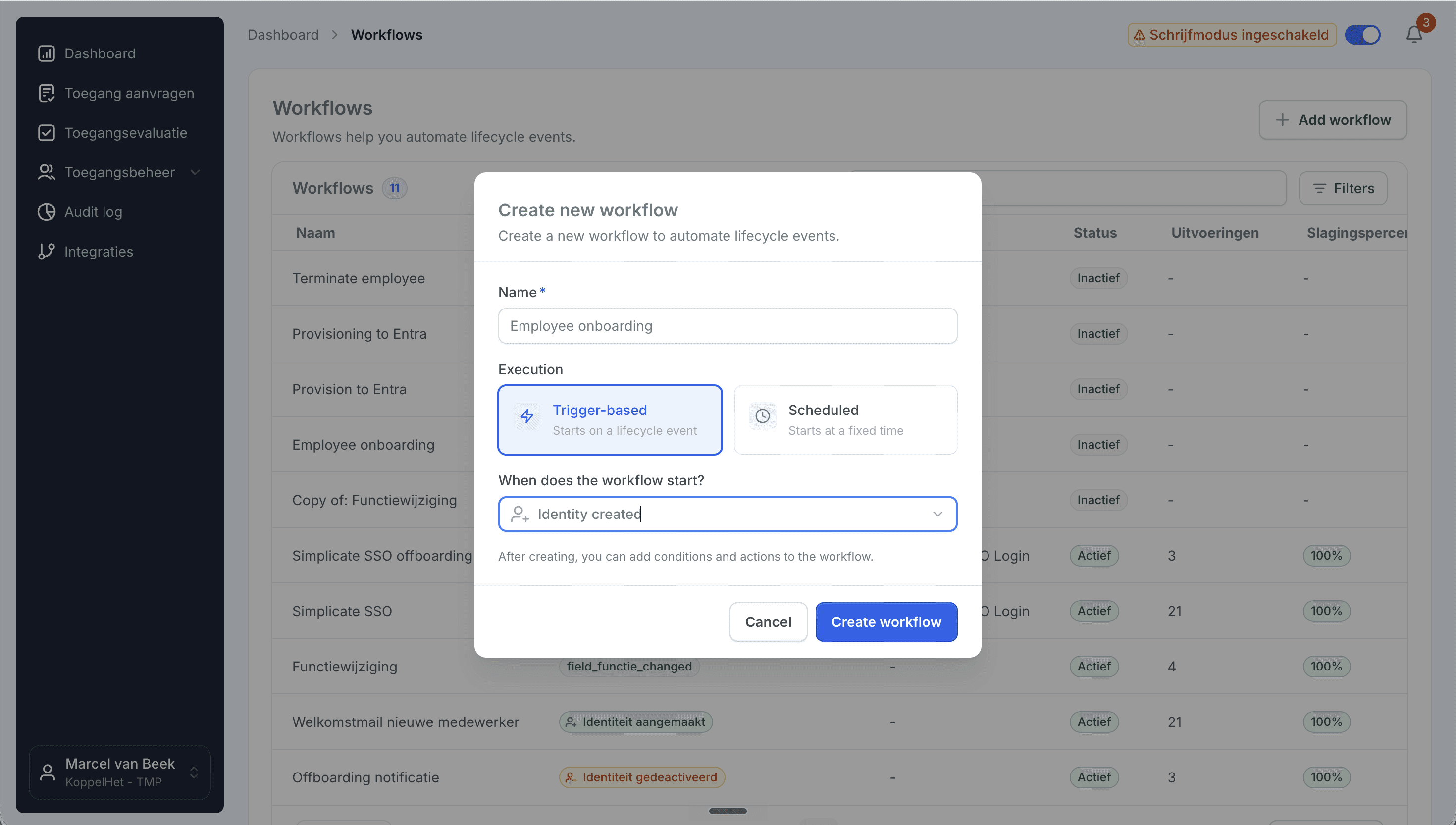
Create a trigger-based onboarding workflow.
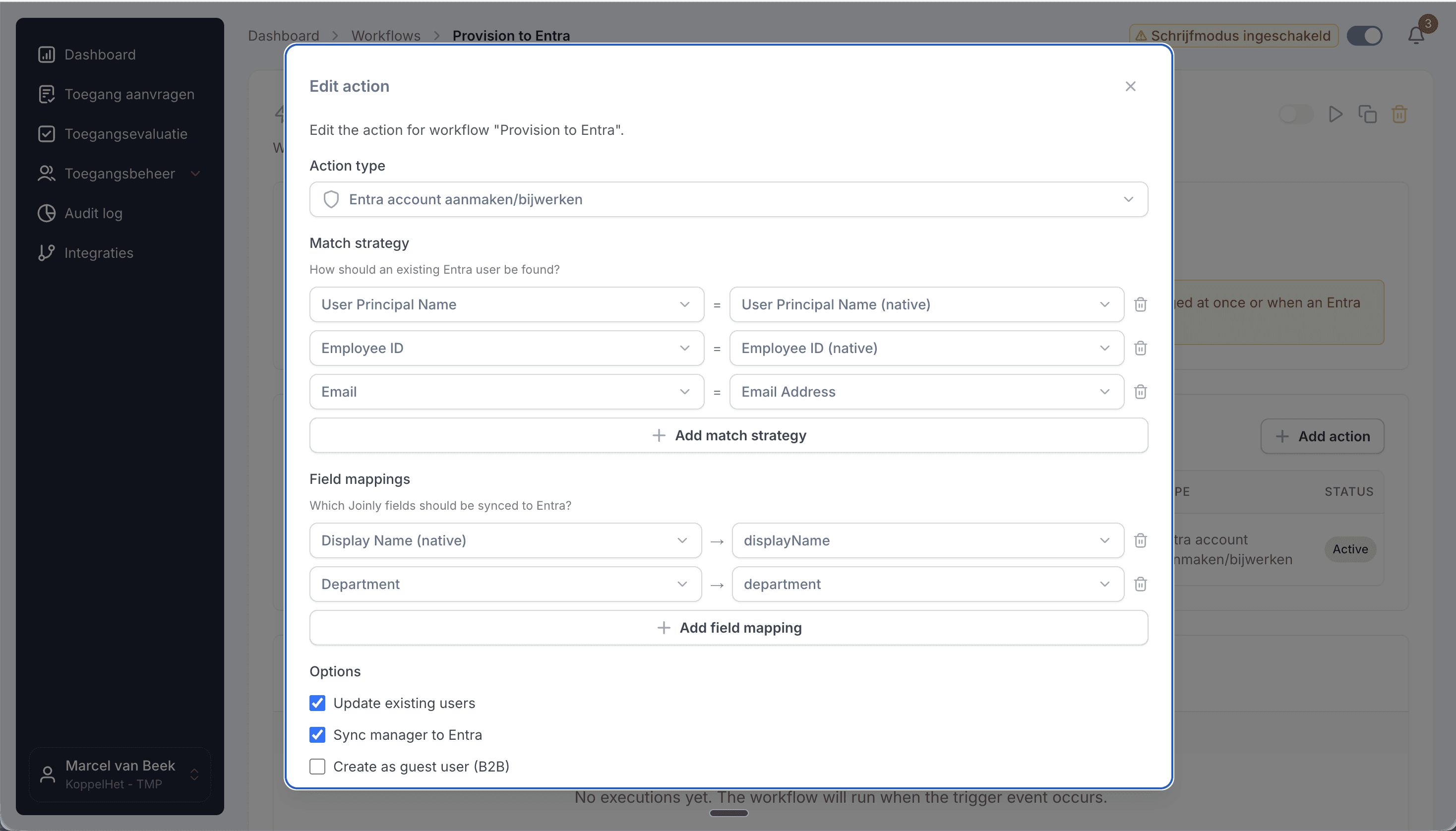
Add the create/update action, then set your matching strategy and field mapping.
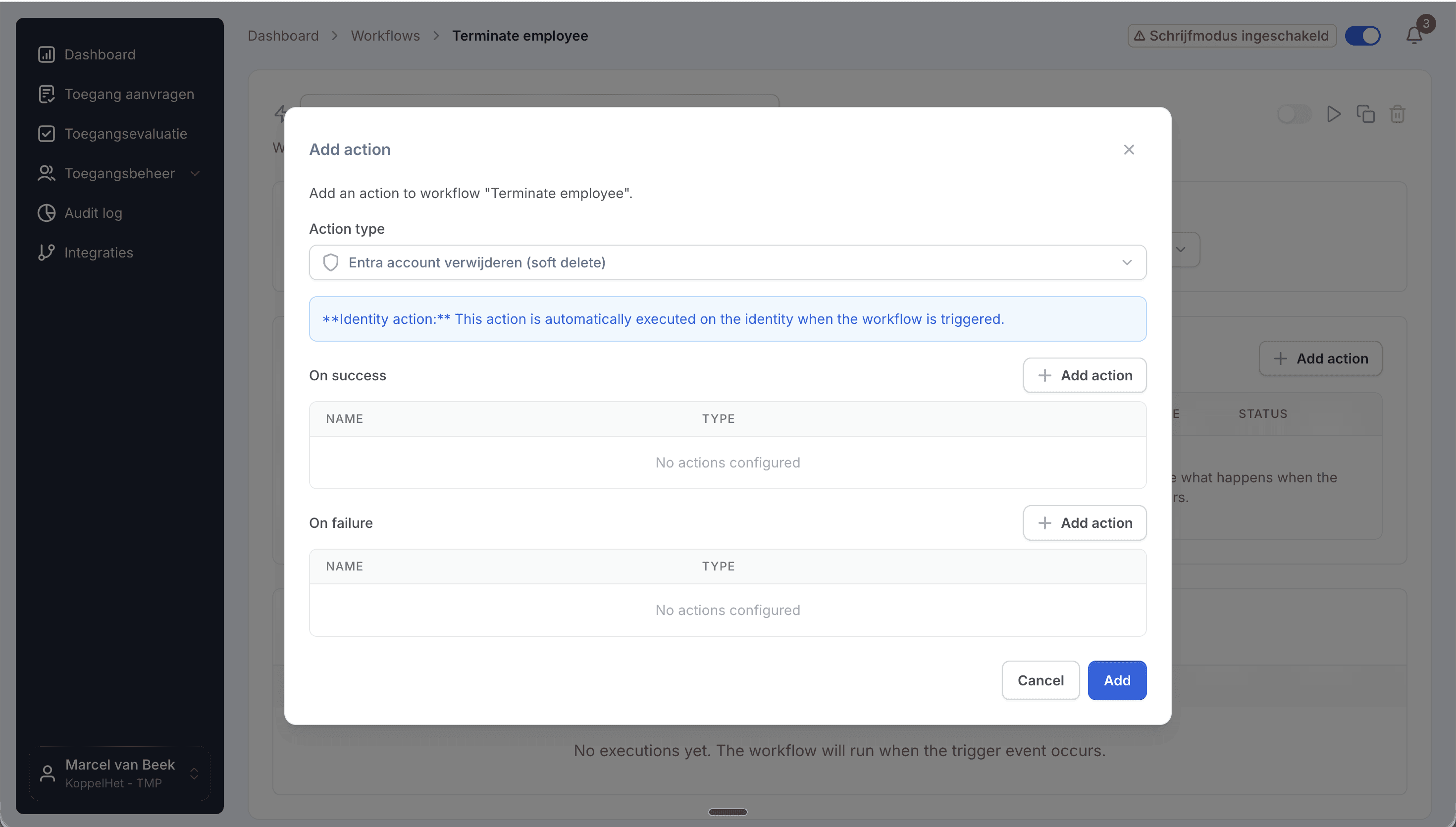
Add the Entra soft delete action to retire accounts safely.
## AD on-premise support
Need to provision to an on-premise Active Directory as well? See our dedicated guide on connecting Unit4 to Active Directory, or contact support at support@koppelhet.nl to request setup of the Joinly AD Agent.
Frequently asked questions
Does the Unit4 to Microsoft Entra ID connection work in real time?
It runs as a frequent sync that updates multiple times per day, so changes in Unit4 reach Entra ID quickly without waiting for a nightly batch.
How does Joinly handle a resource with more than one position?
Joinly reads all active positions for a resource and applies your rules to pick the primary appointment as the driver for the UPN, so a second or parallel position adds access without creating a duplicate account or breaking sign-in.
How are future-dated starts handled?
Joinly reads the effective start date on the Unit4 record and times account creation to it, so access is ready on the start date rather than the moment HR saved the record.
Which attributes sync from Unit4 to Entra ID?
Name, email / UPN, position, department, manager, cost centre, organisation / company, dimensions, and start and end date. Custom Unit4 dimensions and fields can be mapped via Liquid templates.
Do I need a custom Extension Kit build or middleware for Unit4?
No. Unit4 has no first-party inbound provisioning app for Entra ID, so the alternative is a custom Extension Kit or middleware build. Joinly takes over the provisioning, role-to-group mapping and multiple-position handling out of the box and maintains it as your Unit4 data changes.
Does Joinly also support AD on-premise or hybrid provisioning?
Yes. Joinly has its own AD on-premise agent and also supports the native Microsoft Entra provisioning agent, so you can provision users to your on-premise AD environment as well. See the Unit4 to Active Directory guide.
More than a connector
A standalone Unit4 to Entra ID connection is a good start, but identity rarely stops at one target. Joinly manages the complete chain from joiner to leaver across all your systems, with logging and governance built in. You review the exceptions; Joinly maintains the chain.
Request installation support
Other guides
Frequently asked
Questions about connecting Unit4 to Microsoft Entra ID (formerly Azure AD)
How does Joinly connect Unit4 to Microsoft Entra ID?
The connection reads HR changes at the source (Unit4 ERPx REST API → Entra ID.) Authentication: OAuth 2.0 / OpenID Connect via Unit4 Identity Services. Joinly writes to Entra ID through Microsoft Graph, with its own app registration and application permissions — no synchronisation server, agent or extra infrastructure. If you prefer Microsoft's API-driven provisioning endpoint, Joinly can deliver the same changes as a SCIM 2.0 bulk request instead.
Which HR events does the Unit4 → Entra ID connection handle?
Joiner, mover, leaver (incl. rehire, multiple positions, fixed-term contracts). Each event runs the workflow you configured for it: a joiner gets an account, groups and licences before the start date, a mover has the access of the old position removed and the new one added, and a leaver is disabled on the termination date.
Which Unit4 attributes are synced to Entra ID?
Name, email / UPN, position, department, manager, cost centre, organisation / company, dimensions, start and end date. The mapping is configurable per field with Liquid templates, so your own naming convention for the user principal name, display name and e-mail address keeps applying.
How often does Joinly sync Unit4 with Entra ID?
Frequent sync, multiple times per day. The import schedule is yours to set — hourly, daily or weekly at a fixed time — and every run only processes what changed since the previous one.
Will Joinly overwrite the accounts that already exist in Entra ID?
No. Joinly first imports your existing directory and matches those accounts to the employees from Unit4. Existing accounts are recognised and adopted rather than created twice. Which matching strategy applies — user principal name, e-mail address, employee ID or a person identifier — is a setting.
Can I try this without anything being written?
Yes. Run the import as a dry run and you get an Excel export of exactly what would happen. You can also leave the connection in read-only mode, where Joinly calculates everything but writes nothing, and set thresholds for how many creations, activations and deactivations one run may produce before it is blocked for approval.
Is Unit4 a ready-made connector in Joinly?
Yes. Unit4 is a ready-made HR connector in Joinly: you enable it, enter the details of your Unit4 environment and Joinly reads the employees from there. Nothing has to be developed on either side.
What happens when someone has more than one contract in Unit4?
Joinly recognises that it is one person and decides which employment leads for the account, the manager and the department. You do not get two accounts for the same employee, and when one contract ends the account is only disabled when the last active employment ends.
Do I need a Microsoft Entra ID P1 or P2 licence for this?
Not for the Microsoft Graph path: Joinly uses its own app registration and the permissions you grant it. Microsoft's API-driven inbound provisioning endpoint, which Joinly can also target with SCIM bulk requests, follows Microsoft's own licensing for that feature.
Does the Unit4 → Entra ID connection support NIS2 and ISO 27001?
ISO 27001, NIS2-ready, GDPR (EU data centre). Every mutation lands in the audit log with its source — HR import, manual, from Entra, by the system or through an API key — and a link to the workflow that caused it. That is the evidence an auditor asks for when they want to know who had access to what, and why.
More on Unit4
Everything Joinly publishes about Unit4: the other installation guide, how the connection compares with Microsoft's own provisioning, what offboarding looks like, and the SCIM route.
Zien wat Joinly voor jouw organisatie doet?
Start direct met een gratis proefversie of neem contact op voor advies over jouw HR- en Microsoft-omgeving.