
ADP Workforce Now → Active Directory (on-premise)
Connect ADP Workforce Now to Active Directory (on-premise)
When someone joins, moves or leaves in ADP Workforce Now, you want that change reflected in your on-premise Active Directory without anyone touching it by hand. To connect ADP Workforce Now to Active Directory, Joinly reads each HR change through the ADP Worker Management API and applies it to your domain through the Joinly AD Agent — a lightweight connector that runs inside your network. Workforce Now stays your source of truth; Joinly is the engine that keeps every account in the right OU, accurate and traceable.
Key takeaways
ADP Workforce Now stays your source of truth; Joinly applies every joiner, mover and leaver to on-premise Active Directory automatically.
The Joinly AD Agent runs inside your network and needs only an outbound HTTPS connection — no inbound ports and no domain controller exposed to the internet.
Joinly maps Workforce Now home department and business unit to the right AD security groups and target OUs, and builds the sAMAccountName, UPN and distinguished name from your own rules.
Reads the effective hire date and resolves associates with multiple positions, so accounts land in the correct OU on the start date and aren't duplicated by a second Position ID.
Every action is logged for a complete audit trail, aligned with NIS2 and ISO 27001 — and the same setup extends to a hybrid Entra ID environment.


Quick facts
Source system | ADP Workforce Now |
Target system | On-premise Active Directory (AD DS) |
Connection method | ADP Worker Management API (API Central) → Joinly AD Agent → Active Directory |
Agent requirement | Domain-joined Windows server with a GMSA, outbound HTTPS (443) only |
Supported events | Joiner, mover, leaver (incl. rehire, job change, multiple positions) |
Synced attributes | Name, sAMAccountName, UPN, mail, home department, business unit, job title, manager, associate ID, distinguished name / OU, hire and termination date |
Real-time or batch | Frequent sync, multiple times per day |
Compliance | ISO 27001, NIS2-ready, GDPR (EU data centre) |
Liever in het Nederlands? ADP Workforce Management koppelen met Active Directory (on-premise)
How does Joinly sync ADP Workforce Now to Active Directory?
Joinly reads each HR change in Workforce Now in the cloud through the ADP Worker Management API, then hands the action to the Joinly AD Agent inside your network, which makes the change in Active Directory. Workforce Now holds the authoritative worker record; the agent is the only component that touches your domain.
Joiner. HR completes the new hire in Workforce Now. Joinly reads the new worker, determines the role from home department, business unit and job title, and instructs the AD Agent to create the user in the correct OU, build the sAMAccountName and UPN from your rules, and add the right security groups — timed to the effective hire date.
Mover. When an associate changes position, home department or business unit, Joinly tells the agent to move the user to the matching OU, swap security-group membership and update attributes. Access that no longer fits the new position is removed, so permissions stay aligned with the actual job.
Leaver. On the termination date, Joinly instructs the agent to disable the AD account and optionally move it to a disabled-users OU. Multiple positions are taken into account, so an account is only disabled when the associate’s last active position ends.
Example: A retail chain runs Workforce Now and an on-premise AD across dozens of stores. It hires a store associate with a hire date next Monday. Joinly reads the worker record, and on Monday morning the AD Agent creates the user in the Stores > North-Region OU, sets the sAMAccountName to a unique pattern, and adds the Store-Floor group. When the associate later picks up a second Position ID as a key-holder, the agent adds the key-holder group to the same object instead of creating a duplicate.
What manual AD account management costs
Without automation, every account starts as an ADP report that an admin works through in Active Directory Users and Computers by hand — creating the object, choosing the OU, building the sAMAccountName, adding groups. ADP offers no native path to on-premise AD; the gallery app is SSO only, so you either script exports yourself or buy a third-party sync bridge, and either way the decisions still fall to people.
Onboarding delays. New joiners wait for an AD account and group access while a ticket sits in a queue, losing productive days in their first week.
Permissions that don’t keep up (privilege creep). When associates change position, old security-group membership often stays attached, so people accumulate rights they no longer need.
Forgotten offboarding. Accounts that aren’t disabled on time are a security and audit risk — and with multiple positions it is easy to disable an account while another position is still active.
Joinly vs. a sync bridge for AD
ADP has no native on-premise AD provisioning, so the usual baseline is a third-party sync bridge that writes worker data to AD. Here’s how that compares to Joinly for a Workforce Now-driven AD setup.
Joinly AD Agent | Third-party ADP sync bridge | |
|---|---|---|
Source | Reads the ADP Worker Management API directly | Reads ADP separately via its own connector |
OU placement | Rule-based on home department and business unit | Single configured container; limited logic |
Role-to-group mapping | Built in, rule-based | Not available out of the box; manual |
Hire-date / future hires | Times creation to the effective hire date | Needs custom date-window configuration |
Multiple positions | Resolves home vs additional Position ID | Associate vs position confusion can create duplicates |
sAMAccountName / UPN rules | Custom transformation with uniqueness fallback | Limited expression mapping |
Audit trail | Per-action logging tied to the HR source | Limited |
Watch-outs when connecting ADP Workforce Now to Active Directory
A few details decide whether this connection stays reliable at scale.
sAMAccountName uniqueness and length. AD limits the sAMAccountName to 20 characters and it must be unique across the domain. Joinly builds it from your rules with a fallback pattern, so duplicate names never produce a collision or a truncated, unreadable login.
OU placement from home department and business unit. ADP’s home department and business unit don’t map one-to-one to your OU structure. Joinly builds explicit rules that place each user — and move them on a job change — into the correct OU.
Associate ID versus Position ID. An associate holds one identity but a separate Position ID per job. Joinly keys on the associateOID so a second position adds groups to a single AD object rather than creating a duplicate account.
Certificate-based API onboarding. The link to ADP runs over mutual TLS with an X.509 certificate that expires. Joinly manages the certificate and flags rotation in advance, so the agent keeps receiving worker changes without an unexpected outage.
Service-account permissions. The agent acts under a service account with delegated rights. Joinly works with least-privilege delegation scoped to the target OUs, so the agent can create, move and disable users without domain-admin rights.
Joinly handles each of these by default with custom mapping and transformation.
Always audit-ready
Every account action the Joinly AD Agent performs is logged in the Joinly cloud: who was affected, when it happened, which OU and groups changed and which Workforce Now change triggered it. For NIS2 that matters directly: access can be traced back to an authorised HR source rather than an ad-hoc request. Joinly is ISO 27001 certified, runs in an EU data centre in Amsterdam, applies least-privilege by default, and is built to meet NIS2 and ISO 27001.
Example case
Take a retail chain with around 4,500 employees across a few hundred stores, running Workforce Now but still living in an on-premise Active Directory for its point-of-sale and back-office systems. Every new store associate, supervisor or warehouse hand starts as an ADP report that IT processes by hand in AD — creating the object, choosing the store OU, building the login, adding groups. With heavy seasonal hiring and constant store-to-store moves the queue never empties, and new joiners wait until day two or three for their account.
Connect ADP Workforce Now to Active Directory with Joinly and that work disappears. The Joinly AD Agent creates each user in the right store OU on the hire date, builds a unique sAMAccountName, adds the correct security groups, moves people on a transfer between stores and disables accounts on the termination date with a 30-day grace window — all driven by the HR change in Workforce Now.
“An account is simply ready in the right store OU when the associate clocks in, transfers between stores move themselves, and we can show the auditor exactly which Workforce Now change created every bit of access.” — Head of IT, retail chain
The outcome this setup is designed for: onboarding drops from days to zero touch, privilege creep from old store roles is eliminated, and the team can walk into its next NIS2 assessment with a complete, source-backed audit trail.
Installation guide
Follow these steps to connect ADP Workforce Now to your on-premise Active Directory with Joinly. Most of the setup happens in the cloud platform; the only local component is the lightweight Joinly AD Agent, which you install on a domain-joined server.
1. Create your account
Go to platform.joinly.app and create your account.
Note: charges may apply for using the platform after the trial period ends.
Sign up at platform.joinly.app to get started.
2. Find the ADP Workforce Now integration in the Joinly marketplace
Open the Joinly marketplace and search for the ADP Workforce Now integration.
Don't see your system listed? Get in touch at support@koppelhet.nl and we'll help you out.
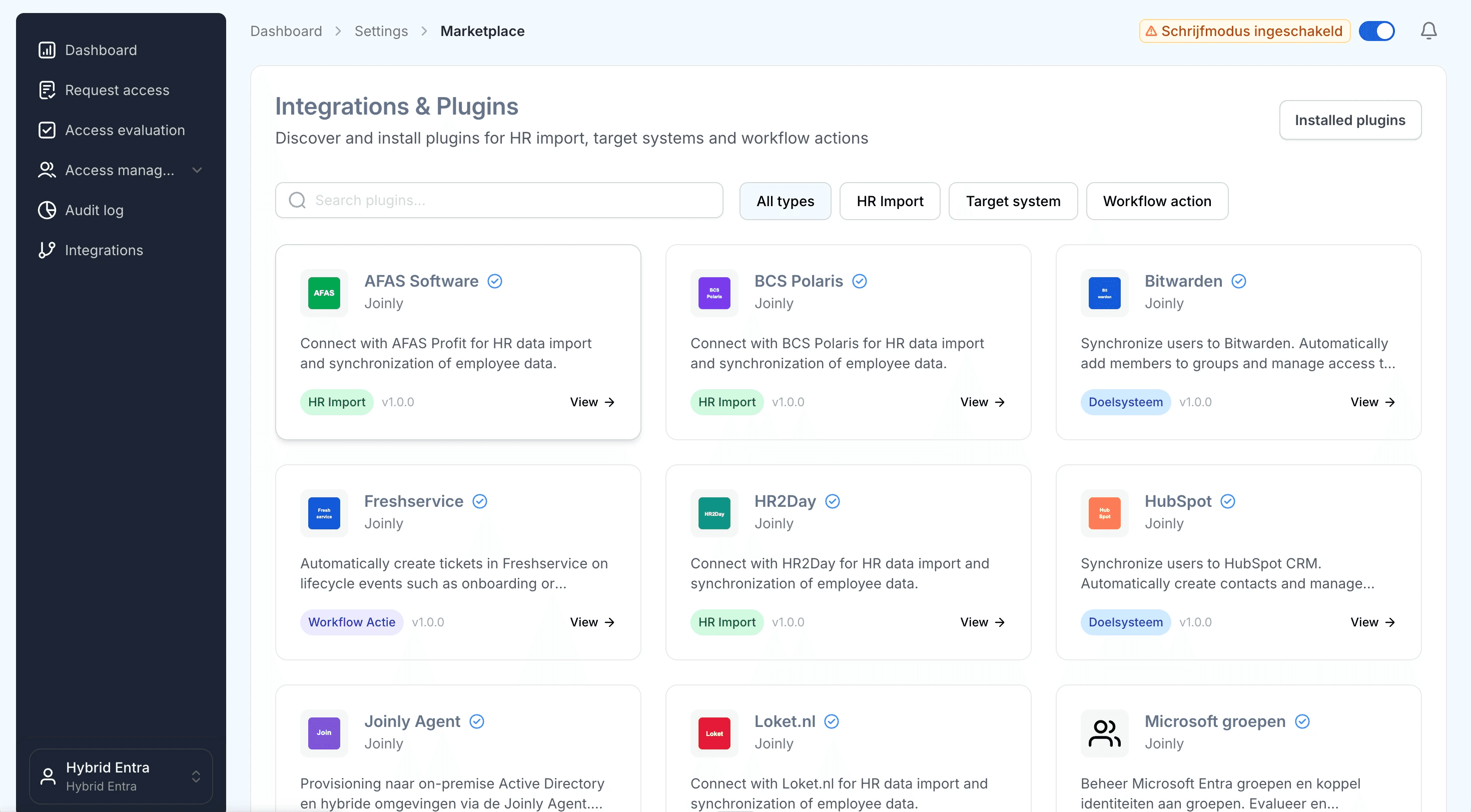
Search the marketplace for the ADP Workforce Now integration.
3. Follow the installation wizard
You may be redirected to integrations.joinly.app. Create an account there and enter your Workforce Now connection details: your ADP API Central client ID and secret, plus the X.509 client certificate and private key from the ADP partner self-service portal for the mutual-TLS connection. All data is encrypted and stored securely.
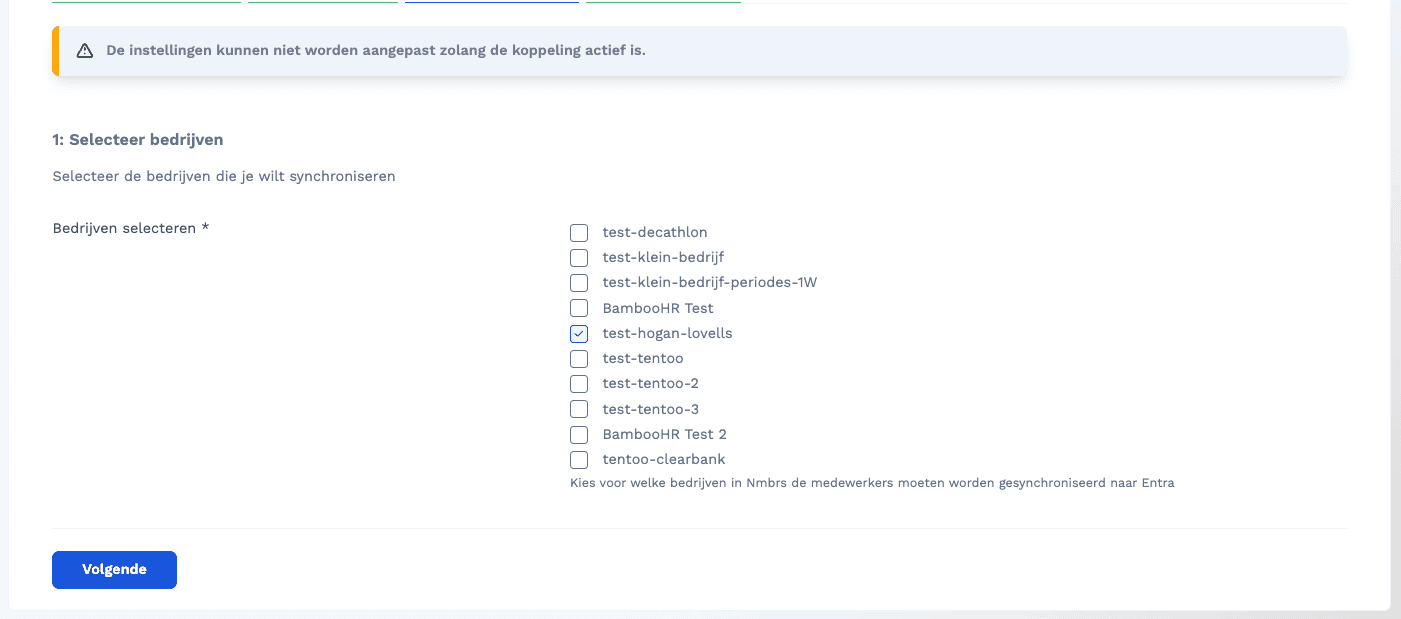
Enter your ADP API Central credentials and client certificate in the wizard.
4. Download the Joinly AD Agent
In the platform, go to Workflows → Select a workflow → Add action → Select 'Provisioning via Agent' and download the installer. The agent is a lightweight Windows service that connects your domain to the Joinly cloud over an outbound HTTPS connection only — there are no inbound ports to open.
Read the full Joinly AD Agent installation guide here.
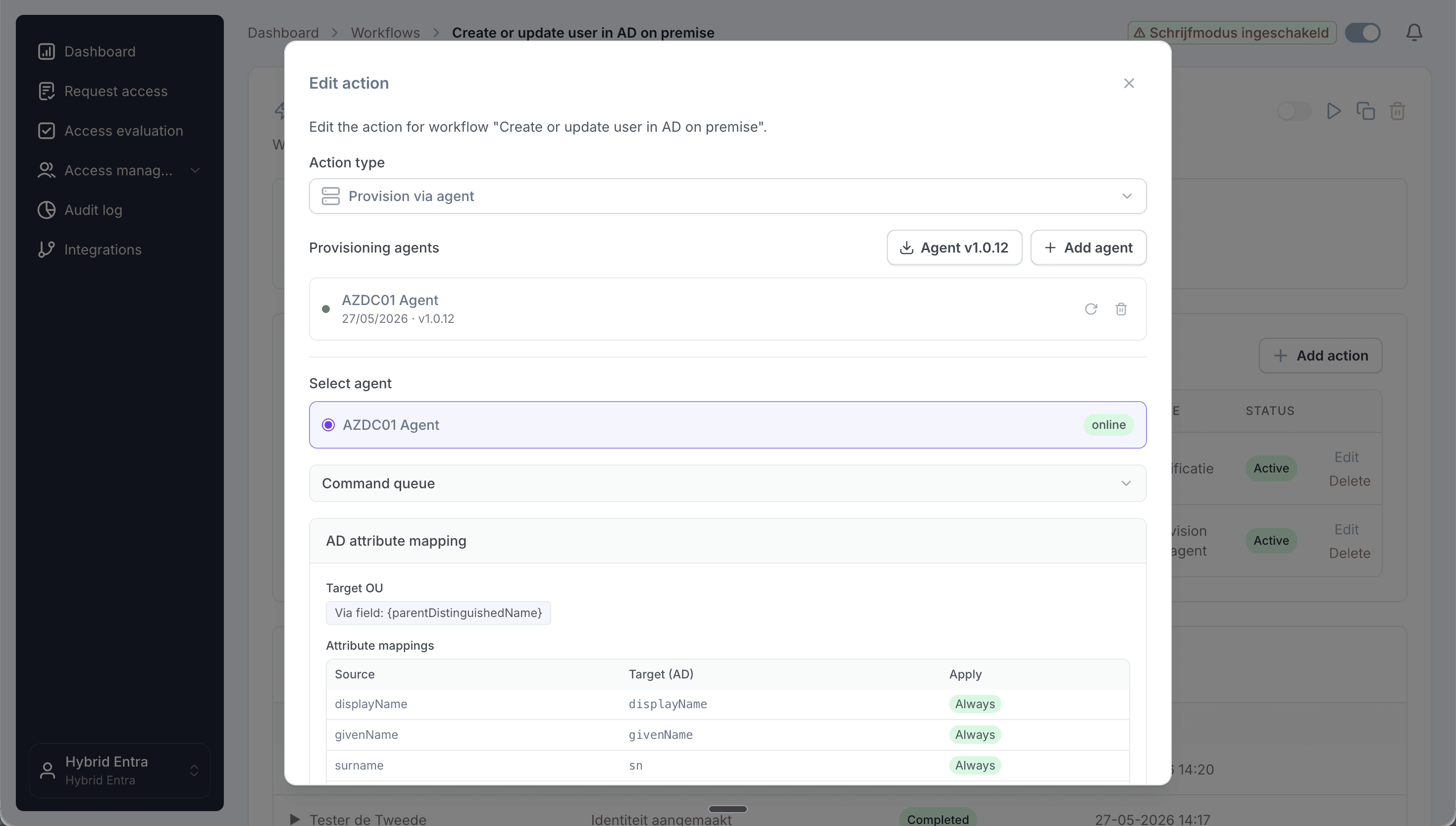
Download the Joinly AD Agent installer from the provisioning settings.
5. Install the agent on a domain-joined server
Run the installer on a domain-joined Windows server that can reach a domain controller. The server needs outbound HTTPS (port 443) to the Joinly cloud and a GMSA account installation on your domain controller. Run through the installer; it registers the agent as a Windows service that starts automatically.
6. Pair the agent with your Joinly tenant
Copy the pairing token from Settings → Provisioning → AD Agent in the platform and paste it into the agent's configuration screen. The agent uses the token to register securely with your tenant; once paired, its status shows as Connected in the platform.

Pair the agent with your tenant using the pairing token.
7. Set the target OU and attribute mapping
Configure where users are created and how their attributes are built. Map the distinguished name / OU from home department and business unit, and build the sAMAccountName, userPrincipalName, mail, department and manager with Liquid templates.
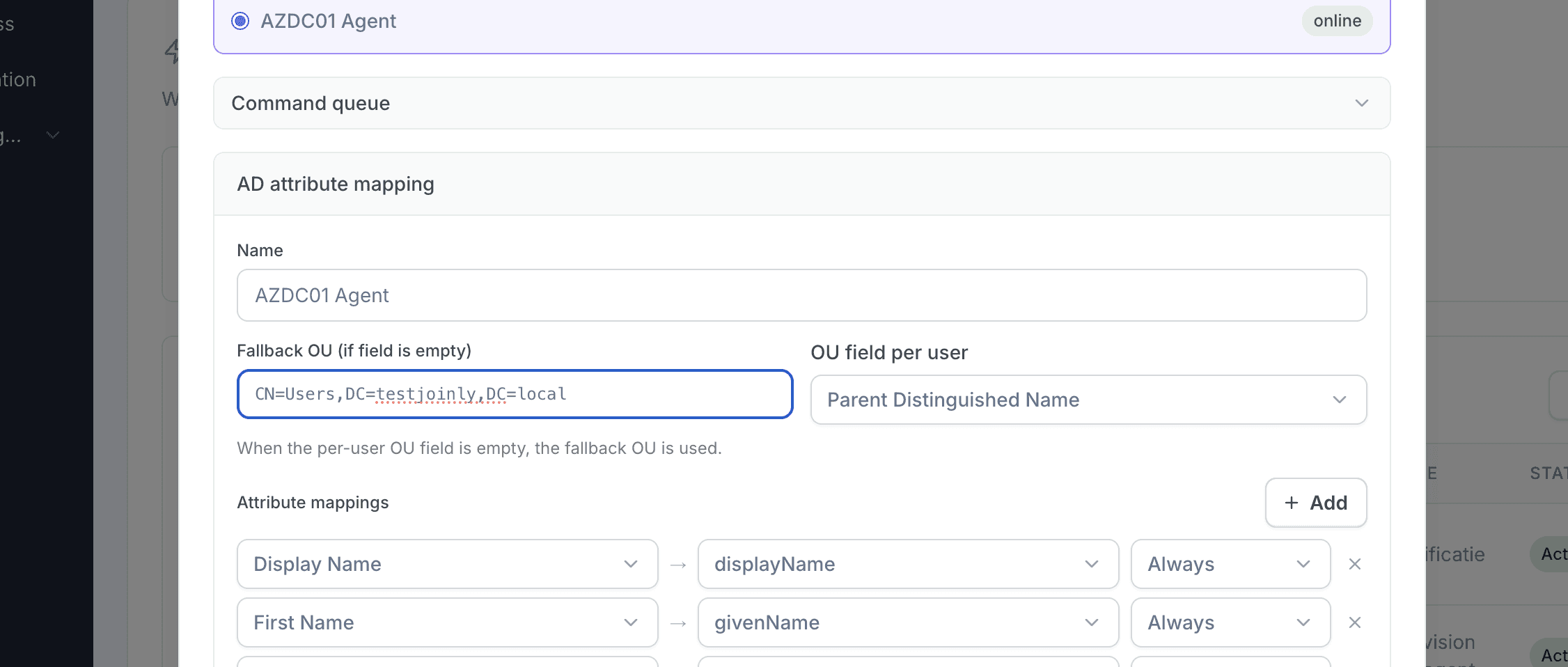
Select the OU and attribute mapping.
8. Configure your workflows
Create an onboarding (joiner) and offboarding (leaver) workflow with trigger-based execution, then an Identity updated workflow with a Create/update employee in Active Directory action so every change in Workforce Now flows through the agent to AD. Add a threshold workflow that disables the account a set period after the termination date (for example 30 days), optionally moving it to a disabled-users OU.
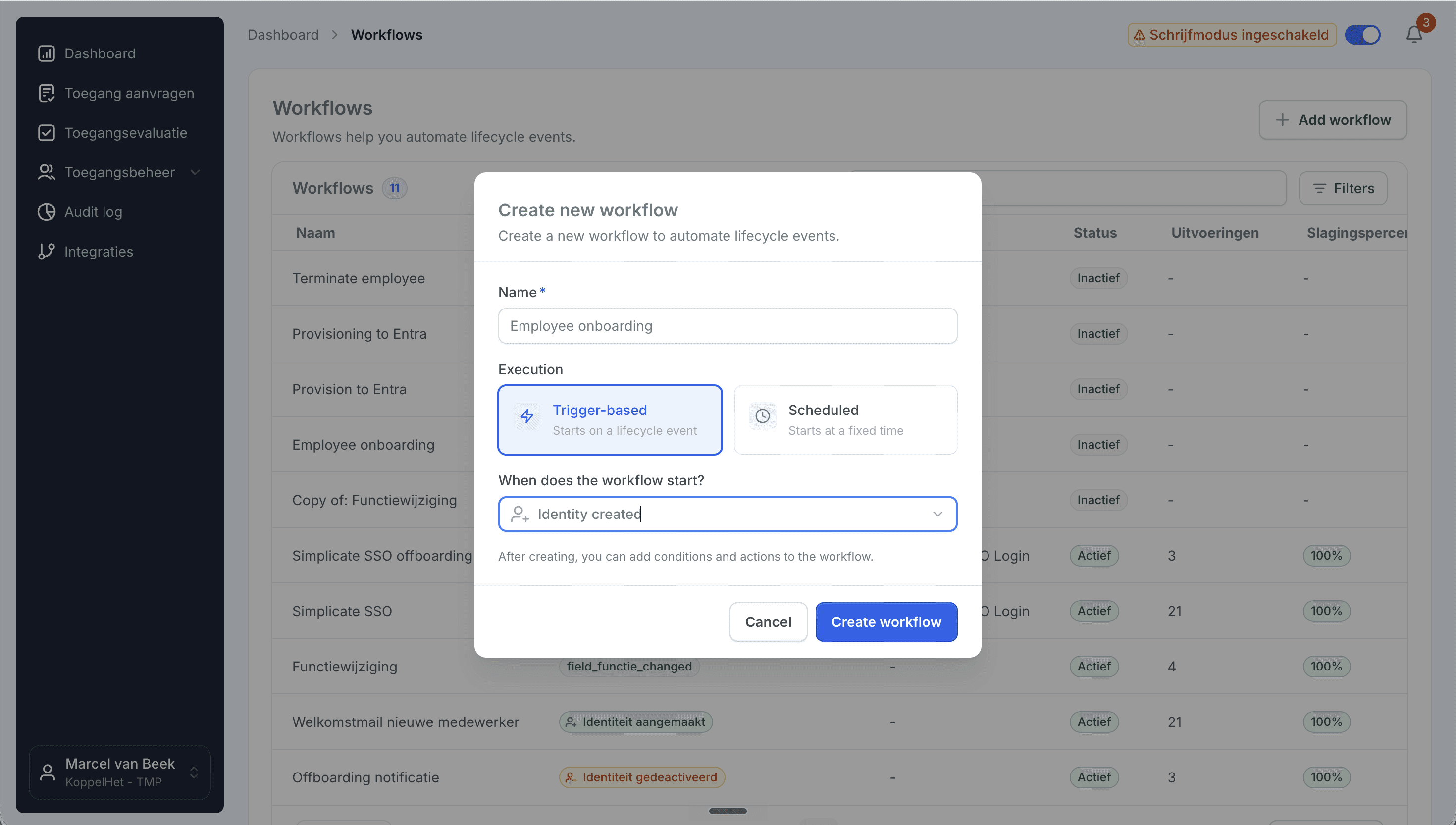
Create a trigger-based onboarding workflow.
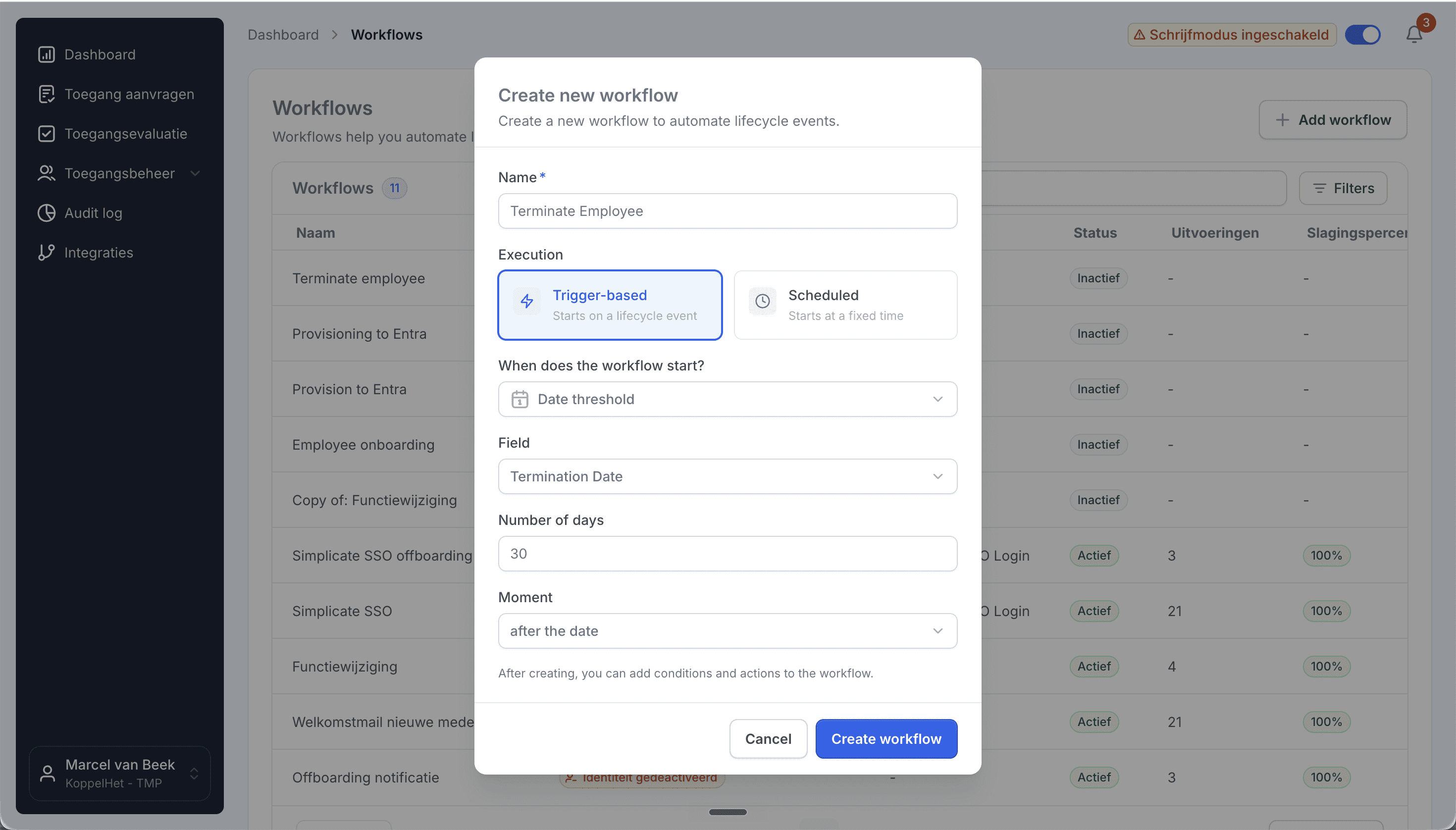
A date-threshold workflow disables accounts a set number of days after termination.
9. Network and firewall requirements
The agent needs outbound HTTPS (443) to the Joinly cloud and a GMSA account with PowerShell access to your domain controllers. No inbound firewall rules are required, and no domain controller is exposed to the internet. For high availability you can run the agent on more than one server.
Need cloud Entra ID provisioning as well? See our guide on connecting ADP Workforce Now to Microsoft Entra ID, or contact support at support@koppelhet.nl.
Frequently asked questions
Does the Joinly AD Agent need inbound firewall openings?
No. The agent only makes an outbound HTTPS connection to the Joinly cloud and acts on your domain controllers from inside the network through a GMSA with PowerShell access. There are no inbound ports to open and no domain controller is exposed to the internet.
What account does the agent run under?
A Group Managed Service Account (GMSA) with PowerShell access to your domain controllers, scoped to the target OUs so it can create, move and disable user objects without domain-admin rights.
Which OU do new accounts land in?
The one your rules define. Joinly builds the distinguished name and OU placement from Workforce Now home department and business unit, and moves the object to a new OU automatically when an associate transfers.
How is the sAMAccountName built and kept unique?
From your Liquid template, with the generateUniqueUsername helper falling back to the next pattern on a collision, all within AD's 20-character limit.
Can I provision to both Active Directory and Entra ID?
Yes. The same Joinly setup drives a hybrid environment, the AD Agent for on-premise AD and the native Entra connection for the cloud. See the Workforce Now to Entra ID guide.
Can I run more than one agent for high availability?
Yes. You can install the agent on multiple domain-joined servers so provisioning continues if one server is unavailable.
More than a connector
A standalone Workforce Now to Active Directory connection is a good start, but identity rarely stops at one target. The same Joinly setup extends to Entra ID for a hybrid environment and to your other systems, managing the complete chain from joiner to leaver with logging and governance built in. You review the exceptions; Joinly maintains the chain.
Request installation support
Other guides
Frequently asked
Questions about connecting ADP Workforce Now to Active Directory (on-premise)
How does Joinly connect ADP Workforce Management to on-premise Active Directory?
The connection reads HR changes at the source (ADP Worker Management API (API Central) → Joinly AD Agent → Active Directory.) On the directory side the Joinly AD Agent runs inside your own network and makes the change in Active Directory. The agent polls Joinly for work over outbound HTTPS, so there is no inbound firewall rule, no VPN and no published endpoint. What it needs: domain-joined Windows server with a GMSA, outbound HTTPS (443) only.
Which HR events does the ADP Workforce Management → Active Directory connection handle?
Joiner, mover, leaver (incl. rehire, job change, multiple positions). Each event runs the workflow you configured for it: a joiner gets an account, groups and licences before the start date, a mover has the access of the old position removed and the new one added, and a leaver is disabled on the termination date.
Which ADP Workforce Management attributes are synced to Active Directory?
Name, sAMAccountName, UPN, mail, home department, business unit, job title, manager, associate ID, distinguished name / OU, hire and termination date. The mapping is configurable per field with Liquid templates, so your own naming convention for the user principal name, display name and e-mail address keeps applying.
How often does Joinly sync ADP Workforce Management with Active Directory?
Frequent sync, multiple times per day. The import schedule is yours to set — hourly, daily or weekly at a fixed time — and every run only processes what changed since the previous one.
Will Joinly overwrite the accounts that already exist in Active Directory?
No. Joinly first imports your existing directory and matches those accounts to the employees from ADP Workforce Management. Existing accounts are recognised and adopted rather than created twice. Which matching strategy applies — user principal name, e-mail address, employee ID or a person identifier — is a setting.
Can I try this without anything being written?
Yes. Run the import as a dry run and you get an Excel export of exactly what would happen. You can also leave the connection in read-only mode, where Joinly calculates everything but writes nothing, and set thresholds for how many creations, activations and deactivations one run may produce before it is blocked for approval.
Is ADP Workforce Management a ready-made connector in Joinly?
Yes. ADP Workforce Management is a ready-made HR connector in Joinly: you enable it, enter the details of your ADP Workforce Management environment and Joinly reads the employees from there. Nothing has to be developed on either side.
What happens when someone has more than one contract in ADP Workforce Management?
Joinly recognises that it is one person and decides which employment leads for the account, the manager and the department. You do not get two accounts for the same employee, and when one contract ends the account is only disabled when the last active employment ends.
Do I have to open my firewall for the Joinly AD Agent?
No. The agent initiates every connection itself: it checks in, collects pending commands and reports the result back. Because execution is asynchronous, a workflow waits for the real outcome from Active Directory before the follow-up steps run, so you never get a false confirmation.
Does the ADP Workforce Management → Active Directory connection support NIS2 and ISO 27001?
ISO 27001, NIS2-ready, GDPR (EU data centre). Every mutation lands in the audit log with its source — HR import, manual, from Entra, by the system or through an API key — and a link to the workflow that caused it. That is the evidence an auditor asks for when they want to know who had access to what, and why.
More on ADP Workforce Management
Everything Joinly publishes about ADP Workforce Management: the other installation guide, how the connection compares with Microsoft's own provisioning, what offboarding looks like, and the SCIM route.
Zien wat Joinly voor jouw organisatie doet?
Start direct met een gratis proefversie of neem contact op voor advies over jouw HR- en Microsoft-omgeving.