
SAP SuccessFactors → Microsoft Entra ID
Connect SAP SuccessFactors to Microsoft Entra ID
When someone joins, moves or leaves in SAP SuccessFactors, you want that change reflected in Microsoft Entra ID without anyone touching it by hand. To connect SAP SuccessFactors to Microsoft Entra ID, Joinly reads each HR change in Employee Central at the source — through the Employee Central OData API — and applies it automatically to the right account. SuccessFactors stays your source of truth; Joinly is the engine that keeps every action accurate and traceable.
Key takeaways
Employee Central stays your source of truth; Joinly applies every joiner, mover and leaver to Entra ID automatically.
Joinly maps SuccessFactors foundation objects — legal entity, business unit, division, department and job classification — to the right Entra ID groups and licences, something the native provisioning app can't do on its own.
Joinly reads effective-dated records, so future-dated hires are provisioned exactly on their start date and not the moment HR enters them.
Concurrent employment and global assignments are resolved correctly, so the right (home) employment drives the UPN — a well-known failure point in native SuccessFactors-to-Entra provisioning.
Every action is logged for a complete audit trail, aligned with NIS2 and ISO 27001.


Quick facts
Source system | SAP SuccessFactors (Employee Central) |
Target system | Microsoft Entra ID (formerly Azure AD) |
Connection method | Employee Central OData API → Entra ID |
Supported events | Joiner, mover, leaver (incl. rehire, worker conversion, concurrent employment) |
Synced attributes | Name, email / UPN, department, job title, manager, cost center, legal entity, business unit, start and end date |
Authentication | OAuth 2.0 (SAML Bearer Assertion / X.509) — no deprecated basic auth |
Real-time or batch | Frequent sync, multiple times per day |
Compliance | ISO 27001, NIS2-ready, GDPR (EU data centre) |
Liever in het Nederlands? SAP SuccessFactors koppelen met Microsoft Entra ID
How does Joinly sync SAP SuccessFactors to Microsoft Entra ID?
Joinly reads each HR change in Employee Central through the OData API and applies it to the matching Entra ID account automatically. Employee Central holds the authoritative employment record, so it is the starting point for each identity action.
Joiner. HR completes the hire in Employee Central. Joinly reads the new PerPerson, EmpEmployment and EmpJob records and determines the role from attributes like department, job classification and cost center. It then creates the account in Entra ID, assigns the right licences and maps the person into the correct groups — timed to the effective start date.
Mover. When someone changes position, department or legal entity in Employee Central, Joinly updates their group membership, permissions and licences to match. Access that no longer fits the new position is revoked, so permissions stay aligned with the actual job.
Leaver. On the termination date recorded in Employee Central, Joinly disables the Entra ID account automatically. There are no orphaned accounts left active after someone has left, and concurrent employments are taken into account so access is only removed when the last active employment ends.
Example: An international manufacturer hires a production planner in Employee Central with a start date next Monday, in its German legal entity. Joinly reads the effective-dated record, waits until the start date, creates the Entra ID account, assigns an Office E3 licence and adds the planner to the DE-Operations group. When that planner later picks up a second, concurrent assignment in the Polish entity, Joinly keeps the home employment as the driver of the UPN and adds the extra group without breaking sign-in.
What manual user management costs
Without automation, every account starts as a SuccessFactors ticket or a line in a spreadsheet that IT works through by hand. Microsoft's native SuccessFactors inbound provisioning app and SAP's Identity Provisioning Service can move attributes across, but they map roles to groups through manual expression rules and stumble on effective dating and concurrent employment — so the part that actually decides access still falls to people.
Onboarding delays. New joiners wait for accounts, licences and group access while a ticket sits in a queue, losing productive days in their first week.
Permissions that don't keep up (privilege creep). When movers change position or legal entity, old access often stays attached, so people accumulate rights they no longer need.
Forgotten offboarding. Accounts that aren't disabled on time are both a security and audit risk, and unused licences keep costing money — and with concurrent employment it is easy to disable an account while another employment is still active.
Joinly vs. the native SuccessFactors provisioning app
Microsoft's Entra inbound provisioning for SAP SuccessFactors (and SAP's IPS) is a fine baseline, but it stops short of the part that actually decides access. Here's how the two compare for an Employee Central-driven setup.
Joinly | Entra inbound provisioning / SAP IPS | |
|---|---|---|
Source | Reads Employee Central OData directly | Reads SuccessFactors directly |
Role-to-group mapping | Built in, rule-based on foundation objects | Manual expression mappings; no role-to-group out of the box |
Effective-dated / future hires | Times account creation to the effective start date | Needs custom date-window configuration |
Concurrent employment | Resolves home vs host employment for the UPN | Known pitfall; wrong or terminated employment can sync |
Licence assignment | Driven by role / attributes | Manual or group-based only |
On-premise AD | Yes, own agent plus the native Microsoft agent | Provisioning agent required, limited mapping |
Audit trail | Per-action logging tied to the HR source | Limited |
Watch-outs when connecting SAP SuccessFactors to Microsoft Entra ID
A few SuccessFactors-specific details decide whether this connection stays reliable at scale.
Effective-dated future hires. Employee Central stores a hire as a future-dated record well before the first working day, and provisioning too early or too late both cause problems. Joinly reads the effective start date and times account creation to it, so access is ready on the right day and not before.
Concurrent employment and global assignments. An employee can hold more than one active employment at once. A naive rule can sync the wrong — or a terminated — employment to Entra ID and break sign-in. Joinly applies explicit rules to pick the home employment as the driver of the UPN, while still reflecting the extra access.
Mapping foundation objects to Entra groups. Legal entity, business unit, division, department and job classification don't translate one-to-one to Entra ID groups. Joinly builds explicit mapping rules from those structures to the correct groups and licences, so role drives access rather than manual assignment.
UPN format with duplicate names. When two employees share a name, a naive UPN rule produces collisions. Joinly applies custom transformation rules — a suffix, legal-entity code or controlled tiebreaker — so every UPN is unique and predictable from day one.
Custom MDF fields. Custom Employee Central fields aren't all exposed by default. Joinly maps the custom fields you need via Liquid templates, so attributes like a local employee number land in the right place.
Joinly handles each of these by default with custom mapping and transformation.
Always audit-ready
Every account action Joinly performs is logged: who was affected, when it happened, which access changed and which SuccessFactors change triggered it. For NIS2 that matters directly: access can be traced back to an authorised HR source rather than an ad-hoc request. Joinly is ISO 27001 certified, runs in an EU data centre in Amsterdam, applies least-privilege by default, and is built to meet NIS2 and ISO 27001.
Customer story
An international manufacturer with around 3,000 employees across five legal entities ran Employee Central as its HR core, but its identity provisioning never kept up. The native SuccessFactors-to-Entra app handled the simple cases, yet seasonal contracts, internal transfers between entities and a steady stream of concurrent assignments kept breaking it — engineers with a second assignment regularly had the wrong employment synced to Entra ID, and future-dated hires were sometimes provisioned the moment HR saved the record rather than on their actual start date.
After connecting SAP SuccessFactors to Microsoft Entra ID with Joinly, that work disappeared. Joinly now reads each HR change in Employee Central at the source and acts on it automatically: new hires have their account, Office licence and group access ready on their effective start date, transfers between legal entities swap the right groups the same day, concurrent assignments keep a single, stable UPN, and leavers are disabled on their termination date with a 30-day soft-delete grace window.
"Concurrent employment used to be the thing that broke every sync. Now an account is simply ready on the start date, a second assignment just adds access, and we can show the auditor exactly which SuccessFactors change created every bit of access." (Head of IT at an international manufacturer)
The result: onboarding time dropped from days to zero touch, the concurrent-employment errors stopped entirely, and the team walked into its last NIS2 assessment with a complete, source-backed audit trail.
Installation guide
Follow these steps to connect SAP SuccessFactors to Microsoft Entra ID with Joinly. The entire cloud setup happens in the platform, with no scripts or local software required.
1. Create your account
Go to platform.joinly.app and create your account.
Note: charges may apply for using the platform after the trial period ends.
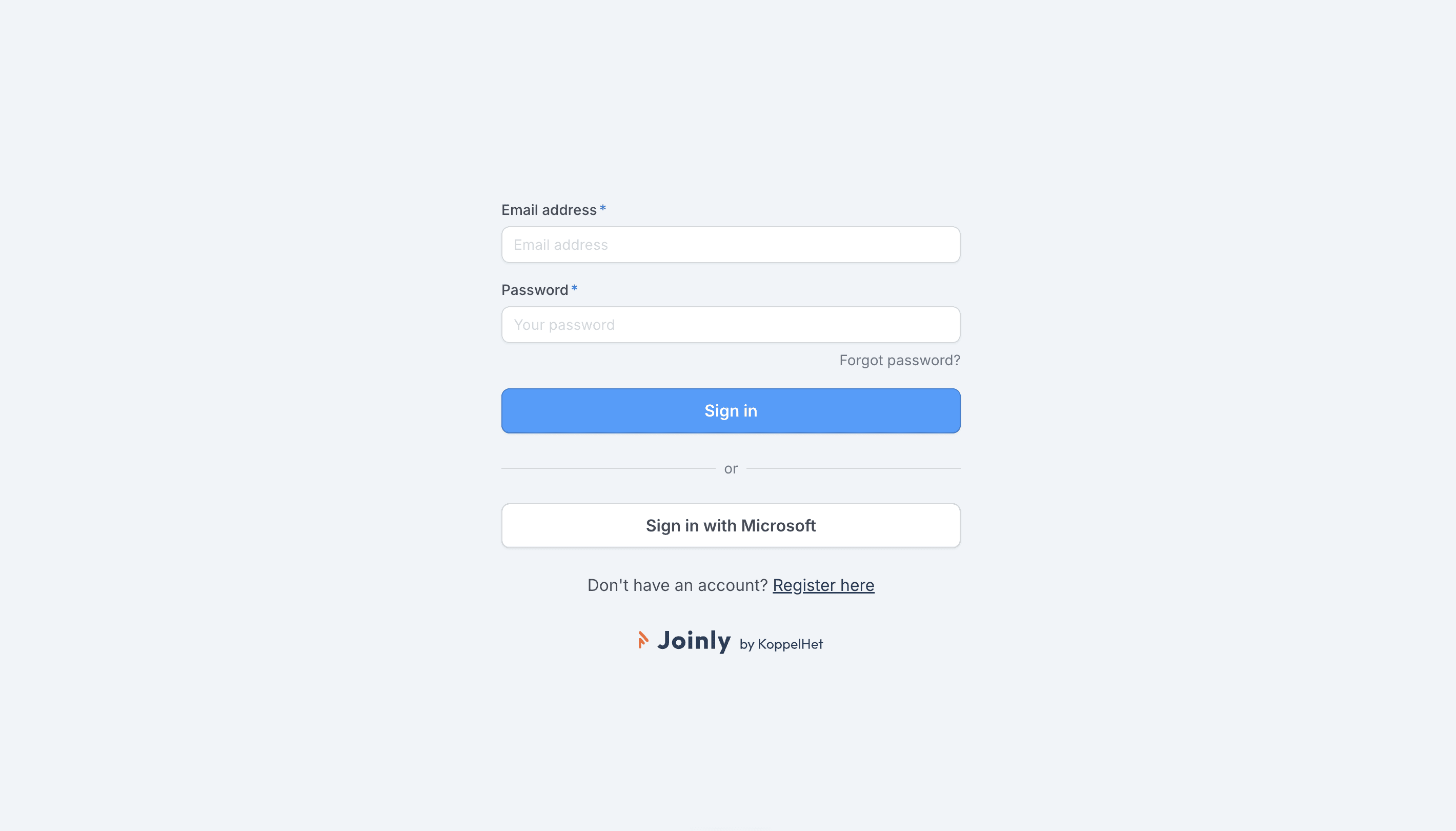
Sign up at platform.joinly.app to get started.
2. Connect your Microsoft account
Open platform.joinly.app/settings/provisioning/idp-setup and connect your Microsoft tenant. Select the scopes you need. For provisioning you don't need any additional scopes.
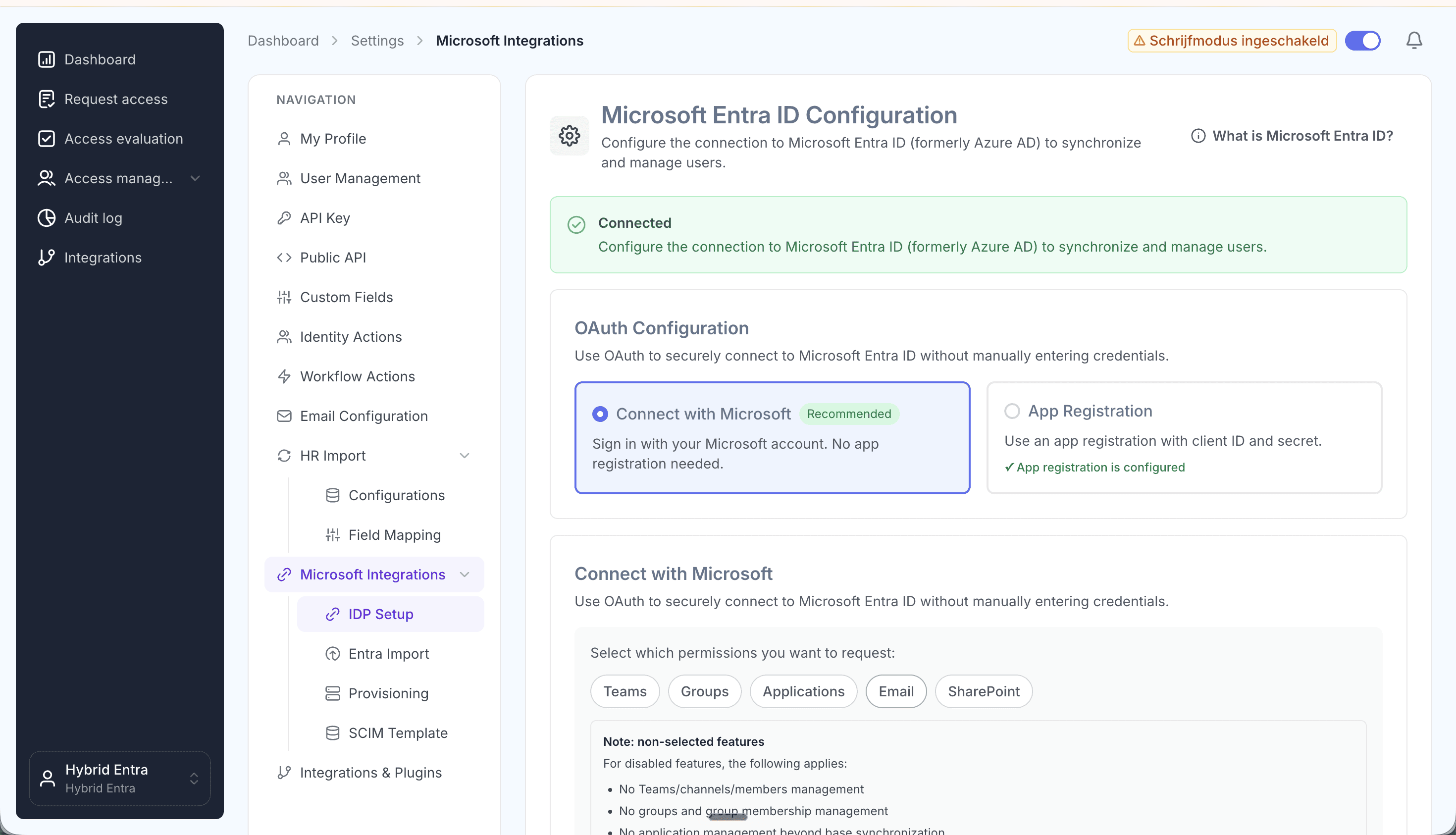
Connect your Microsoft tenant and pick your scopes.
3. Import your existing accounts from Entra ID
Import all existing accounts from Entra ID at platform.joinly.app/settings/provisioning/entra-import. This gives Joinly a baseline of every account that already exists, so it can match people to their current account instead of creating duplicates.
4. Find the SuccessFactors integration in the Joinly marketplace
Open the Joinly marketplace and search for the SAP SuccessFactors integration.
Don't see your system listed? Get in touch at support@koppelhet.nl and we'll help you out.
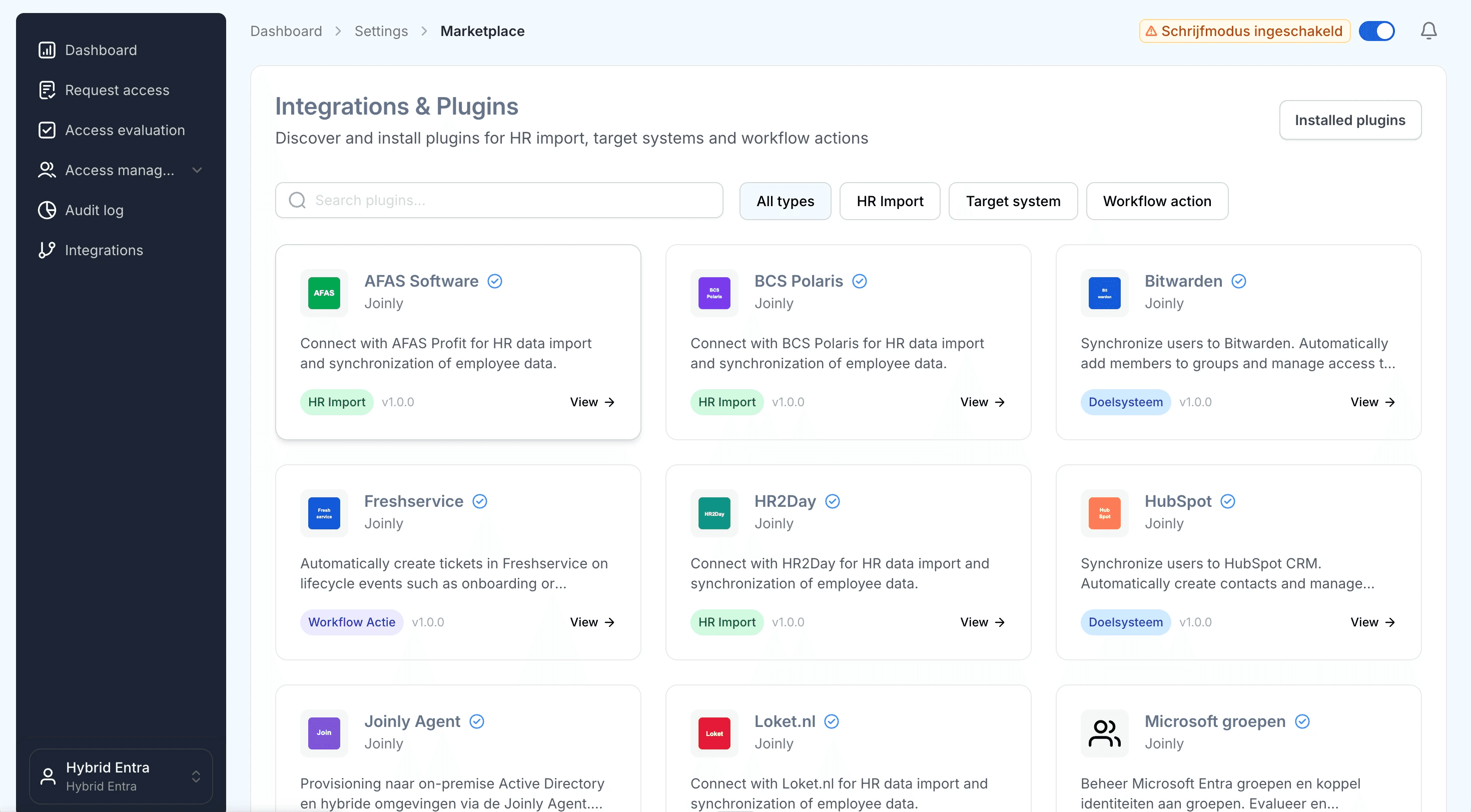
Search the marketplace for the SAP SuccessFactors integration.
5. Follow the installation wizard
You may be redirected to integrations.joinly.app. Create an account there and enter your SuccessFactors connection details: your API server URL (data centre endpoint), company ID, and OAuth credentials (SAML Bearer Assertion or X.509). We only ask for the information needed to establish a successful connection with SuccessFactors. All data is encrypted and stored securely.
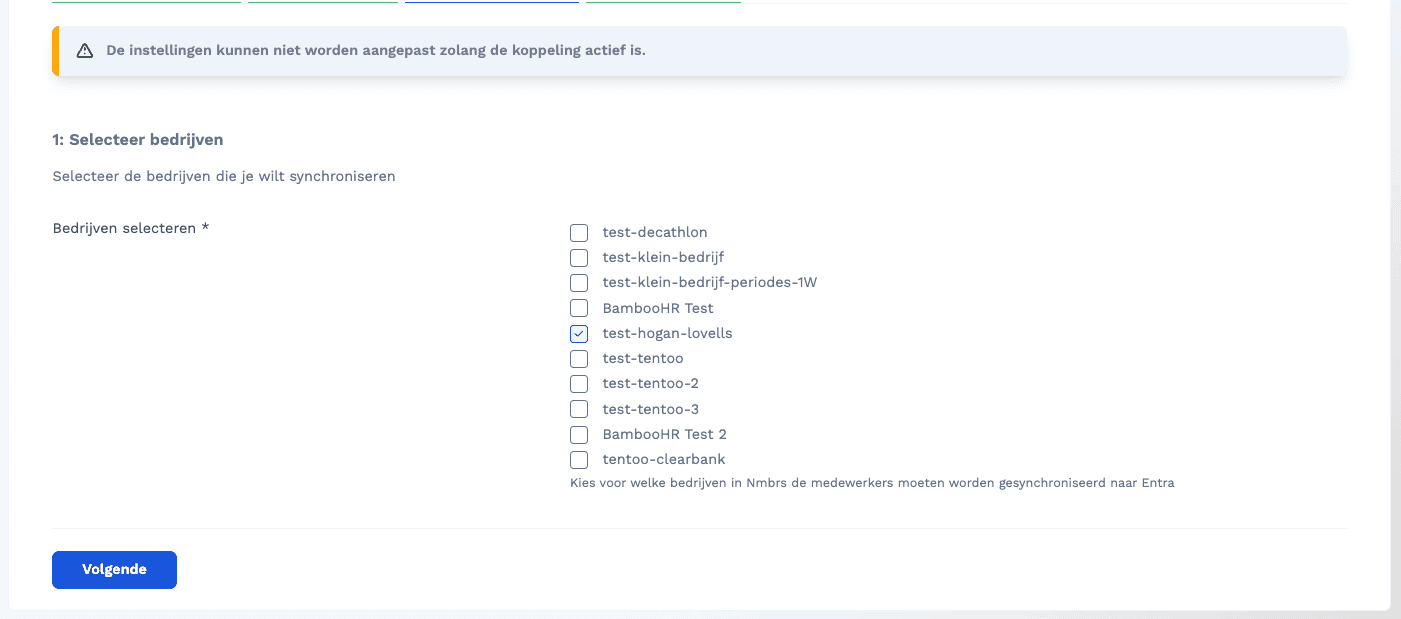
Enter your SuccessFactors API endpoint, company ID and OAuth credentials in the wizard.
6. Configure your field mapping
Set up all your field mappings here. Templates support Liquid, so you can build your display name, UPN and other attributes dynamically from Employee Central fields.
Frequently asked questions
How do I map the manager? Reference the manager's personIdExternal in the mapping and Joinly resolves the link to the right manager automatically.
How do I handle concurrent employment? Pick the home employment as the driver for the UPN; Joinly exposes the active employments so you can choose the primary one.
How do I prevent duplicate usernames? Use the
generateUniqueUsernamehelper, which falls back to the next pattern when the first one is already taken:{{ generateUniqueUsername: "{firstName}.{prefix}.{lastName}", "{initials}.{prefix}.{lastName}" }}
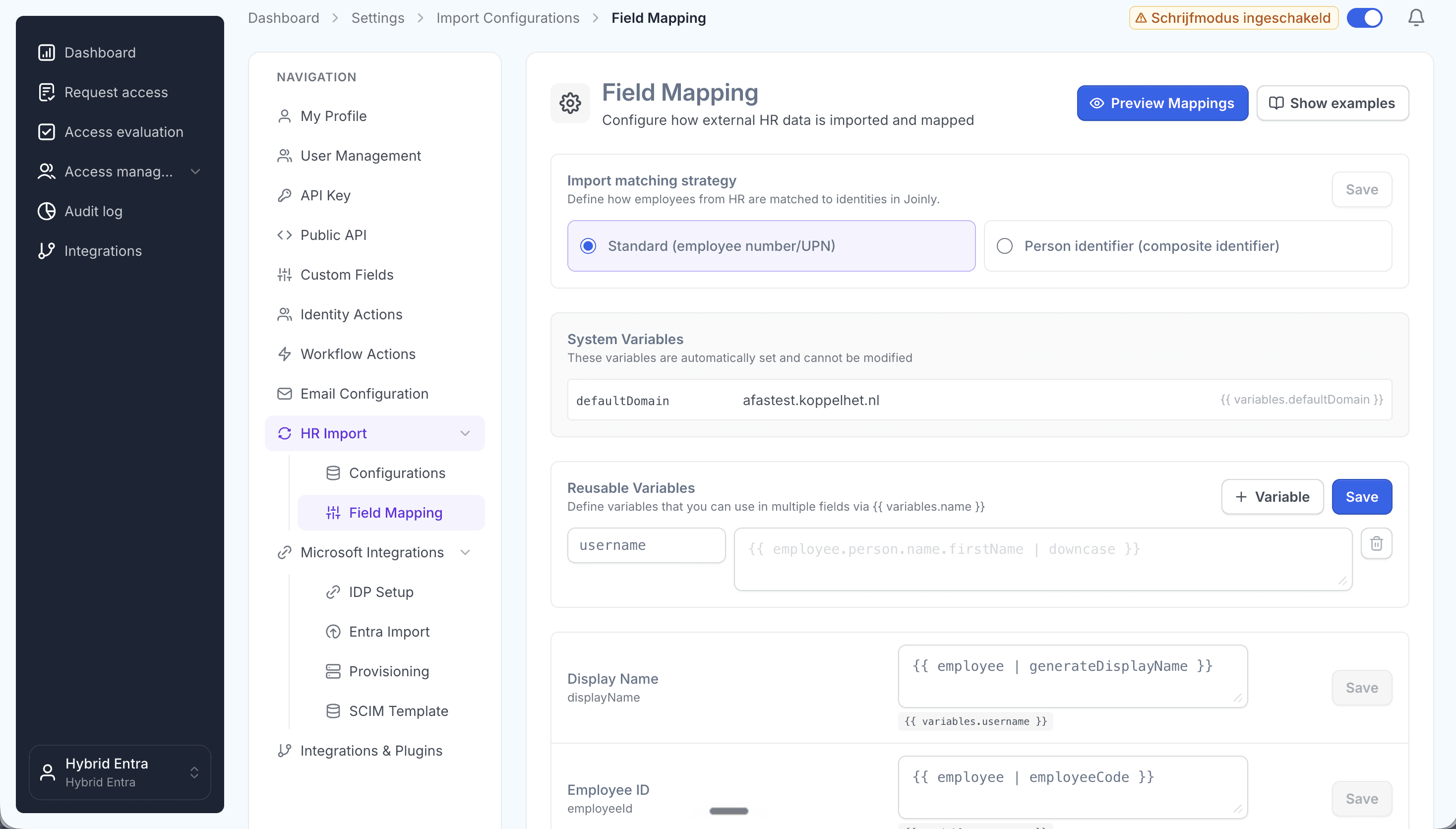
Map SuccessFactors fields to Entra ID attributes with Liquid templates.
7. Configure the scheduled import
At platform.joinly.app/settings/import-configs, configure how often the import from SuccessFactors should run.
8. Configure your workflows
Workflows are where Joinly turns each HR change into the right action in Entra ID. Create an onboarding (joiner) and offboarding (leaver) workflow with trigger-based execution, then an Identity updated workflow with a Create/update employee in Entra action so every change in Employee Central flows straight through to Entra ID. Finally, add a threshold workflow with the Entra soft delete action that runs a set period after the termination date (for example 30 days) to retire accounts safely.
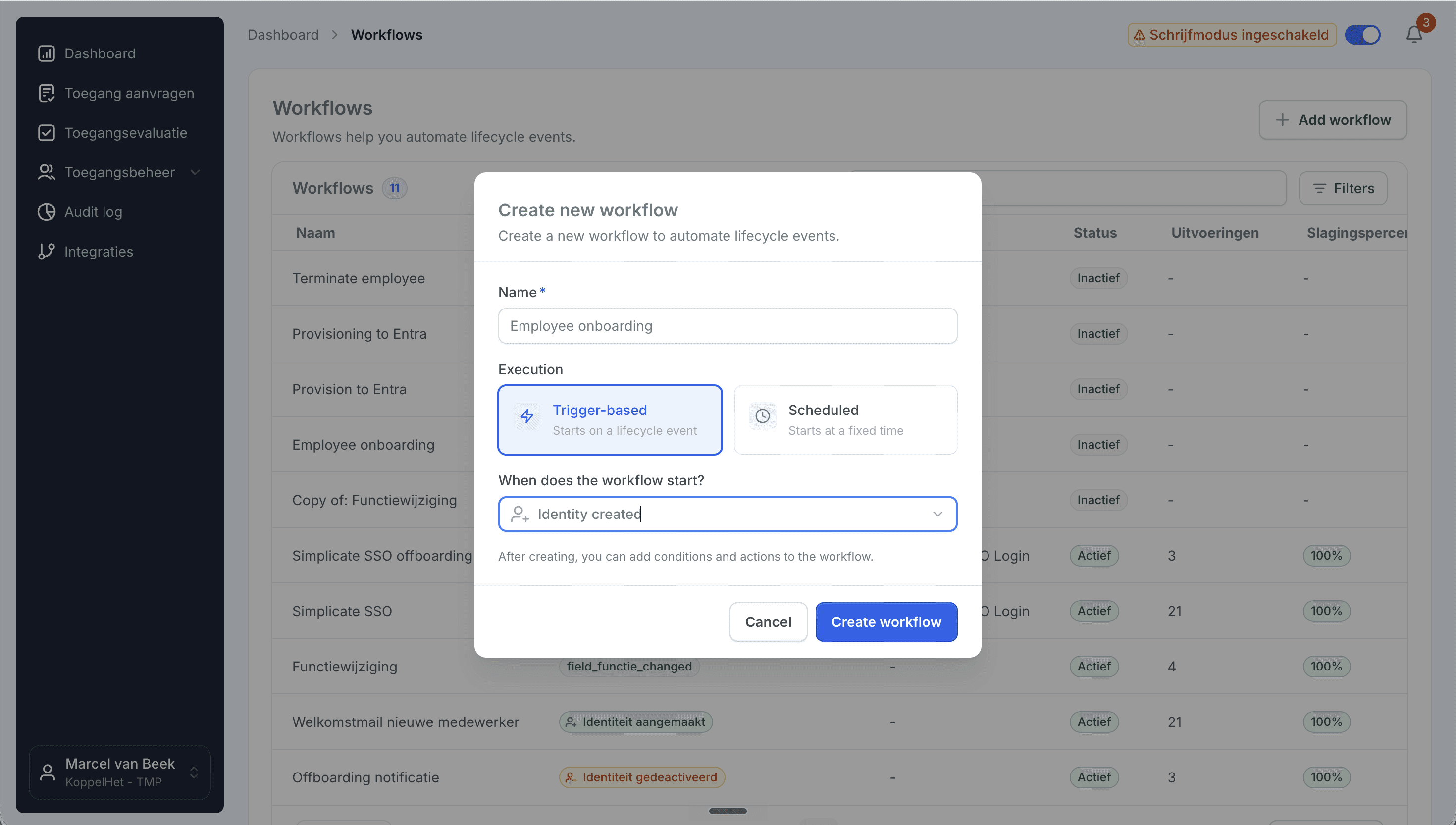
Create a trigger-based onboarding workflow.
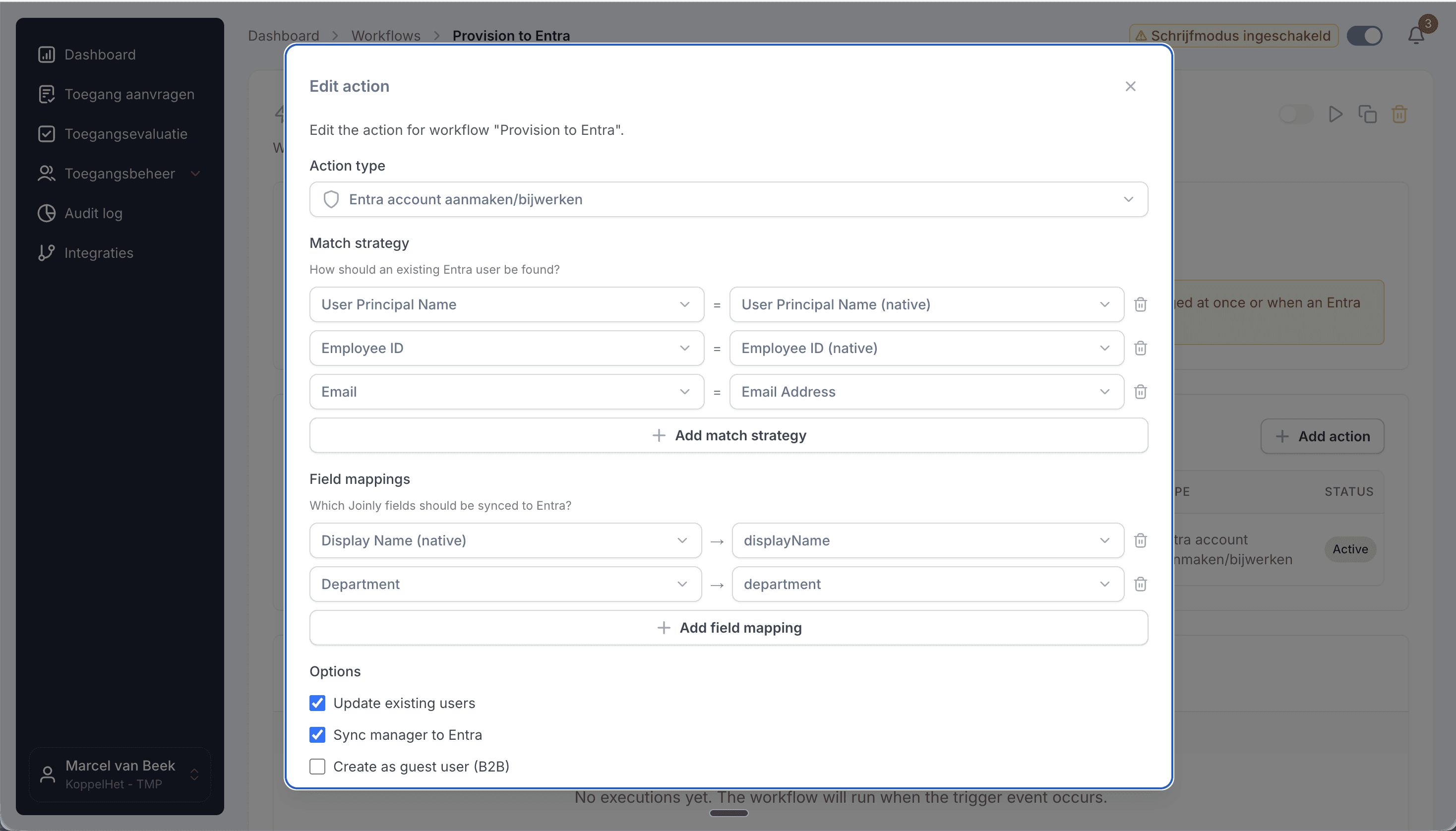
Add the create/update action, then set your matching strategy and field mapping.
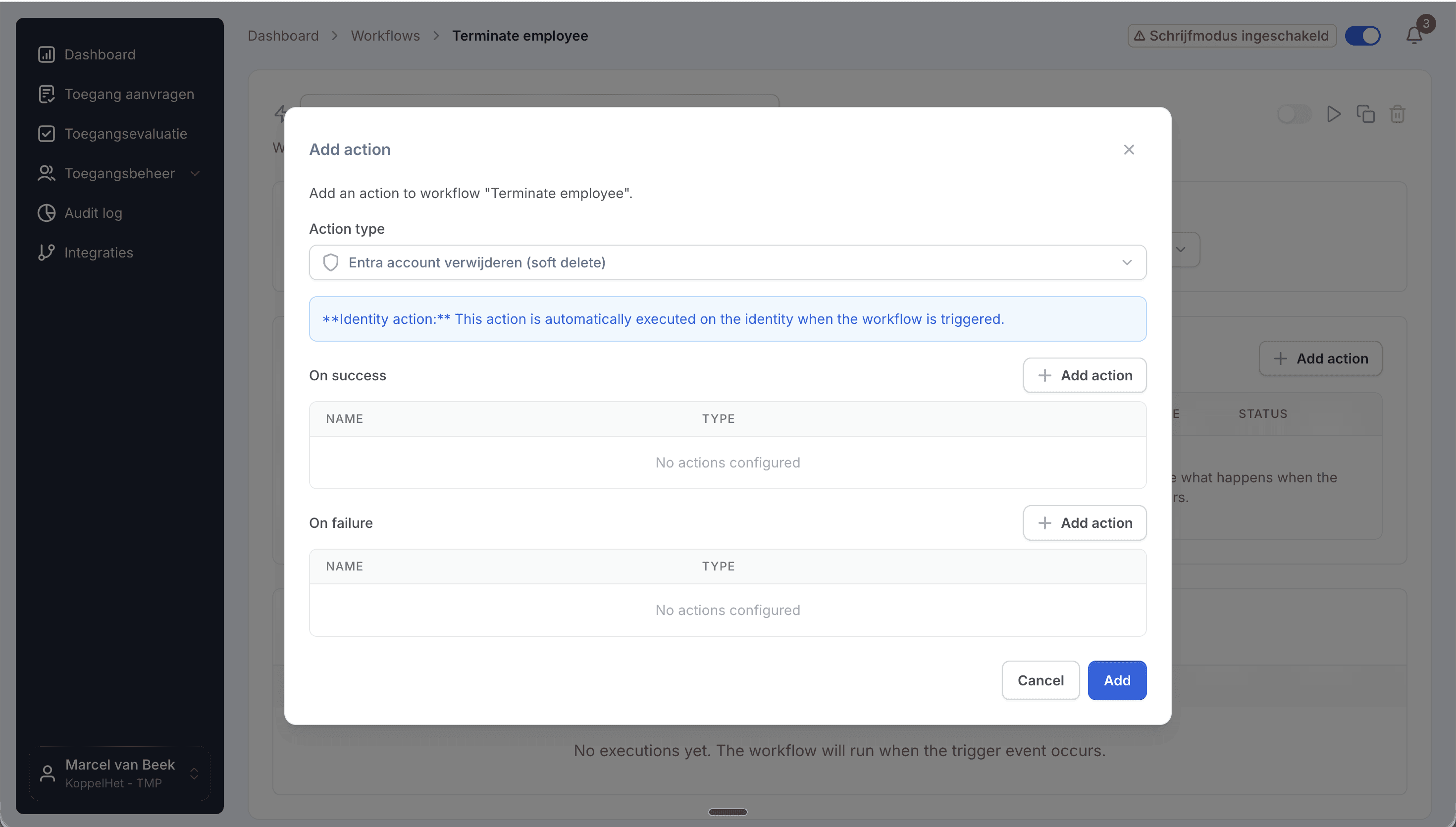
Add the Entra soft delete action to retire accounts safely.
AD on-premise support
Need to provision to an on-premise Active Directory as well? See our dedicated guide on connecting SAP SuccessFactors to Active Directory, or contact support at support@koppelhet.nl to request setup of the Joinly AD Agent.
Frequently asked questions
Does the SuccessFactors to Microsoft Entra ID connection work in real time?
It runs as a frequent sync that updates multiple times per day, so changes in Employee Central reach Entra ID quickly without waiting for a nightly batch.
How does Joinly handle concurrent employment and global assignments?
Joinly reads all active employments for a person and applies your rules to pick the home employment as the driver for the UPN, so a second or host assignment adds access without creating a duplicate account or breaking sign-in.
How are future-dated hires handled?
Joinly reads the effective start date on the Employee Central record and times account creation to it, so access is ready on the start date rather than the moment HR saved the record.
Which attributes sync from SuccessFactors to Entra ID?
Name, email / UPN, department, job title, manager, cost center, legal entity, business unit, and start and end date. Custom Employee Central fields can be mapped via Liquid templates.
Do I still need the native Entra provisioning app or SAP IPS?
No. Joinly takes over the provisioning, role-to-group mapping and concurrent-employment handling that the native app does manually or not at all, and maintains it as your SuccessFactors data changes.
Does Joinly also support AD on-premise or hybrid provisioning?
Yes. Joinly has its own AD on-premise agent and also supports the native Microsoft Entra provisioning agent, so you can provision users to your on-premise AD environment as well. See the SuccessFactors to Active Directory guide.
More than a connector
A standalone SuccessFactors to Entra ID connection is a good start, but identity rarely stops at one target. Joinly manages the complete chain from joiner to leaver across all your systems, with logging and governance built in. You review the exceptions; Joinly maintains the chain.
Request installation support
Frequently asked
Questions about connecting SAP SuccessFactors to Microsoft Entra ID
How does Joinly connect SAP SuccessFactors to Microsoft Entra ID?
The connection reads HR changes at the source (Employee Central OData API → Entra ID.) Authentication: OAuth 2.0 (SAML Bearer Assertion / X.509) — no deprecated basic auth. Joinly writes to Entra ID through Microsoft Graph, with its own app registration and application permissions — no synchronisation server, agent or extra infrastructure. If you prefer Microsoft's API-driven provisioning endpoint, Joinly can deliver the same changes as a SCIM 2.0 bulk request instead.
Which HR events does the SAP SuccessFactors → Entra ID connection handle?
Joiner, mover, leaver (incl. rehire, worker conversion, concurrent employment). Each event runs the workflow you configured for it: a joiner gets an account, groups and licences before the start date, a mover has the access of the old position removed and the new one added, and a leaver is disabled on the termination date.
Which SAP SuccessFactors attributes are synced to Entra ID?
Name, email / UPN, department, job title, manager, cost center, legal entity, business unit, start and end date. The mapping is configurable per field with Liquid templates, so your own naming convention for the user principal name, display name and e-mail address keeps applying.
How often does Joinly sync SAP SuccessFactors with Entra ID?
Frequent sync, multiple times per day. The import schedule is yours to set — hourly, daily or weekly at a fixed time — and every run only processes what changed since the previous one.
Will Joinly overwrite the accounts that already exist in Entra ID?
No. Joinly first imports your existing directory and matches those accounts to the employees from SAP SuccessFactors. Existing accounts are recognised and adopted rather than created twice. Which matching strategy applies — user principal name, e-mail address, employee ID or a person identifier — is a setting.
Can I try this without anything being written?
Yes. Run the import as a dry run and you get an Excel export of exactly what would happen. You can also leave the connection in read-only mode, where Joinly calculates everything but writes nothing, and set thresholds for how many creations, activations and deactivations one run may produce before it is blocked for approval.
Is SAP SuccessFactors a ready-made connector in Joinly?
Yes. SAP SuccessFactors is a ready-made HR connector in Joinly: you enable it, enter the details of your SAP SuccessFactors environment and Joinly reads the employees from there. Nothing has to be developed on either side.
What happens when someone has more than one contract in SAP SuccessFactors?
Joinly recognises that it is one person and decides which employment leads for the account, the manager and the department. You do not get two accounts for the same employee, and when one contract ends the account is only disabled when the last active employment ends.
Do I need a Microsoft Entra ID P1 or P2 licence for this?
Not for the Microsoft Graph path: Joinly uses its own app registration and the permissions you grant it. Microsoft's API-driven inbound provisioning endpoint, which Joinly can also target with SCIM bulk requests, follows Microsoft's own licensing for that feature.
Does the SAP SuccessFactors → Entra ID connection support NIS2 and ISO 27001?
ISO 27001, NIS2-ready, GDPR (EU data centre). Every mutation lands in the audit log with its source — HR import, manual, from Entra, by the system or through an API key — and a link to the workflow that caused it. That is the evidence an auditor asks for when they want to know who had access to what, and why.
More on SAP SuccessFactors
Everything Joinly publishes about SAP SuccessFactors: the other installation guide, how the connection compares with Microsoft's own provisioning, what offboarding looks like, and the SCIM route.
Zien wat Joinly voor jouw organisatie doet?
Start direct met een gratis proefversie of neem contact op voor advies over jouw HR- en Microsoft-omgeving.