
Any HR System → Active Directory (on premise)
HR to Active Directory on-premise synchronisation with the Joinly AD Agent
When someone joins, moves or leaves in your HR system, you want that change reflected in your on-premise Active Directory without anyone touching it by hand. The Joinly AD Agent keeps HR and Active Directory in sync automatically: Joinly reads each HR change in the cloud and the agent — a lightweight Windows service inside your network — applies it to your domain. Whatever your HR system, it stays the source of truth; the agent is the only component that touches Active Directory.
Key takeaways
Source-agnostic HR to AD on-premise synchronisation: any HR system Joinly supports, Workday, SAP SuccessFactors, BambooHR, AFAS and dozens more, drives your on-premise Active Directory from one source of truth.
The agent is a lightweight Windows service that needs only an outbound HTTPS connection to platform.joinly.app, no inbound ports and no domain controller exposed to the internet.
It runs under a group Managed Service Account (gMSA) with least-privilege rights on the OUs you select, no domain-admin and no stored service password.
Full joiner/mover/leaver: it creates users in the right OU, builds sAMAccountName and UPN, moves users between OUs on a transfer, and disables or removes leavers automatically.
Configuration is encrypted on disk (AES-256-GCM) and every action is logged, aligned with NIS2 and ISO 27001.
Quick facts
What it is | On-premise Windows service that synchronises HR data to Active Directory |
Source | Any HR system connected to Joinly (Workday, SAP SuccessFactors, BambooHR, AFAS, …) |
Target system | On-premise Active Directory (AD DS) |
Connection method | HR system → Joinly cloud → Joinly AD Agent → Active Directory |
Network | Outbound HTTPS (443) to platform.joinly.app only — no inbound ports |
Runs as | Windows service under a gMSA (least privilege on selected OUs) |
Supported events | Joiner, mover, leaver (create, update, OU move, disable, delete) |
Security | AES-256-GCM encrypted config; ISO 27001, NIS2-ready, GDPR (EU data centre) |
How does the Joinly AD Agent sync HR to Active Directory?
Joinly reads each HR change in the cloud, decides the right action, and hands it to the agent inside your network, which makes the change in Active Directory over an authenticated channel. Your HR system holds the authoritative record; the agent is the only component that touches your domain.
Joiner. When HR creates a new hire, Joinly sends an upsert command. The agent looks for an existing user on your match attribute (for example employeeID); finding none, it creates the user in the configured OU, sets the sAMAccountName and userPrincipalName, applies the full attribute mapping, generates a temporary password with change-at-logon, and enables the account.
Mover. When someone changes role, department or location, the agent updates the mapped attributes and, if the target OU has changed, moves the object to the new OU automatically (Move-ADObject), so OU placement and attributes stay aligned with the actual job.
Leaver. On the termination date the agent disables the account and moves it to your disabled-users OU (a recoverable soft delete), or permanently removes it with a hard delete if you configure that. No leaver account stays active by accident.
Example: A services company runs BambooHR for HR and an on-premise Active Directory for its file servers and line-of-business apps. A new analyst is hired in BambooHR with a start date next Monday. Joinly reads the record; on Monday morning the agent creates the user in the Staff > Analysts OU, builds a unique sAMAccountName, sets a temporary password and enables the account. When the analyst later moves teams, the agent moves the AD object to the new OU and updates the department the same day.
What manual AD account management costs
Without HR-to-AD synchronisation, every account is created by hand in Active Directory Users and Computers from an HR ticket — picking the OU, building the login, setting attributes, adding groups. Microsoft's Entra Cloud Sync only syncs the other way, from on-premise AD up to the cloud, so provisioning on-premise AD from an HR system has no native answer and stays manual.
Onboarding delays. New joiners wait for an AD account and access while a ticket sits in a queue, losing productive days in their first week.
Permissions that don't keep up (privilege creep). When movers change role, old OU placement and group membership often stay attached, so people accumulate rights they no longer need.
Forgotten offboarding. Accounts that aren't disabled on time are a security and audit risk, and an orphaned AD account is exactly what an attacker looks for.
Joinly AD Agent vs. the alternatives
There is no Microsoft tool that provisions on-premise Active Directory from an HR system. Here's how the Joinly AD Agent compares with the workarounds teams reach for.
Joinly AD Agent | Manual / scripts / legacy MIM | |
|---|---|---|
HR source | Any HR system, via Joinly | A separate integration you build per system |
Direction | HR → on-premise AD | Entra Cloud Sync only does AD → cloud |
OU placement & moves | Rule-based, automatic on transfer | Manual or custom scripting |
Security model | gMSA, least privilege, no stored password | Service account with a static password, or domain-admin |
Connectivity | Outbound HTTPS only, no inbound ports | Varies; often broad network access |
Maintenance | Managed agent, self-updating | MIM is complex and effectively deprecated; scripts rot |
Audit trail | Per-action logging tied to the HR source | Limited or none |
Watch-outs when synchronising HR to on-premise Active Directory
A few details decide whether HR-to-AD synchronisation stays reliable at scale. The installer handles each of these for you.
gMSA on Windows Server 2025. Server 2025 enforces AES-only Kerberos and rejects a gMSA that still carries RC4 (the default encryption type 28), so a plain New-ADServiceAccount fails to install. The Joinly installer creates the gMSA AES-only and repairs existing accounts automatically.
sAMAccountName uniqueness and length. AD requires a unique sAMAccountName of at most 20 characters, and the agent requires one to create a user. Build it from your rules with a fallback so duplicate names never collide or get truncated into an unreadable login.
Apply modes — objectAddOnly vs always. Identifiers like employeeID, UPN and sAMAccountName should be set on create only (objectAddOnly); attributes that move with HR like department and title should update every sync (always). Getting the apply mode right keeps logins stable while HR data stays current.
OU write delegation. The gMSA only gets write rights (CreateChild, WriteProperty, Reset Password) on the OUs you select in the wizard, plus their sub-OUs. Choose the target OUs deliberately so the agent's reach is exactly what you intend.
Disabled-users OU. Decide whether leavers are disabled in place or moved to a dedicated disabled-users OU. Configuring that OU keeps offboarded accounts tidy and easy to audit.
The installer and Joinly's mapping configuration handle each of these by default.
Always audit-ready
Every action the Joinly AD Agent performs is logged locally and tied to the HR change that triggered it: who was affected, when, which OU and attributes changed. The agent's configuration, including your API key, is encrypted at rest with AES-256-GCM, and the agent reaches the platform over outbound HTTPS only. Joinly is ISO 27001 certified, runs in an EU data centre in Amsterdam, applies least-privilege by default, and is built to meet NIS2 and ISO 27001.
Installation guide
Follow these steps to set up HR-to-AD on-premise synchronisation with the Joinly AD Agent. You set it up in the Joinly platform, then install the lightweight agent on a domain-joined Windows server.
1. Connect your HR system
In platform.joinly.app connect your HR system from the marketplace so Joinly can read every joiner, mover and leaver at the source. Your HR system stays the source of truth that the agent applies to Active Directory.
Connect your HR system in the Joinly marketplace.
2. Enable the Joinly Agent module in the marketplace
In the Joinly marketplace, search for Joinly Agent and install the module. This makes the on-premise agent and its workflow action available in your tenant.
3. Create a workflow on employee mutations and download the agent
Create a new workflow that runs on employee mutations, add the Provisioning via Agent action, and download joinly-agent.exe from that action. The agent is a single Windows-service installer — there is nothing else to deploy.
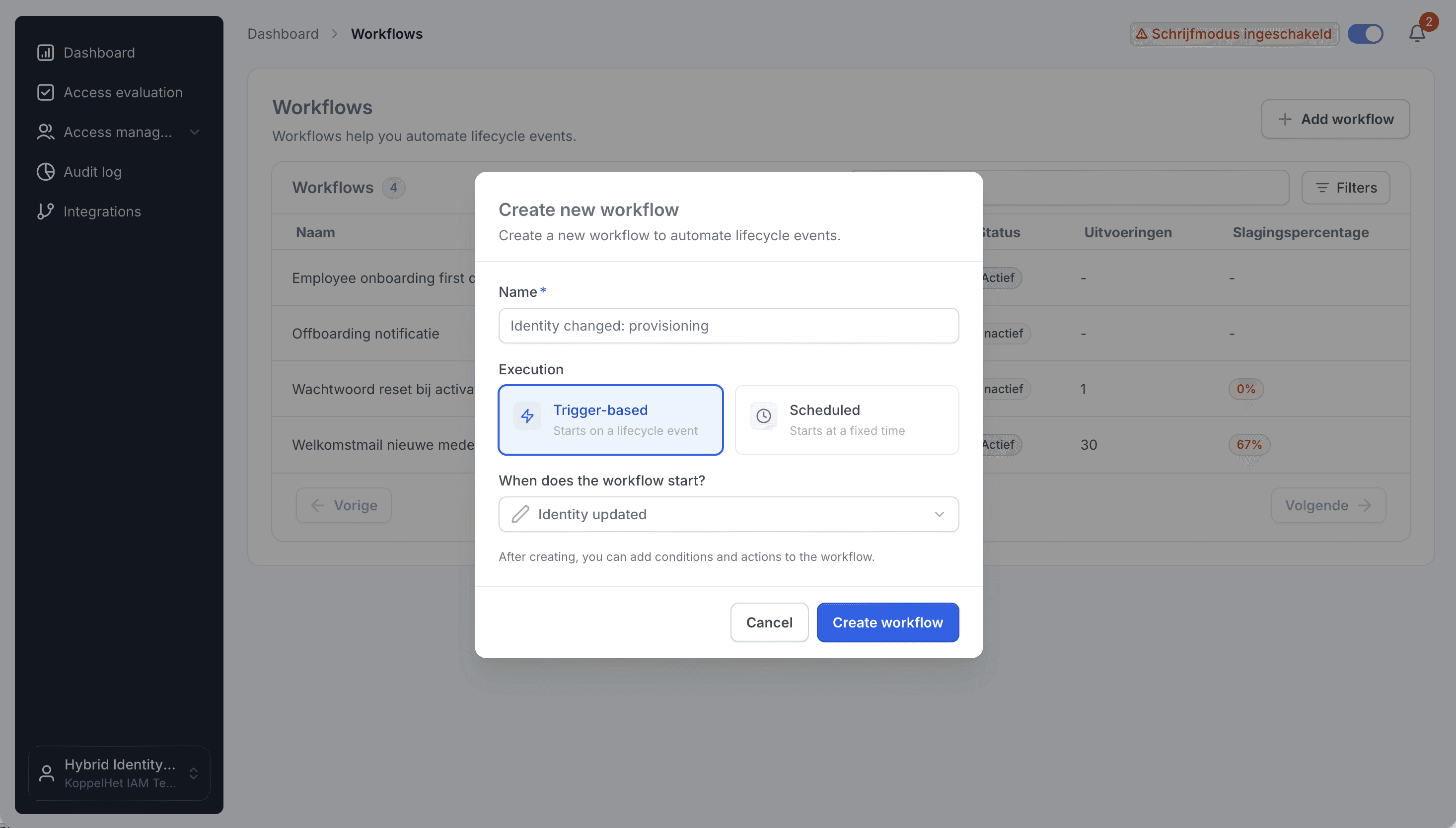
Create a workflow that runs on employee mutations.
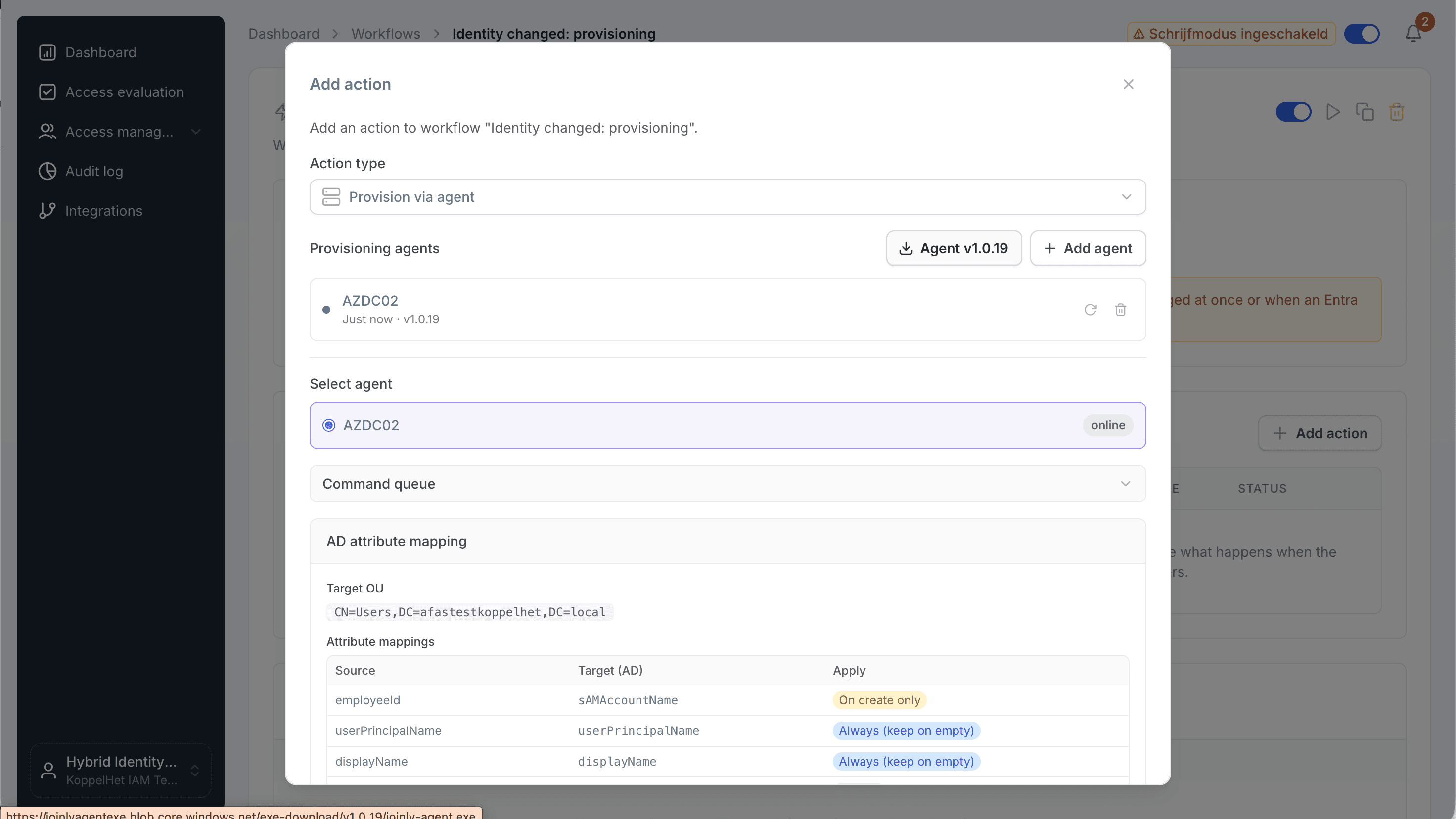
Download the Joinly AD Agent from the workflow agent action.
4. Check the requirements
Make sure the target server meets these:
A Windows Server with the Domain Controller role, or a machine joined to the domain
Local administrator rights
Outbound internet access to the Joinly portal (
https://platform.joinly.app)For the gMSA: the Active Directory PowerShell module (
RSAT-AD-PowerShell) and a KDS Root Key in the domain
5. Run the installer wizard
Right-click joinly-agent.exe and choose Run as administrator. In step 1 of the wizard, enter:
Joinly portal URL — default
https://platform.joinly.appAPI key — the API key from the Joinly portal (shown with the agent download)
gMSA account name — for example
svc_joinlyagent(leave blank for LocalSystem, which is not recommended)
On a re-install the existing values are pre-filled, and you can leave the API key blank to keep the stored encrypted key.

Enter the portal URL, API key and gMSA account name in the installer wizard.
6. Select the target OUs
The wizard reads all OUs and containers from Active Directory and shows a multiselect. Select every OU where the agent may create and manage users. The gMSA is automatically granted CreateChild, WriteProperty and Reset Password on the selected OUs and their sub-OUs. If you select nothing, the gMSA gets no write rights — you can delegate them later by hand.
7. Choose the disabled-users OU
Select the OU where disabled (soft-deleted) leavers are moved. Leave it blank to disable accounts in place without moving them.
8. Let the wizard finish the gMSA and service setup
The wizard then runs automatically: it installs the files to C:\Program Files\Joinly\Agent, saves the AES-256-GCM-encrypted config to C:\ProgramData\Joinly\Agent\config.json, checks the AD PowerShell module and KDS Root Key, creates the gMSA (AES-only), installs and verifies it, grants the OU rights, registers the Windows service via NSSM under the gMSA, and starts it.
Windows Server 2025: AD creates a gMSA with RC4 still enabled, which Server 2025 rejects. The installer creates the account AES-only and repairs existing gMSAs automatically, so
Install-ADServiceAccountdoesn’t fail.
9. Verify and manage the agent
Confirm the service is running, and re-open joinly-agent.exe as administrator any time to reconfigure, run diagnostics, or uninstall.
# Status
sc.exe query JoinlyAgent

# Restart
& "C:\Program Files\Joinly\Agent\nssm.exe" restart JoinlyAgent

# Follow the logs
Get-Content "C:\ProgramData\Joinly\Agent\logs\service.log" -Tail 50 -Wait
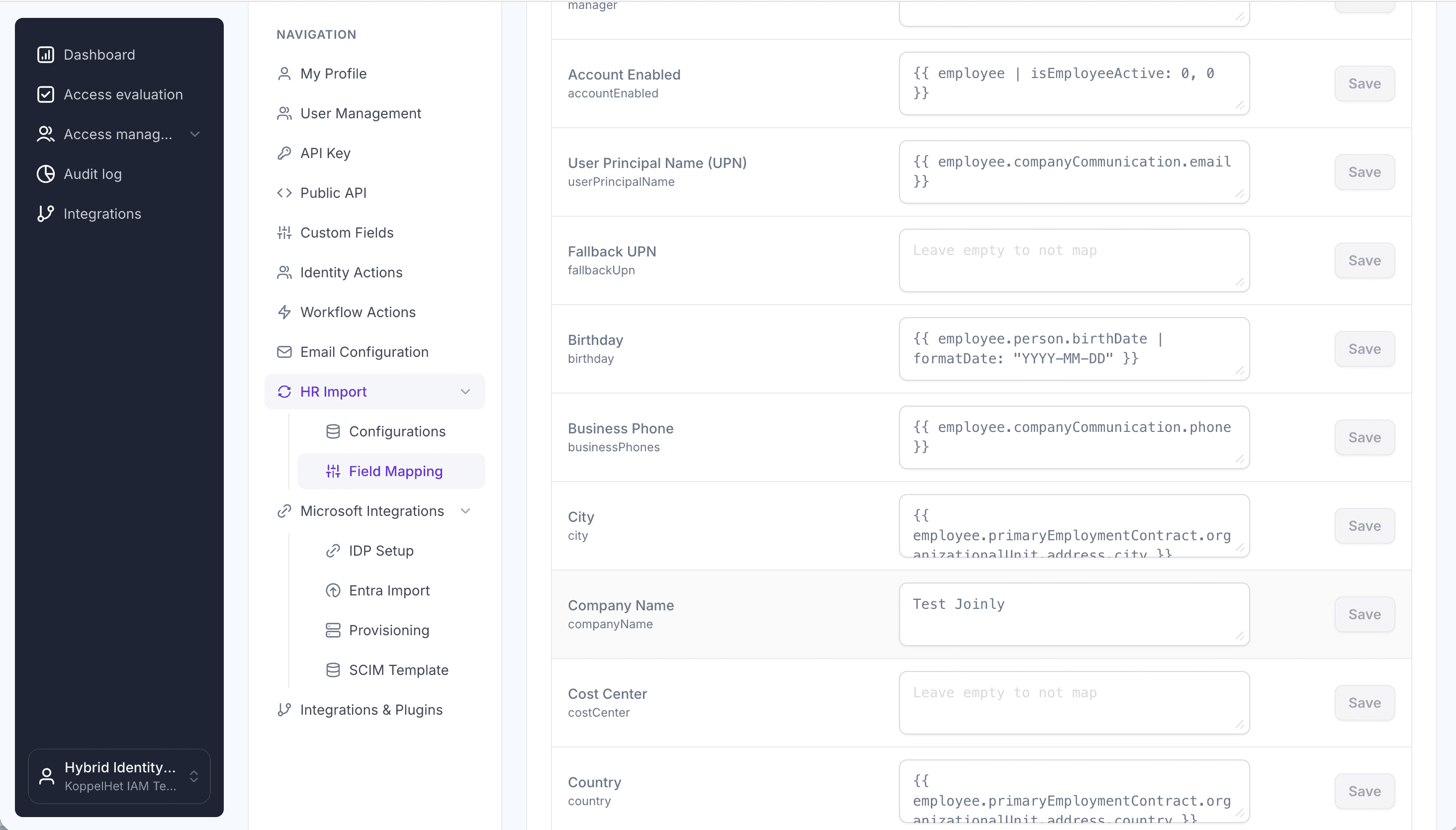
10. Add the field mapping
Back in the workflow agent action, add the field mapping: which HR fields map to which Active Directory attributes, the match attribute used to recognise existing users (for example employeeID), and the default OU for new users. This is the mapping the agent pulls and applies on every change.
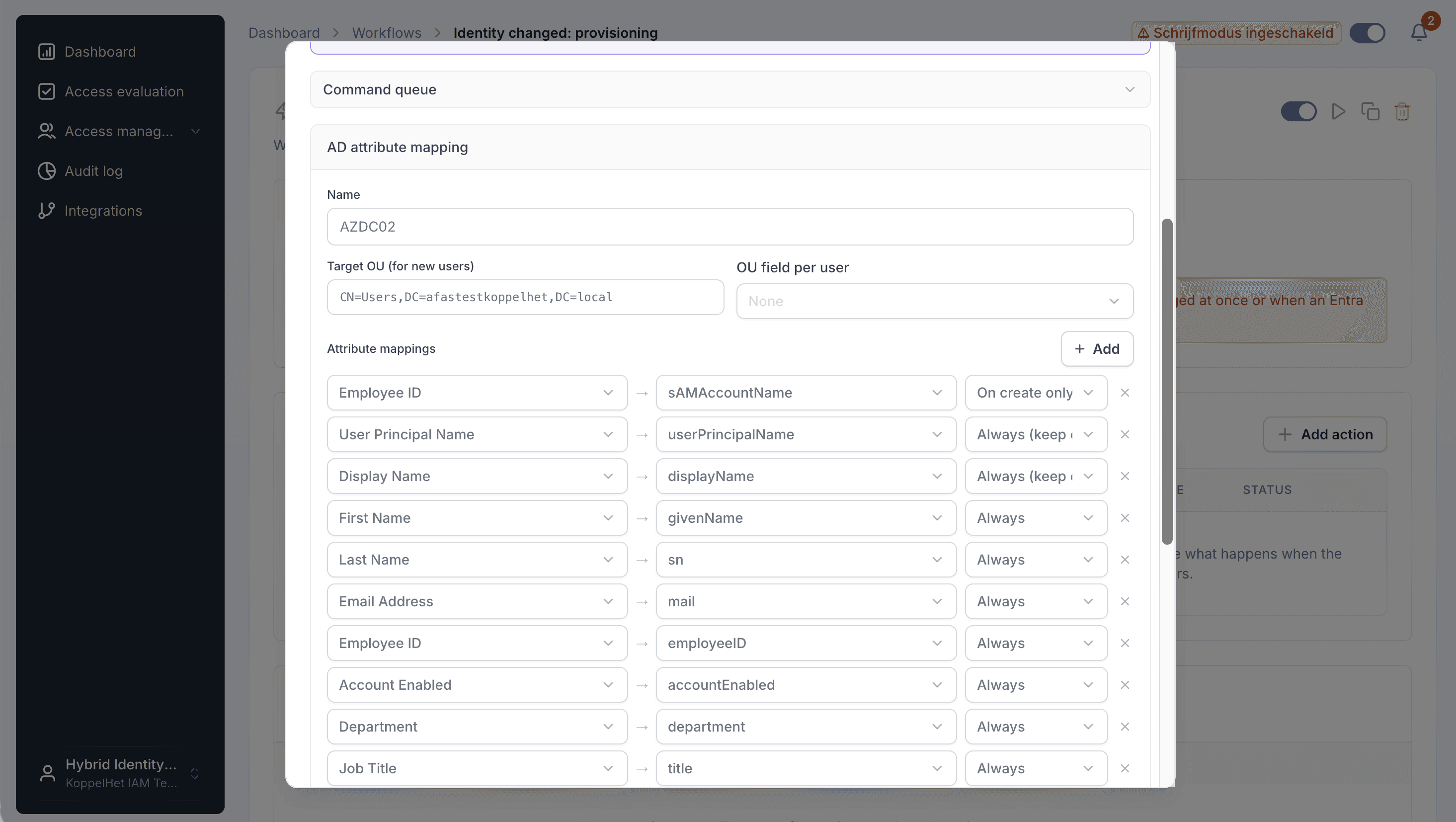
Add the HR-to-AD field mapping to the agent action.
11. Test the workflow
Go to an identity, choose Trigger workflow, and run the workflow you created. The agent applies the change in Active Directory — check the result on the user object and in the agent logs.
Already provisioning to the cloud, or want a hybrid setup? The same Joinly configuration also drives Microsoft Entra ID. Browse the per-HR-system installation guides for your system, or contact support at support@koppelhet.nl.
Frequently asked questions
Which HR systems can sync to Active Directory with the Joinly AD Agent?
Any HR system Joinly connects — Workday, SAP SuccessFactors, BambooHR, Personio, AFAS and dozens more. The agent is source-agnostic: it applies whatever HR data Joinly sends, so the same agent works regardless of your HR system.
Does the agent need inbound firewall openings?
No. The agent only makes an outbound HTTPS (443) connection to platform.joinly.app and acts on your domain controllers from inside the network. There are no inbound ports to open and no domain controller is exposed to the internet.
What account does the agent run under?
A group Managed Service Account (gMSA) with least-privilege rights — CreateChild, WriteProperty and Reset Password — on the OUs you select in the wizard. No domain-admin rights and no stored service password.
What are the requirements?
A Windows Server with the Domain Controller role or a domain-joined machine, local administrator rights, outbound internet to the Joinly portal, and (for the gMSA) the RSAT-AD-PowerShell module plus a KDS Root Key in the domain.
How are leavers handled?
A delete disables the account and moves it to your disabled-users OU (a recoverable soft delete); a hard delete runs Remove-ADUser to remove it permanently. You choose the behaviour in your Joinly workflows.
Why can a gMSA install fail on Windows Server 2025?
Server 2025 enforces AES-only Kerberos and rejects a gMSA still carrying RC4 (encryption type 28). The Joinly installer creates the gMSA AES-only and repairs existing accounts automatically, so the install succeeds.
Where are the configuration and logs stored?
The encrypted configuration lives at C:/ProgramData/Joinly/Agent/config.json (AES-256-GCM), the binaries at C:/Program Files/Joinly/Agent, and the logs at C:/ProgramData/Joinly/Agent/logs.
Can I also provision to Microsoft Entra ID?
Yes. The same Joinly setup drives a hybrid environment — the AD Agent for on-premise Active Directory and the native Entra connection for the cloud — from one HR source of truth.
More than a connector
The Joinly AD Agent is one target in a bigger chain. The same Joinly setup also drives Microsoft Entra ID for a hybrid environment and your other systems, managing the complete chain from joiner to leaver with logging and governance built in. You review the exceptions; Joinly maintains the chain.
Request installation support
Zien wat Joinly voor jouw organisatie doet?
Start direct met een gratis proefversie of neem contact op voor advies over jouw HR- en Microsoft-omgeving.