
Simployer → On-premise Active Directory (AD DS)
Connect Simployer to Active Directory (on-premise)
When someone joins, moves or leaves in Simployer, you want that change reflected in your on-premise Active Directory without anyone touching it by hand. To connect Simployer to Active Directory, Joinly reads each HR change from Simployer One through the HR Connect API and applies it to your domain through the Joinly AD Agent — a lightweight connector that runs inside your network. Simployer stays your source of truth; Joinly is the engine that keeps every account in the right OU, accurate and traceable.
Key takeaways
Simployer One stays your source of truth; Joinly applies every joiner, mover and leaver to on-premise Active Directory automatically.
The Joinly AD Agent runs inside your network and needs only an outbound HTTPS connection — no inbound ports and no domain controller exposed to the internet.
Joinly maps Simployer’s structure — department, team, office and cost center — to the right AD security groups and target OUs, and builds the sAMAccountName, UPN and distinguished name from your own rules.
Nordic names are transliterated into a clean sAMAccountName within AD’s 20-character limit, and long-term leave keeps an account active instead of disabling it.
Every action is logged for a complete audit trail, aligned with NIS2 and ISO 27001 — and the same setup extends to a hybrid Entra ID environment.

Quick facts
Source system | Simployer (Simployer One HRM) |
Target system | On-premise Active Directory (AD DS) |
Connection method | Simployer HR Connect API → Joinly AD Agent → Active Directory |
Agent requirement | Domain-joined Windows server with a GMSA, outbound HTTPS (443) only |
Supported events | Joiner, mover, leaver (incl. long-term absence, rehire, department transfer) |
Synced attributes | Name, sAMAccountName, UPN, mail, department, team, job title, manager, office, distinguished name / OU, start and end date |
Real-time or batch | Frequent sync, multiple times per day |
Compliance | ISO 27001, NIS2-ready, GDPR (EU data centre) |
Liever in het Nederlands? Simployer koppelen met Active Directory (on-premise)
How does Joinly sync Simployer to Active Directory?
Joinly reads each HR change from Simployer One in the cloud, then hands the action to the Joinly AD Agent inside your network, which makes the change in Active Directory. Simployer holds the authoritative employee record; the agent is the only component that touches your domain.
Joiner. HR completes the hire in Simployer. Joinly reads the new records, determines the role from department, team, office and cost center, and instructs the AD Agent to create the user in the correct OU, build the sAMAccountName and UPN from your rules, and add the right security groups — timed to the employment start date.
Mover. When someone changes department, team or office, Joinly tells the agent to move the user to the matching OU, swap security-group membership and update attributes. Access that no longer fits the new position is removed, so permissions stay aligned with the actual job.
Leaver. On the employment end date, Joinly instructs the agent to disable the AD account and optionally move it to a disabled-users OU. A leave record — such as long-term sick leave — is treated as absence, so an account is only disabled when employment actually ends.
Example: A Norwegian construction firm runs Simployer and an on-premise AD across three regional offices and its site cabins. It hires a site engineer with a start date next Monday. Joinly reads the record, and on Monday morning the AD Agent creates the user in the Region-West > Projects OU, sets a transliterated sAMAccountName within the 20-character limit, and adds the Site-Engineers group. When the engineer later moves to another region, the agent moves the object to the new OU and swaps the groups the same day.
What manual AD account management costs
Without automation, every account starts as a Simployer notification that an admin works through in Active Directory Users and Computers by hand — creating the object, choosing the OU, building the sAMAccountName, adding groups. Simployer’s native SCIM feed can’t help here at all: it sends a one-way Users list to cloud services and never touches an on-premise domain, so every AD decision falls to people.
Onboarding delays. New joiners wait for an AD account and group access while a ticket sits in a queue, losing productive days in their first week.
Permissions that don’t keep up (privilege creep). When movers change department, team or office, old security-group membership often stays attached, so people accumulate rights they no longer need.
Forgotten offboarding. Accounts that aren’t disabled on time are a security and audit risk — and it is easy to disable someone who is only on long-term leave rather than actually gone.
Joinly vs. the Entra provisioning agent for AD
Simployer’s own SCIM feed cannot write to on-premise AD, so the native alternative is Microsoft’s Entra provisioning agent driven by API-based inbound provisioning. It can push data to AD but stops short of the part that actually decides access. Here’s how the two compare for a Simployer-driven AD setup.
Joinly AD Agent | Entra provisioning agent (Simployer → AD) | |
|---|---|---|
Source | Reads the Simployer HR Connect API directly | Needs a custom inbound provisioning feed built |
OU placement | Rule-based on department, team and office | Single configured container; limited logic |
Role-to-group mapping | Built in, rule-based | Not available out of the box; manual |
Absence vs leaver | Keeps accounts active during leave | No leave logic; risks disabling on absence |
Nordic names | Transliteration into a clean sAMAccountName | Limited expression mapping |
sAMAccountName / UPN rules | Custom transformation with uniqueness fallback | Limited expression mapping |
Audit trail | Per-action logging tied to the HR source | Limited |
Watch-outs when connecting Simployer to Active Directory
A few details decide whether this connection stays reliable at scale.
sAMAccountName uniqueness, length and Nordic characters. AD limits the sAMAccountName to 20 characters and it must be unique across the domain, while Norwegian and Swedish names carry characters AD can’t store there. Joinly transliterates and builds the name from your rules with a fallback pattern, so duplicate or accented names never produce a collision or a broken, unreadable login.
OU placement from Simployer structure. Department, team, office and cost center don’t map one-to-one to your OU structure. Joinly builds explicit rules that place each user — and move them on a transfer — into the correct OU.
Absence and long-term leave are not termination. Simployer treats sick leave and other absence as first-class records. A naive rule can read ‘absent’ as ‘gone’ and disable a live account. Joinly keeps the AD object active during leave and only disables it when the employment end date arrives.
The native SCIM feed can’t reach AD. Simployer’s Provisioning API is a one-way Users feed for cloud services and never touches on-premise AD. Joinly reads the richer HR Connect API and drives AD through its own agent, so on-premise provisioning is fully covered.
Service-account permissions. The agent acts under a service account with delegated rights. Joinly works with least-privilege delegation scoped to the target OUs, so the agent can create, move and disable users without domain-admin rights.
Joinly handles each of these by default with custom mapping and transformation.
Always audit-ready
Every account action the Joinly AD Agent performs is logged in the Joinly cloud: who was affected, when it happened, which OU and groups changed and which Simployer change triggered it. For NIS2 that matters directly: access can be traced back to an authorised HR source rather than an ad-hoc request. Joinly is ISO 27001 certified, runs in an EU data centre in Amsterdam, applies least-privilege by default, and is built to meet NIS2 and ISO 27001.
Example case
Take a Norwegian construction firm with around 1,800 employees across regional offices and active building sites, running Simployer but still living in an on-premise Active Directory for its planning and drawing systems. Every new site engineer, foreman or office worker starts as a Simployer notification that IT processes by hand in AD — creating the object, choosing the OU, building the login, adding groups. With seasonal project crews and frequent moves between sites the queue never empties, and new joiners wait until day two or three for their account.
Connect Simployer to Active Directory with Joinly and that work disappears. The Joinly AD Agent creates each user in the right OU on the start date, builds a unique, transliterated sAMAccountName, adds the correct security groups, moves people on a transfer between regions and disables accounts on the employment end date with a 30-day grace window — all driven by the HR change in Simployer, and all leaving accounts alone while someone is on leave.
“An account is simply ready in the right OU when the engineer turns up on site, transfers between regions move themselves, and we can show the auditor exactly which Simployer change created every bit of access.” — Head of IT, construction firm
The outcome this setup is designed for: onboarding drops from days to zero touch, privilege creep from old roles is eliminated, and the team can walk into its next NIS2 assessment with a complete, source-backed audit trail.
Installation guide
Follow these steps to connect Simployer to your on-premise Active Directory with Joinly. Most of the setup happens in the cloud platform; the only local component is the lightweight Joinly AD Agent, which you install on a domain-joined server.
1. Create your account
Go to platform.joinly.app and create your account.
Note: charges may apply for using the platform after the trial period ends.
Sign up at platform.joinly.app to get started.
2. Find the Simployer integration in the Joinly marketplace
Open the Joinly marketplace and search for the Simployer integration.
Don’t see your system listed? Get in touch at support@koppelhet.nl and we’ll help you out.
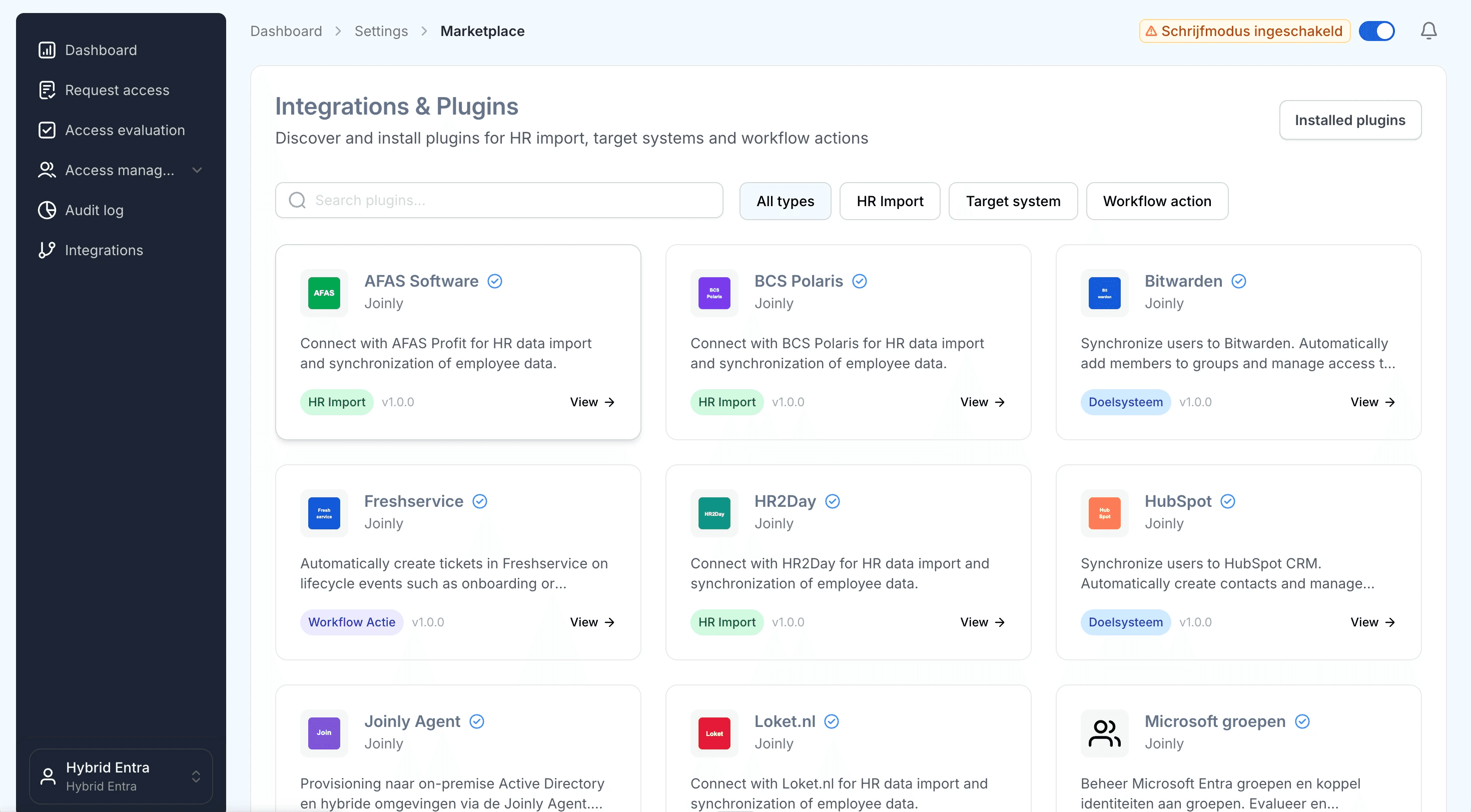
Search the marketplace for the Simployer integration.
3. Follow the installation wizard
You may be redirected to integrations.joinly.app. Create an account there and enter your Simployer connection details: the HR Connect / Public API endpoint and the Access Token an account Owner generated in the Simployer Admin Center. All data is encrypted and stored securely.
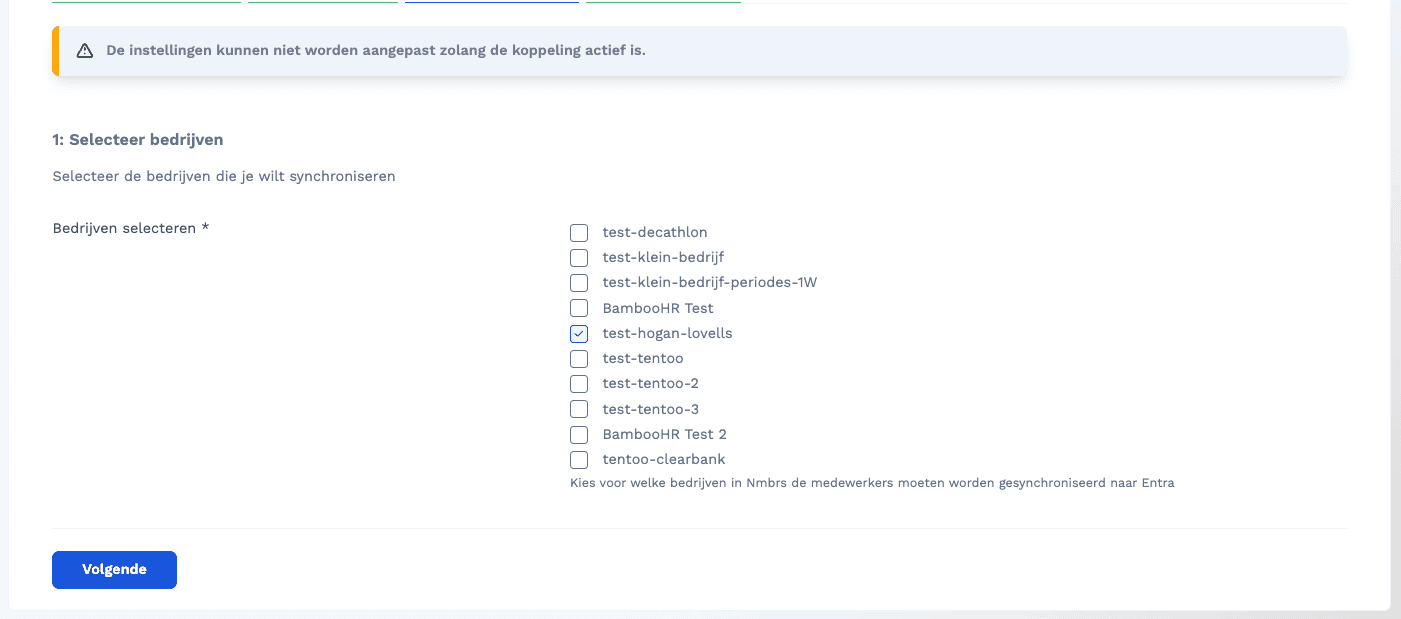
Enter your Simployer API endpoint and Access Token in the wizard.
4. Download the Joinly AD Agent
In the platform, go to Workflows → Select a workflow → Add action → Select ‘Provisioning via Agent’ and download the installer. The agent is a lightweight Windows service that connects your domain to the Joinly cloud over an outbound HTTPS connection only — there are no inbound ports to open.
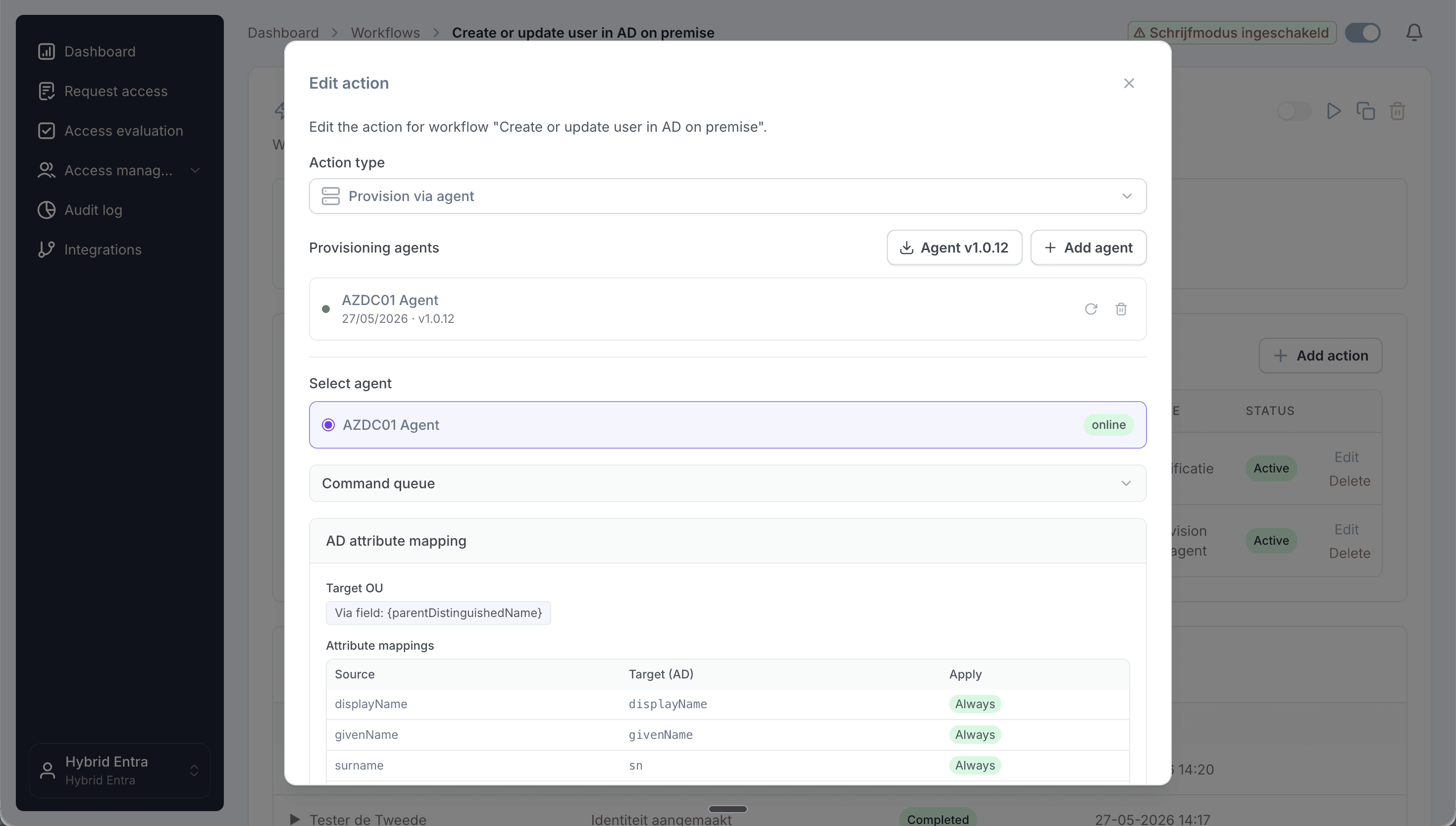
Download the Joinly AD Agent installer from the provisioning settings.
5. Install the agent on a domain-joined server
Run the installer on a domain-joined Windows server that can reach a domain controller. The server needs outbound HTTPS (port 443) to the Joinly cloud and a GMSA account installation on your domain controller. Run through the installer; it registers the agent as a Windows service that starts automatically.
6. Pair the agent with your Joinly tenant
Copy the pairing token from Settings → Provisioning → AD Agent in the platform and paste it into the agent’s configuration screen. The agent uses the token to register securely with your tenant; once paired, its status shows as Connected in the platform.

Pair the agent with your tenant using the pairing token.
7. Set the target OU and attribute mapping
Configure where users are created and how their attributes are built. Map the distinguished name / OU from Simployer’s department, team and office, and build the sAMAccountName, userPrincipalName, mail, department and manager with Liquid templates, including transliteration for Nordic names.
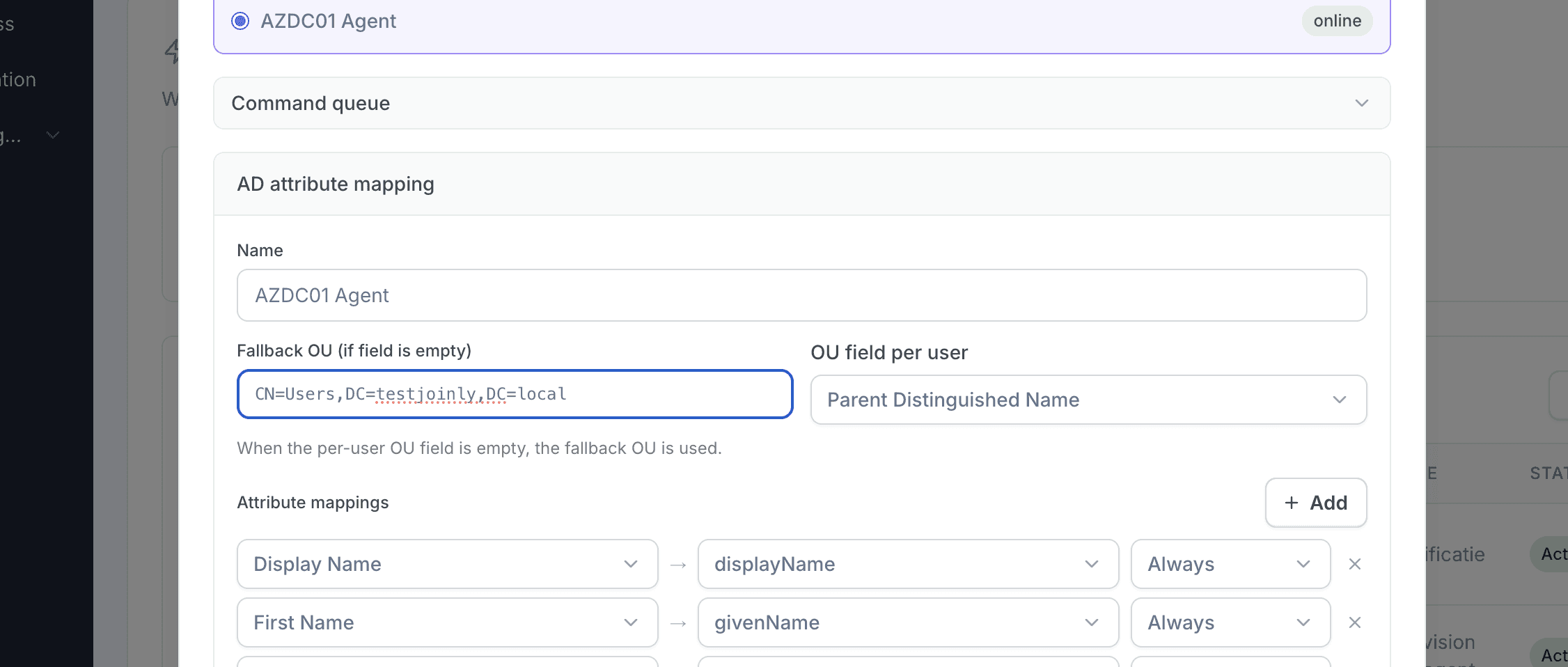
Select the OU and attribute mapping.
8. Configure your workflows
Create an onboarding (joiner) and offboarding (leaver) workflow with trigger-based execution, then an Identity updated workflow with a Create/update employee in Active Directory action so every change in Simployer flows through the agent to AD. Add a threshold workflow that disables the account a set period after the employment end date (for example 30 days), optionally moving it to a disabled-users OU.
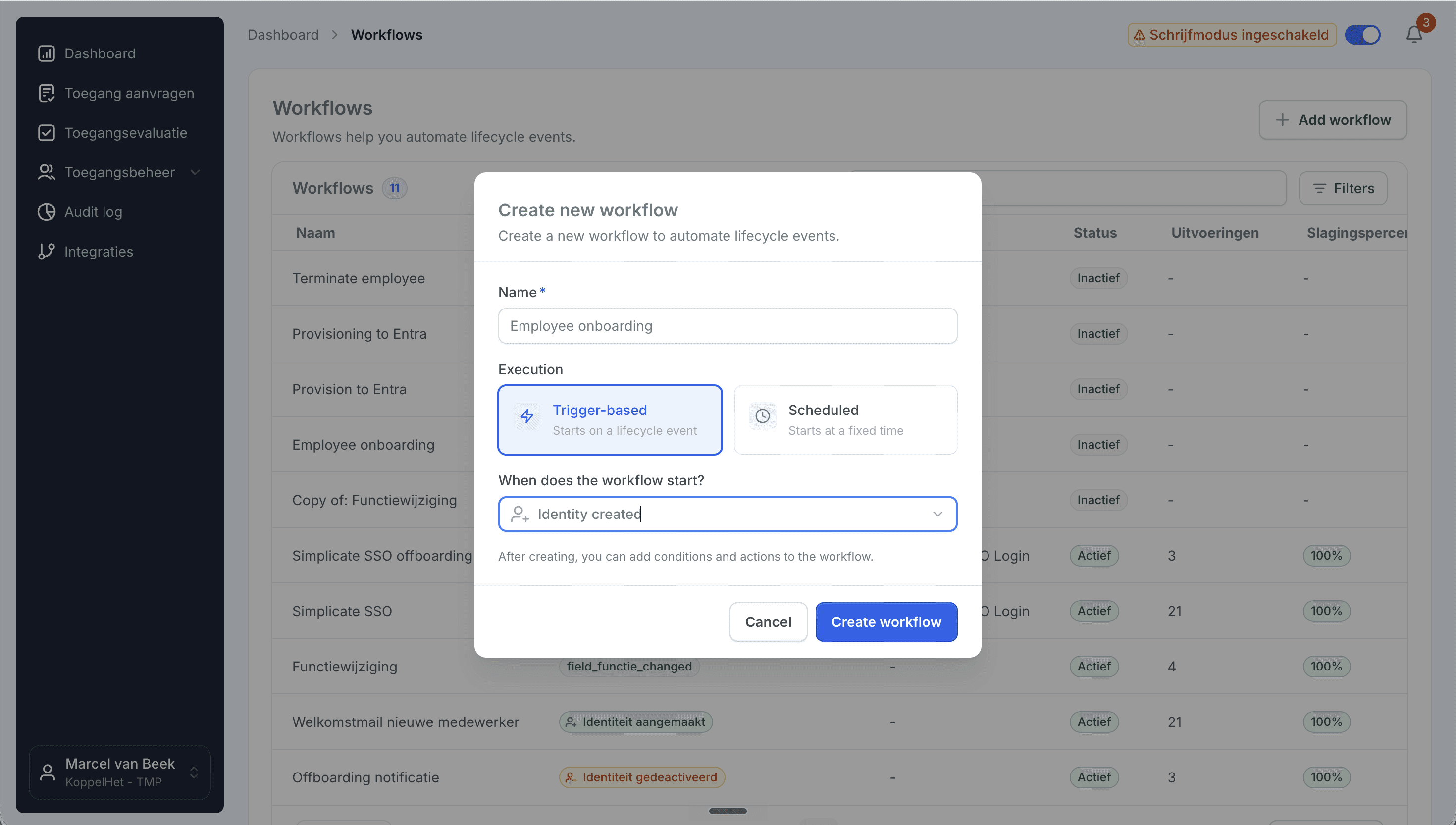
Create a trigger-based onboarding workflow.
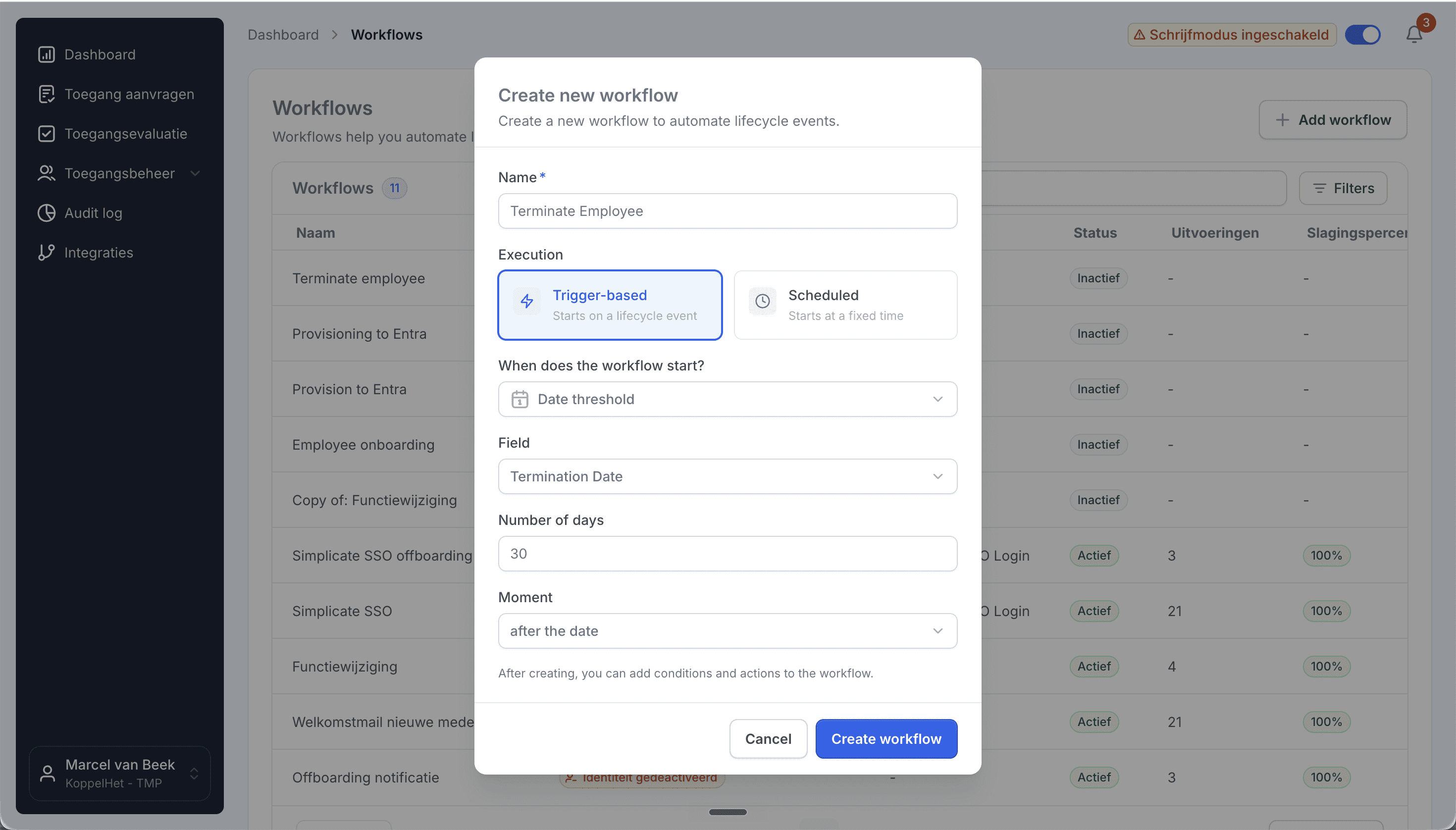
A date-threshold workflow disables accounts a set number of days after termination.
9. Network and firewall requirements
The agent needs outbound HTTPS (443) to the Joinly cloud and a GMSA account with PowerShell access to your domain controllers. No inbound firewall rules are required, and no domain controller is exposed to the internet. For high availability you can run the agent on more than one server.
Need cloud Entra ID provisioning as well? See our guide on connecting Simployer to Microsoft Entra ID, or contact support at support@koppelhet.nl.
Frequently asked questions
Does the Joinly AD Agent need inbound firewall openings?
No. The agent only makes an outbound HTTPS connection to the Joinly cloud and acts on your domain controllers from inside the network through a GMSA with PowerShell access. There are no inbound ports to open and no domain controller is exposed to the internet.
What account does the agent run under?
A Group Managed Service Account (GMSA) with PowerShell access to your domain controllers, scoped to the target OUs so it can create, move and disable user objects without domain-admin rights.
Which OU do new accounts land in?
The one your rules define. Joinly builds the distinguished name and OU placement from Simployer’s department, team and office, and moves the object to a new OU automatically when someone transfers.
How is the sAMAccountName built, transliterated and kept unique?
From your Liquid template, with transliteration for Norwegian and Swedish characters and the generateUniqueUsername helper falling back to the next pattern on a collision, all within AD’s 20-character limit.
Can I provision to both Active Directory and Entra ID?
Yes. The same Joinly setup drives a hybrid environment — the AD Agent for on-premise AD and the native Entra connection for the cloud. See the Simployer to Entra ID guide.
Can I run more than one agent for high availability?
Yes. You can install the agent on multiple domain-joined servers so provisioning continues if one server is unavailable.
More than a connector
A standalone Simployer to Active Directory connection is a good start, but identity rarely stops at one target. The same Joinly setup extends to Entra ID for a hybrid environment and to your other systems, managing the complete chain from joiner to leaver with logging and governance built in. You review the exceptions; Joinly maintains the chain.
Request installation support
Other guides
Frequently asked
Questions about connecting Simployer to On-premise Active Directory (AD DS)
How does Joinly connect Simployer to on-premise Active Directory?
The connection reads HR changes at the source (Simployer HR Connect API → Joinly AD Agent → Active Directory.) On the directory side the Joinly AD Agent runs inside your own network and makes the change in Active Directory. The agent polls Joinly for work over outbound HTTPS, so there is no inbound firewall rule, no VPN and no published endpoint. What it needs: domain-joined Windows server with a GMSA, outbound HTTPS (443) only.
Which HR events does the Simployer → Active Directory connection handle?
Joiner, mover, leaver (incl. long-term absence, rehire, department transfer). Each event runs the workflow you configured for it: a joiner gets an account, groups and licences before the start date, a mover has the access of the old position removed and the new one added, and a leaver is disabled on the termination date.
Which Simployer attributes are synced to Active Directory?
Name, sAMAccountName, UPN, mail, department, team, job title, manager, office, distinguished name / OU, start and end date. The mapping is configurable per field with Liquid templates, so your own naming convention for the user principal name, display name and e-mail address keeps applying.
How often does Joinly sync Simployer with Active Directory?
Frequent sync, multiple times per day. The import schedule is yours to set — hourly, daily or weekly at a fixed time — and every run only processes what changed since the previous one.
Will Joinly overwrite the accounts that already exist in Active Directory?
No. Joinly first imports your existing directory and matches those accounts to the employees from Simployer. Existing accounts are recognised and adopted rather than created twice. Which matching strategy applies — user principal name, e-mail address, employee ID or a person identifier — is a setting.
Can I try this without anything being written?
Yes. Run the import as a dry run and you get an Excel export of exactly what would happen. You can also leave the connection in read-only mode, where Joinly calculates everything but writes nothing, and set thresholds for how many creations, activations and deactivations one run may produce before it is blocked for approval.
Is Simployer a ready-made connector in Joinly?
Yes. Simployer is a ready-made HR connector in Joinly: you enable it, enter the details of your Simployer environment and Joinly reads the employees from there. Nothing has to be developed on either side.
What happens when someone has more than one contract in Simployer?
Joinly recognises that it is one person and decides which employment leads for the account, the manager and the department. You do not get two accounts for the same employee, and when one contract ends the account is only disabled when the last active employment ends.
Do I have to open my firewall for the Joinly AD Agent?
No. The agent initiates every connection itself: it checks in, collects pending commands and reports the result back. Because execution is asynchronous, a workflow waits for the real outcome from Active Directory before the follow-up steps run, so you never get a false confirmation.
Does the Simployer → Active Directory connection support NIS2 and ISO 27001?
ISO 27001, NIS2-ready, GDPR (EU data centre). Every mutation lands in the audit log with its source — HR import, manual, from Entra, by the system or through an API key — and a link to the workflow that caused it. That is the evidence an auditor asks for when they want to know who had access to what, and why.
More on Simployer
Everything Joinly publishes about Simployer: the other installation guide, how the connection compares with Microsoft's own provisioning, what offboarding looks like, and the SCIM route.
See what Joinly can do for your organisation?
Start a free trial today or get in touch for advice on your HR and Microsoft environment.