
Entra ID · Overig
What is the difference between security groups and Microsoft 365 groups?
A security group manages access: you link applications, licences, permissions, and policies to it. A Microsoft 365 group manages collaboration: upon creation, the group automatically receives a shared mailbox, a SharePoint site, a Planner, and optionally a team in Microsoft Teams. The rule of thumb is simple: if it is about who has access, choose a security group. If it is about working together in a shared environment, choose a Microsoft 365 group. In practice, this often goes wrong because both types are created in the same screen and appear identical at first glance. Choosing the incorrect type requires exporting, rebuilding, and linking once again later, as converting between the two types is not possible.
Marcel van Beek · IAM Specialist · 10 min read
A security group manages access: you link applications, licences, rights and policies to it. A Microsoft 365 group manages collaboration: upon creation, the group automatically receives a shared mailbox, a SharePoint site, a Planner and optionally a team in Microsoft Teams. The rule of thumb is simple: if it is about who has access to something, choose a security group. If it is about working together in a shared environment, choose a Microsoft 365 group.
In practice, this often goes wrong because both types are created in the same screen and look identical at first glance. Choosing the wrong type means exporting, rebuilding and linking again later, as converting between the two types is not possible.
Quick facts
Fact | Security group | Microsoft 365 group |
|---|---|---|
Purpose | Access management: apps, licences, rights, policies | Collaboration: mailbox, SharePoint, Planner, Teams |
Members | Users, devices, service principals and other groups | Only users (guests possible) |
Linked resources | None | Automatically created, cannot be disabled separately |
Dynamic membership | Users and devices (P1) | Only users (P1) |
Role-assignable | Yes, provided assigned membership is used | Yes, provided assigned membership is used |
Expiration policy | No | Yes |
Restore after deletion | No, once gone it is gone | 30 days, including site and mailbox |
Conversion to the other type | Not possible | Not possible |
Send email to the group | Only as mail-enabled security group (create via Exchange admin center, no dynamic membership, no devices) | Yes, by default |
Two group types, two worlds
The difference is not in the members but in what happens around the group. A security group is a bare access object: a list of identities to which you attach rights. This is precisely why it is the default choice for everything related to role access: app assignment via enterprise applications, group-based licensing, Conditional Access policies, Intune profiles and SharePoint permissions. Security groups can also be synchronised from on-premises AD, although you must then manage them on the on-premises side.
A Microsoft 365 group is a collaboration object. At the moment of creation, Microsoft automatically provisions a package of resources with it: a group mailbox with calendar in Exchange Online, a SharePoint team site, a Planner board and a OneNote notebook, plus optionally a team in Teams. That package is not configurable: you cannot choose to have the mailbox without the site. Every team that someone creates in Teams is a Microsoft 365 group under the hood. For those wondering where all those groups in the tenant come from: that is where.
The limitations you need to know
The main limitation of Microsoft 365 groups: only users can be members. No devices, no service principals and no nested groups. If you want to reuse a department group as a member of a team, you can only do so indirectly, and the memberOf construct that partially solves this has been in preview for years.
Security groups have their own pitfall with nesting: a nested group works fine for SharePoint permissions, for example, but for licence allocation and app assignment only direct members count. And the mail-enabled security group, the hybrid in-between, can only be created via the Exchange admin center and does not support dynamic membership or devices. In practice, that type is mainly a legacy; it is better to choose a regular security group plus a shared mailbox or distribution list where needed.
When to choose what
Choose a security group for everything structural and administrative: role access per function, licence issuance, Conditional Access, device policies and data permissions. Choose a Microsoft 365 group for everything organic and collaborative: a project team, a department that needs a shared workspace, a committee with its own mailbox.
The two are not mutually exclusive. A healthy model uses security groups as the foundation for access and Microsoft 365 groups as workspaces on top. What you want to avoid is the reverse: Microsoft 365 groups being misused as access groups because they happened to be there already. Then a team owner, without knowing it, determines who has access to company data.
Why you want to manage this in Joinly
The distinction between the two types is easy to explain; maintaining it consistently is the real problem. Everyone who creates a team creates a Microsoft 365 group. Admins under time pressure create groups without naming conventions. After two years, you have hundreds of groups without owners, without a description of their purpose, and without certainty of what those groups grant access to.
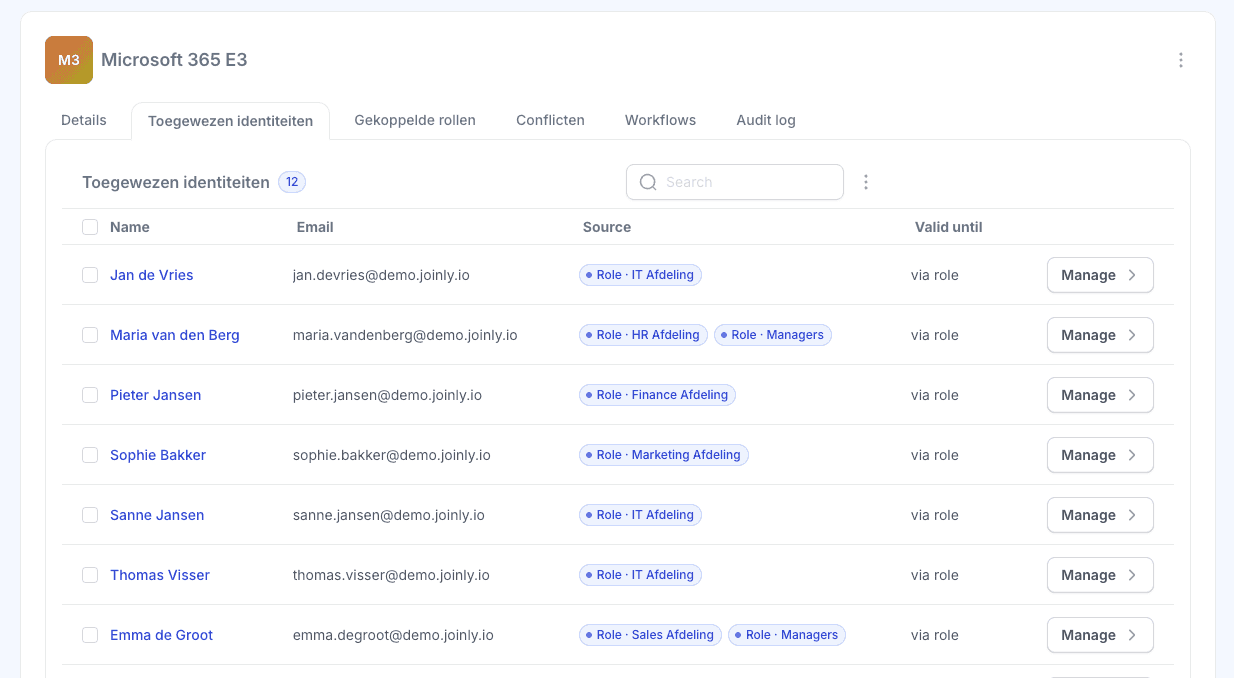
Joinly keeps the foundation in order: the security groups carrying role access are created, populated and cleaned up based on your HR data, with naming conventions and audit trails. Memberships automatically follow department and job roles, both in Entra ID and in on-premises AD. The Microsoft 365 groups remain the domain of collaboration, but access to applications, licences and data is locked down in a self-maintaining model. This ensures the difference between the two types is not a matter of discipline but of architecture.
Want to know how many groups in your tenant are floating around without an owner or purpose? Run the free scan at scan.joinly.app.
Installation guide
Step 1: Determine the type with three questions
Do devices, service principals or other groups need to be members? Then choose security group.
Is a shared mailbox, site or team the goal? Then choose Microsoft 365 group.
In doubt? Choose the security group. Expanding to a collaborative environment is always possible later; decoupling resources from a Microsoft 365 group is not.
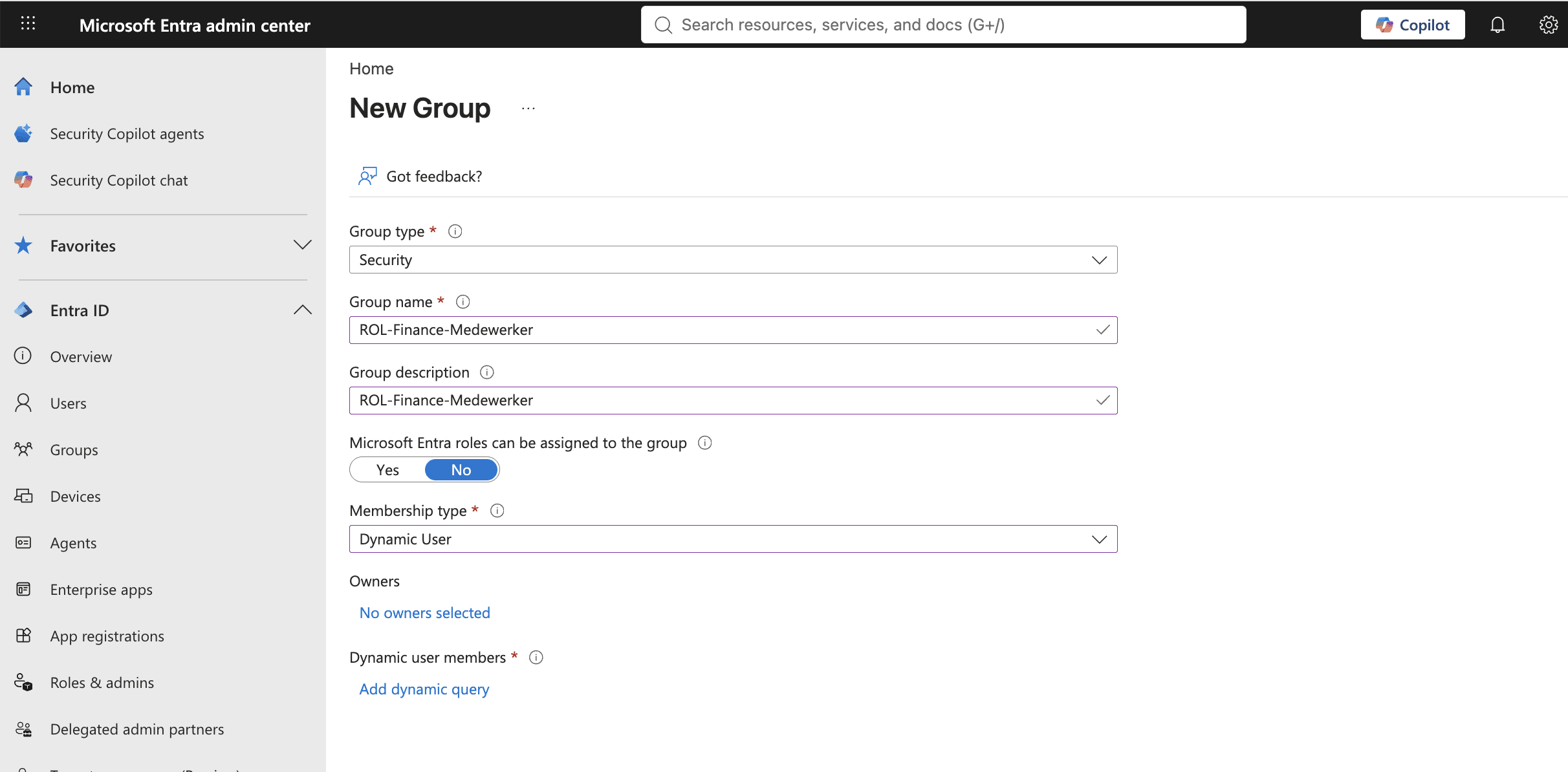
Step 2: Create a security group
Go to entra.microsoft.com and sign in as at least a Groups Administrator.
Navigate to Entra ID → Groups → All groups → New group.
Choose Group type: Security.
Enter a name (according to your convention) and a description stating the purpose.
Choose Membership type:
AssignedorDynamic User/Dynamic Device.Assign an owner and click Create.
Step 3: Create a Microsoft 365 group
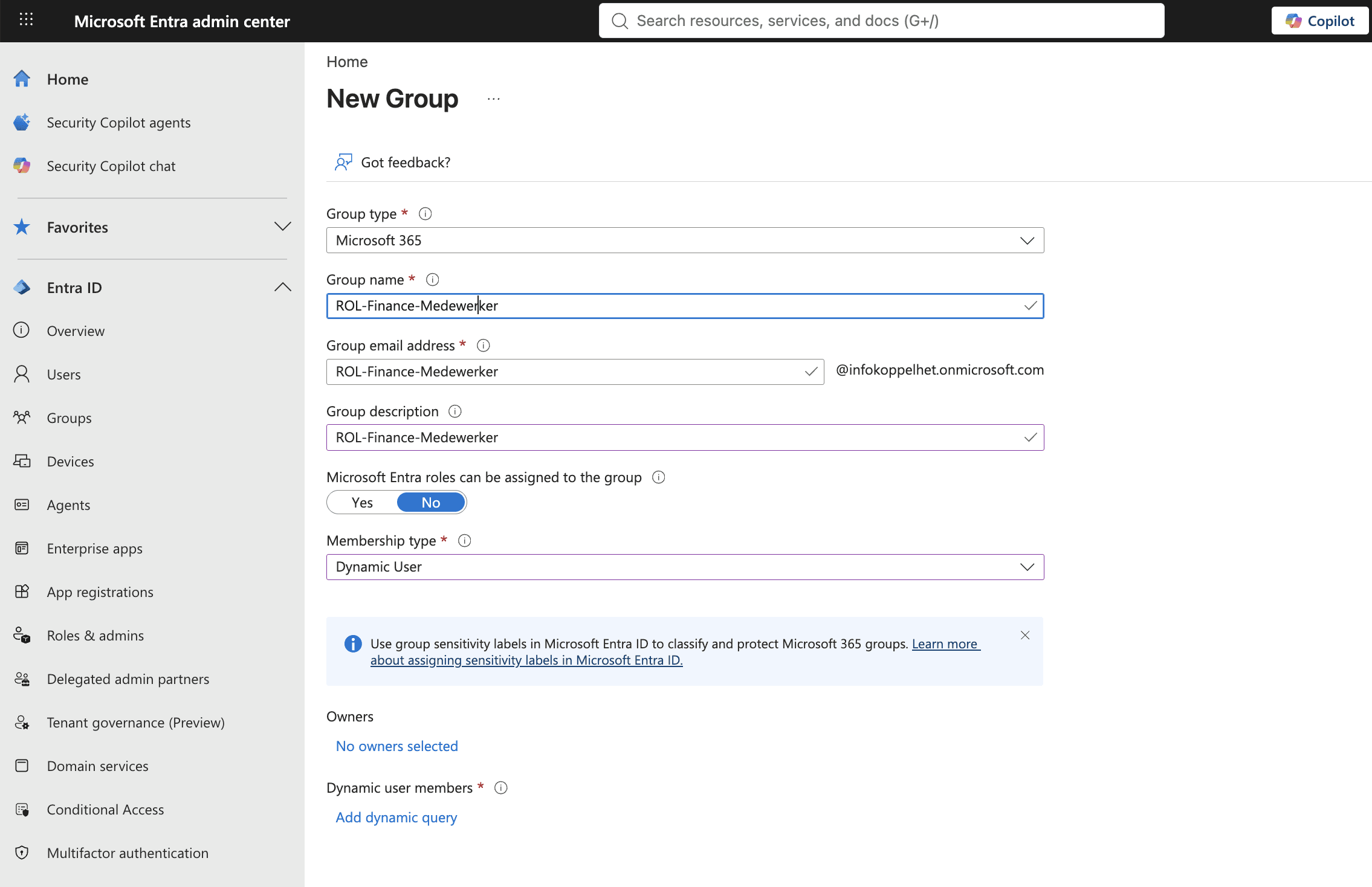
Same path: Entra ID → Groups → All groups → New group.
Choose Group type: Microsoft 365.
Enter name and description; this defines the group's email address.
Choose membership type, assign owners and click Create.
The mailbox, SharePoint site and Planner are automatically provisioned; you can link a team afterwards in Teams via Get started with an existing group if desired.
Step 4: Via PowerShell/Graph
powershell
Connect-MgGraph -Scopes "Group.ReadWrite.All"

# Security group
New-MgGroup -DisplayName "APP-Exact-Gebruiker" `
  -MailEnabled:$false -MailNickname "app-exact-gebruiker" `
  -SecurityEnabled:$true

# Microsoft 365 group
New-MgGroup -DisplayName "Project Phoenix" `
  -MailEnabled:$true -MailNickname "project-phoenix" `
  -SecurityEnabled:$false -GroupTypes @("Unified")
The difference lies in GroupTypes @("Unified"): that turns it into a Microsoft 365 group.
Step 5: Set up the guardrails
Naming policy: Entra ID → Groups → All groups → Naming policy. Enforce a prefix so that the type and purpose are clear from the name.
Expiration policy for Microsoft 365 groups: Entra ID → Groups → All groups → Expiration. Inactive groups automatically expire; owners receive a renewal request beforehand.
Limit who can create Microsoft 365 groups if sprawl is already an issue; assign creation rights to a managed group of users.
How you do this in Joinly
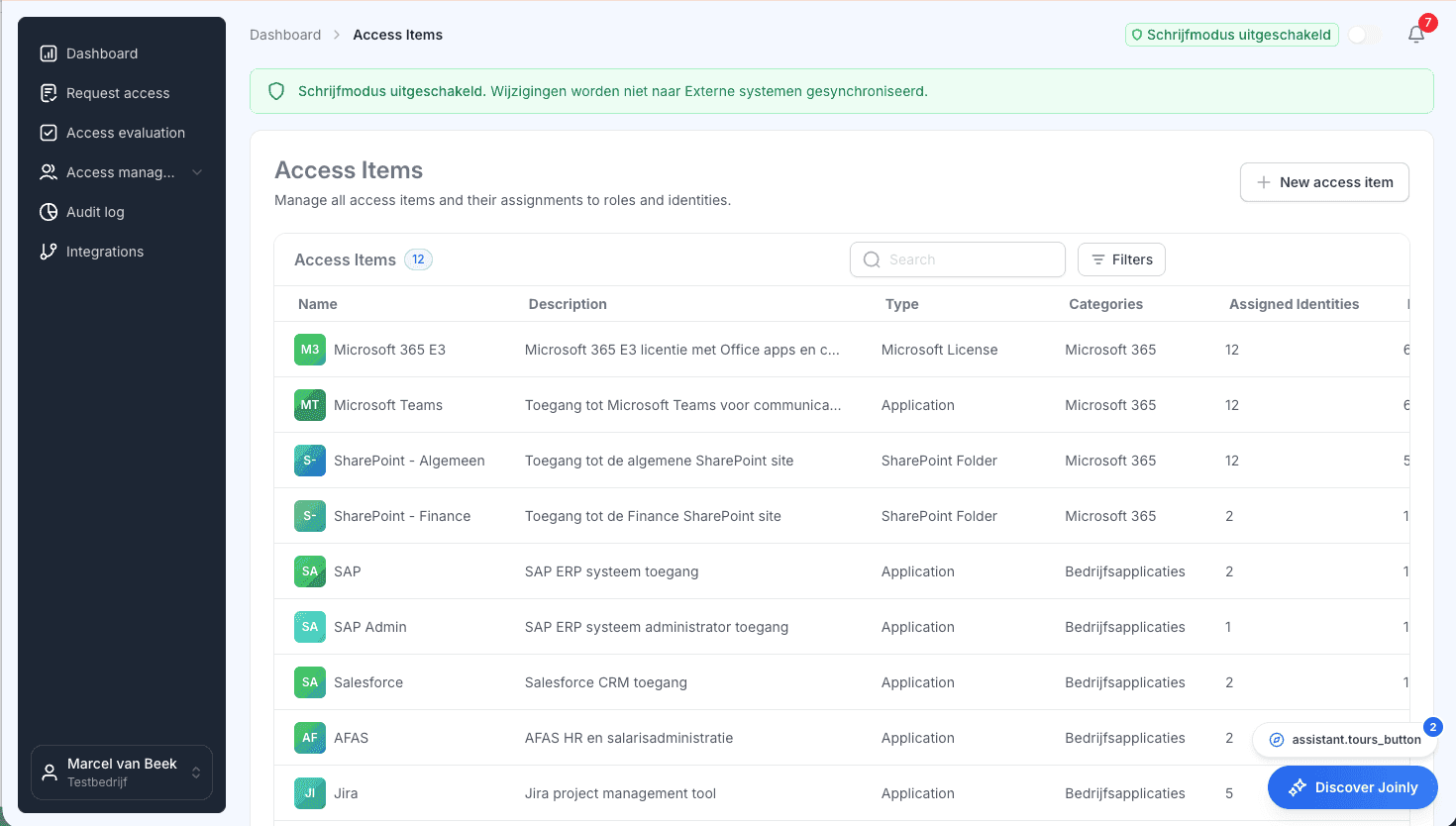
In Joinly, you define per role which security groups belong to it; the groups themselves are created and populated from the HR system according to your naming conventions. A new department in HR automatically results in the correct access groups in Entra and on-premises AD, with owner and description pre-filled. Joinly deliberately leaves Microsoft 365 groups to the business, as the underlying access foundation is already secured.
Explore more blogs
Hoe richt je access reviews in voor groepslidmaatschap?
Hoe geef je toegang tot applicaties via groepen in Entra ID?
Applicatietoegang via groepen regel je in Entra ID door de app als enterprise application te registreren, onder Properties de optie "Assignment required" op Yes te zetten, en vervolgens onder Users and groups je toegangsgroep toe te wijzen, eventueel gekoppeld aan een app role. Vanaf dat moment bepaalt het groepslidmaatschap wie de app ziet en kan gebruiken. De valkuil: alleen directe leden tellen; een geneste groep binnen je toegangsgroep krijgt níéts. Wie dit goed inricht, heeft per applicatie één plek waar toegang geregeld is. Wie het overslaat, heeft apps die voor de hele organisatie openstaan zonder dat iemand dat ooit zo besloten heeft.
Marcel van Beek · 5 min read

How do you create dynamic groups based on HR attributes?
A dynamic group in Entra ID populates itself based on a rule regarding user attributes, for example, everyone with department Finance or jobTitle Team Leader. You create it via Entra ID → Groups → New group, choose membership type Dynamic User, and build the rule in the rule builder. The group only works as well as the HR attributes it runs on: if department and job title are not reliably stored in Entra, even the best rule will not work. The latter is the real work in practice. Building the rule takes five minutes; ensuring that department, jobTitle, and employeeType are populated and up to date for every Employee is an ongoing process. This article covers both sides.
Marcel van Beek · 8 min read
See what Joinly can do for your organisation?
Start a free trial today or get in touch for advice on your HR and Microsoft environment.