
Entra ID · Overig
How do you create dynamic groups based on HR attributes?
A dynamic group in Entra ID populates itself based on a rule regarding user attributes, for example, everyone with department Finance or jobTitle Team Leader. You create it via Entra ID → Groups → New group, choose membership type Dynamic User, and build the rule in the rule builder. The group only works as well as the HR attributes it runs on: if department and job title are not reliably stored in Entra, even the best rule will not work. The latter is the real work in practice. Building the rule takes five minutes; ensuring that department, jobTitle, and employeeType are populated and up to date for every Employee is an ongoing process. This article covers both sides.

Marcel van Beek · IAM Specialist · 8 min read
A dynamic group in Entra ID populates itself based on a rule based on user attributes, for example everyone with department Finance or jobTitle Team Leader. You create it via Entra ID → Groups → New group, choose membership type Dynamic User and build the rule in the rule builder. The group only works as well as the HR attributes it runs on: if department and job title are not reliably maintained in Entra, the most beautiful rule will do nothing.
The latter is where the real work lies in practice. Building the rule takes five minutes; ensuring that department, jobTitle, and employeeType are filled and accurate for every single employee is an ongoing process. This article covers both sides.
Quick facts
Fact | Value |
|---|---|
Required role | At least Groups Administrator |
Where | entra.microsoft.com → Entra ID → Groups → All groups → New group |
Licence | Entra ID P1 for each unique user in a dynamic group |
Usable HR attributes | department, jobTitle, companyName, employeeType, officeLocation, city, country, employeeHireDate, extensionAttributes 1 to 15 |
Rule builder | Max 5 expressions; more complex rules via the syntax editor |
Processing time | Usually minutes, guaranteed within 24 hours |
Limit | Max 15,000 dynamic groups per tenant |
Note | No manual members possible; security depends on who can write the attributes |
The rule is the easy part
The syntax of a membership rule always follows the same pattern: attribute, operator, value.
(user.department -eq "Finance")
(user.department -eq "Finance") and (user.jobTitle -contains "Teamleider")
(user.employeeType -eq "Medewerker") and (user.officeLocation -in ["Amsterdam","Utrecht"])
The operators you use most: -eq and -ne for exact values, -contains and -startsWith for partial matches, -in for lists and -any for multi-value attributes. Use and, or and not to combine expressions; the rule builder supports five, after which you switch to the syntax editor.
Use the Validate Rules button before you save: you select a few existing users and immediately see whether they match or not, including explanation. This prevents the classic scenario where a rule for "Financien" catches no one because HR delivers "财务" or just "Finance".
Which attributes to choose
Choose attributes populated by a system, not a human. Ideally, department and jobTitle come from your HR integration or AD synchronisation. employeeType is valuable for separating employees, contractors, and interns. The extensionAttributes are the escape route for anything that doesn't fit elsewhere, such as a cost centre or team code; do document what is in which number, because in a year's time no one will remember what extensionAttribute7 means.
Two attributes deserve extra attention. employeeHireDate enables rules around onboarding, but most HR integrations do not populate this field by default. And manager is not a usable attribute in dynamic rules; anyone wanting to steer based on hierarchy will get stuck here.
The three ways this can go wrong
One: empty or corrupted attributes. A dynamic rule evaluates what is there, not what should be there. Every typo in a department name is an employee without access, or worse, with incorrect access. Two: write permissions. The security of the group is only as strong as the control over who is allowed to change the attributes. If a service desk agent or a poorly configured sync can change the department field, that person can actually hand out access. Check this explicitly for attributes synchronised from on-premises AD. Three: no exceptions. You cannot manually add anyone to a dynamic group. The intern who temporarily helps out with Finance can only be added by corrupting the rule or misusing the HR attribute, and both choices will boof back on you later.
Why you want to manage this in Joinly
Dynamic groups shift the management problem of group memberships over to data quality. That is a win, but only if something actually monitors that data quality. In practice, I see environments with dozens of dynamic rules on top of attributes that no one maintains: the logic is fragmented across separate groups, there is no overview of which rule grants what access, exceptions are impossible, and every user in such a group costs a P1 licence.
Joinly tackles this at the source. The HR integration with AFAS, HR2Day, Visma Raet, YouServe or Workday populates the attributes reliably and manages group memberships directly from business rules: department plus job title determines the groups, in Entra ID and on-premises AD simultaneously. You simply record exceptions, with reason and end date. And because Joinly handles the memberships itself, you do not even need the dynamic rules and the associated P1 requirement. What remains is a single central model with an audit trail per mutation.
Do you want to know how reliable your HR attributes in Entra are right now? The free scan on scan.joinly.app will show you within ten minutes.
Installation guide
Step 1: Check your data first
Pull a report of the attributes you want to steer on before you build even a single rule:
powershell
Connect-MgGraph -Scopes "User.Read.All"

Get-MgUser -All -Property DisplayName,Department,JobTitle,EmployeeType |
  Group-Object Department | Sort-Object Count -Descending |
  Select-Object Name, Count
Any variant, typo, or empty value that pops up here will soon become a gap in your group membership. Resolve this first in the source (HR or AD), not in Entra.
Step 2: Create the group
Go to entra.microsoft.com, sign in as at least a Groups Administrator.
Entra ID → Groups → All groups → New group.
Group type: Security. Name according to your convention, description with the purpose.
Membership type: Dynamic User.
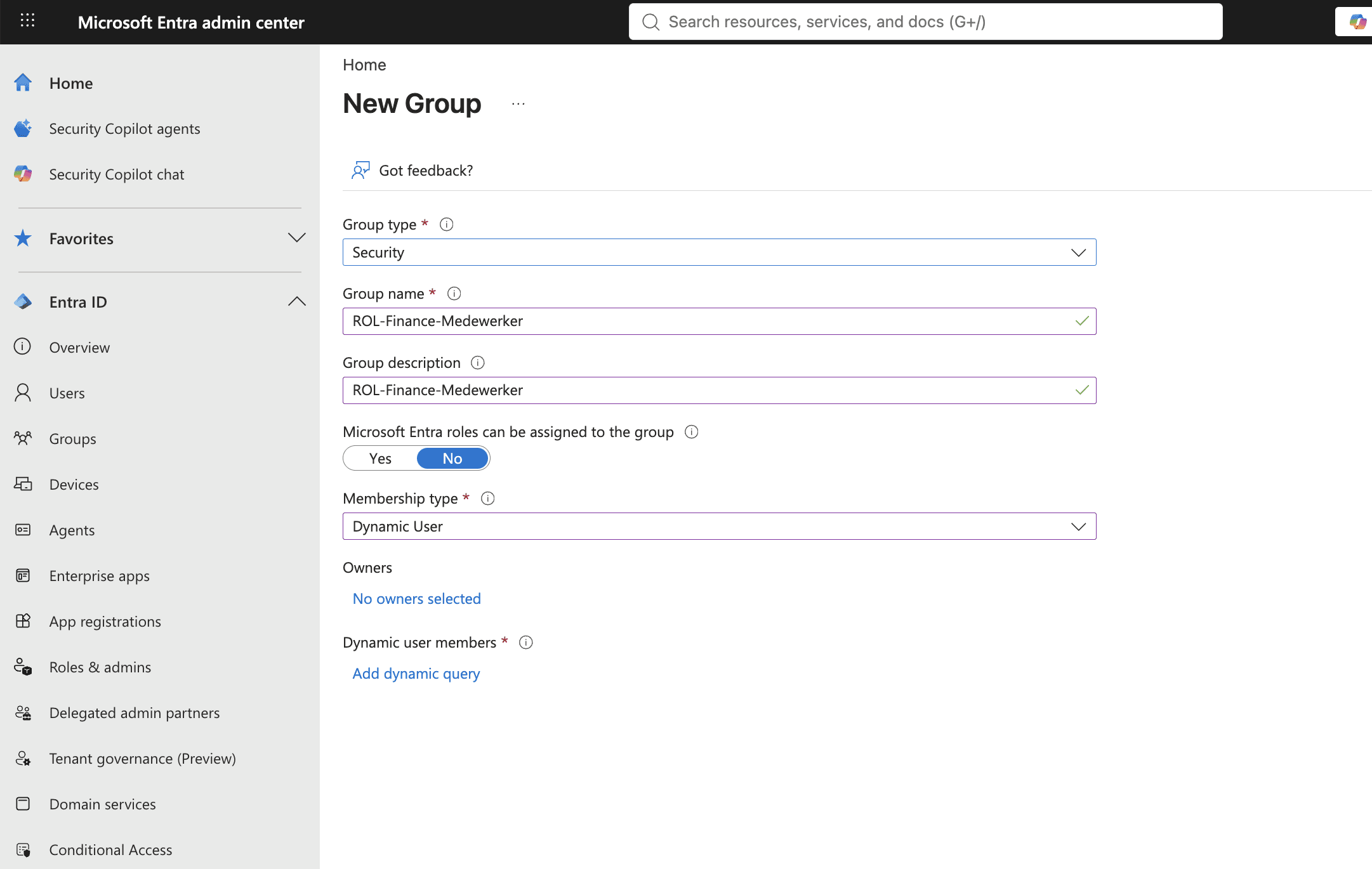
Step 3: Build and validate the rule
Click Add dynamic query.
Build the expression in the rule builder: property
department, operatorEquals, valueFinance. Combine withjobTitlewhere necessary.Click Validate Rules, add three to five existing users, and check if the outcome is correct, including for someone who should explicitly not be in it.
Save and Create.
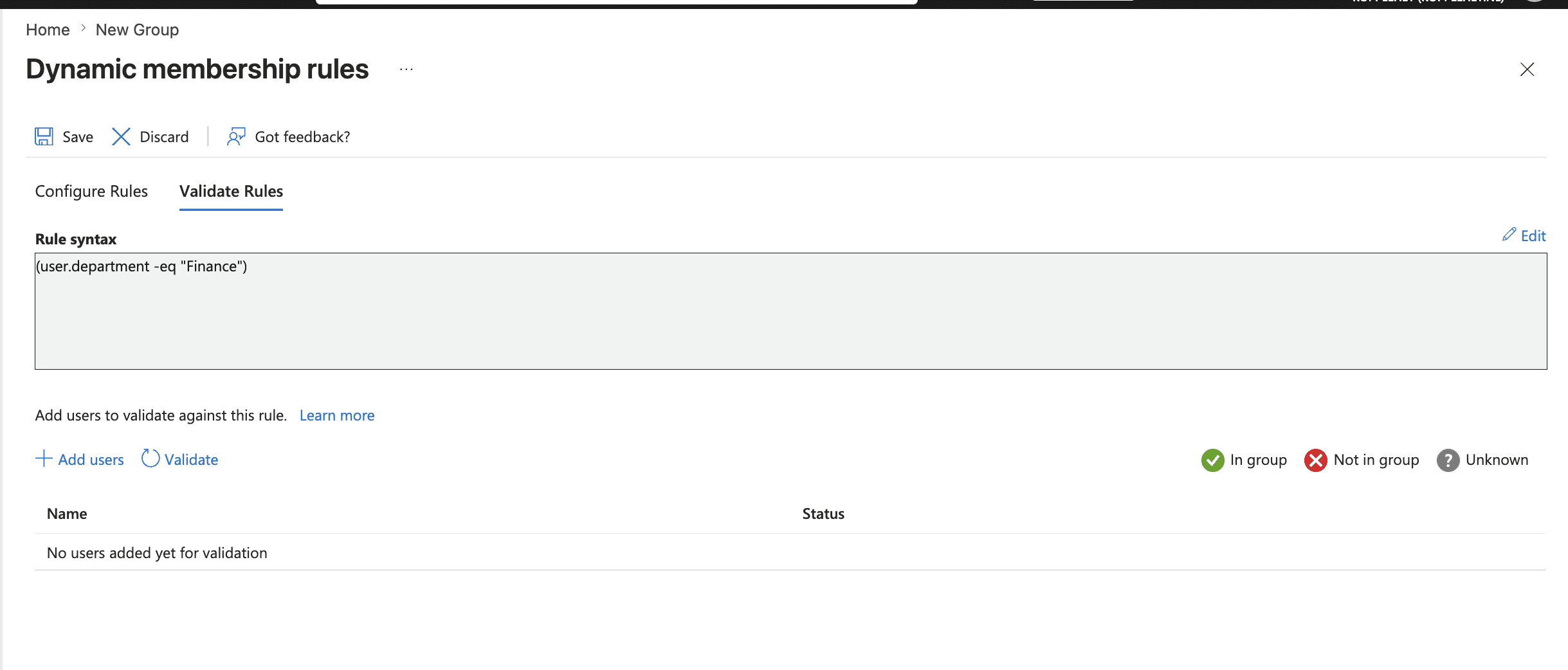
Step 4: Check processing
After a few minutes, open Groups → your group → Members and compare the count with your expectation from step 1. If it differs, look at the processing status under Dynamic membership rules. Large tenants can take up to 24 hours.
Step 5: Link the access
Now assign the group to the resources: app assignment via Enterprise applications, licences via group-based licensing, permissions on SharePoint. From that moment on, HR data drives access: if an employee's department changes, their membership and everything attached to it follow automatically.
Alternative: via PowerShell/Graph
powershell
New-MgGroup -DisplayName "ROL-Finance-Medewerker" `
  -MailEnabled:$false -MailNickname "rol-finance-medewerker" `
  -SecurityEnabled:$true `
  -GroupTypes @("DynamicMembership") `
  -MembershipRule '(user.department -eq "Finance")' `
  -MembershipRuleProcessingState "On"
How you do this in Joinly
In Joinly, you skip the intermediate step. The business rule is not in a separate group but in the central role model: condition on the HR source data (department, job title, contract type), linked to the matching group memberships, in Entra and on-premises AD simultaneously. Moreover, Joinly continuously monitors raw data quality from step 1, because the HR integration is the source rather than a manually populated attribute. Exceptions with end dates, every mutation in the audit trail, and no P1 licence required for membership management.
Explore more blogs
Hoe richt je access reviews in voor groepslidmaatschap?
Hoe geef je toegang tot applicaties via groepen in Entra ID?
Applicatietoegang via groepen regel je in Entra ID door de app als enterprise application te registreren, onder Properties de optie "Assignment required" op Yes te zetten, en vervolgens onder Users and groups je toegangsgroep toe te wijzen, eventueel gekoppeld aan een app role. Vanaf dat moment bepaalt het groepslidmaatschap wie de app ziet en kan gebruiken. De valkuil: alleen directe leden tellen; een geneste groep binnen je toegangsgroep krijgt níéts. Wie dit goed inricht, heeft per applicatie één plek waar toegang geregeld is. Wie het overslaat, heeft apps die voor de hele organisatie openstaan zonder dat iemand dat ooit zo besloten heeft.
Marcel van Beek · 5 min read

What is the difference between security groups and Microsoft 365 groups?
A security group manages access: you link applications, licences, permissions, and policies to it. A Microsoft 365 group manages collaboration: upon creation, the group automatically receives a shared mailbox, a SharePoint site, a Planner, and optionally a team in Microsoft Teams. The rule of thumb is simple: if it is about who has access, choose a security group. If it is about working together in a shared environment, choose a Microsoft 365 group. In practice, this often goes wrong because both types are created in the same screen and appear identical at first glance. Choosing the incorrect type requires exporting, rebuilding, and linking once again later, as converting between the two types is not possible.
Marcel van Beek · 10 min read
See what Joinly can do for your organisation?
Start a free trial today or get in touch for advice on your HR and Microsoft environment.