
Manual
Guide for setting up Microsoft Entra - HubSpot SCIM integration
This guide describes step by step how to configure SCIM provisioning between Microsoft Entra ID (Azure AD) and HubSpot via the Joinly Platform.
Marcel van Beek · Integration Developer · 7 min read
HubSpot SCIM Provisioning via Microsoft Entra ID (Azure AD)
This guide explains step by step how to configure SCIM provisioning between Microsoft Entra ID (Azure AD) and HubSpot using the Joinly (KoppelHet) platform.
With this integration, you fully automate HubSpot user management based on HR or IAM processes in Entra ID.
📋 Prerequisites
Make sure you have access to:
Microsoft Entra ID
Minimum Application Administrator permissions
Access to Enterprise Applications
Provisioning enabled in your tenant
HubSpot
Super Admin account
API access enabled
Active HubSpot subscription with user management
Joinly
Joinly account (free to create)
🎯 What does this integration do?
With this configuration you can:
✅ Automatically create users in HubSpot
✅ Synchronize users in real time
✅ Automatically assign roles
✅ Deactivate or remove users
✅ Fully automate the identity lifecycle
Step 1 — Create a Joinly Account
Go to:
https://platform.joinly.appClick:
Don’t have an account yet? Register hereCreate your Joinly tenant
Log in to the platform
Step 2 — Connect HubSpot via Marketplace
2.1 Open the Integration Page
Go directly to:
https://platform.joinly.app/integrations/marketplace/entra-hubspot2.2 Start HubSpot Authorization
Click:
Connect HubSpotYou will automatically be redirected to HubSpot OAuth.
2.3 Authorize Joinly in HubSpot
Log in with your HubSpot Super Admin account
Review the requested permissions
Click:
Authorize accessAfter successful authorization you will be redirected back to Joinly.
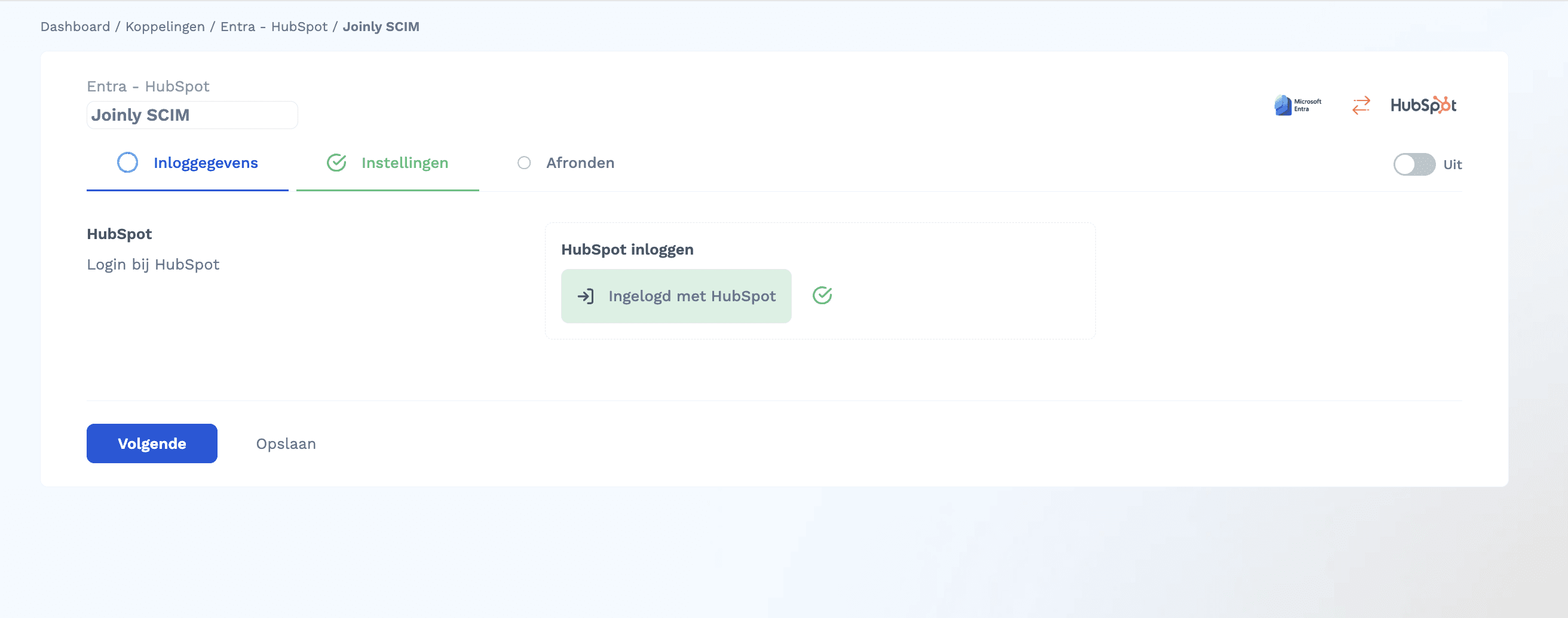
✅ HubSpot is now connected
✅ API tokens are managed automatically by Joinly
Step 3 — Configure the Integration in Joinly
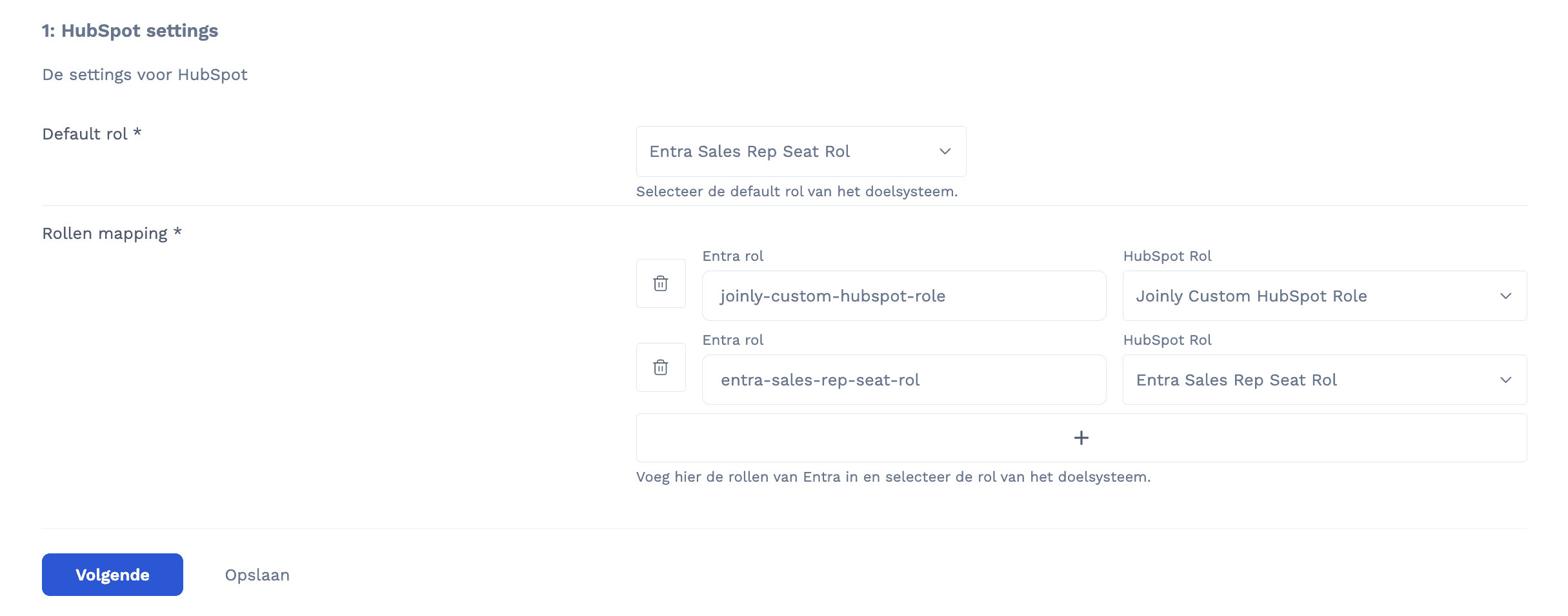
3.1 Set Default Role
Inside the HubSpot integration:
Select:
Default HubSpot RoleThis role will be assigned to new users when no explicit role mapping is configured.
3.2 Configure Role Mapping (Optional)
You can map Entra ID App Roles to HubSpot roles.
Example:
Entra Role | HubSpot Role |
|---|---|
Admin | Super Admin |
Manager | Sales Hub User |
User | Standard User |
This allows you to fully control authorization from Entra ID.
3.3 Activate the Integration
Click:
Activate integrationAfter activation, Joinly automatically generates:
✅ SCIM Endpoint URL
✅ SCIM Secret Token
👉 You will need these values for Entra ID configuration.
Step 4 — Configure SCIM in Microsoft Entra ID
4.1 Create Enterprise Application
Go to:
https://entra.microsoft.comNavigate to:
Identity → Applications → Enterprise applicationsClick:
+ New application
→ Create your own application
Enter:
Name: Joinly HubSpot SCIMSelect:
Non-gallery applicationClick:
Create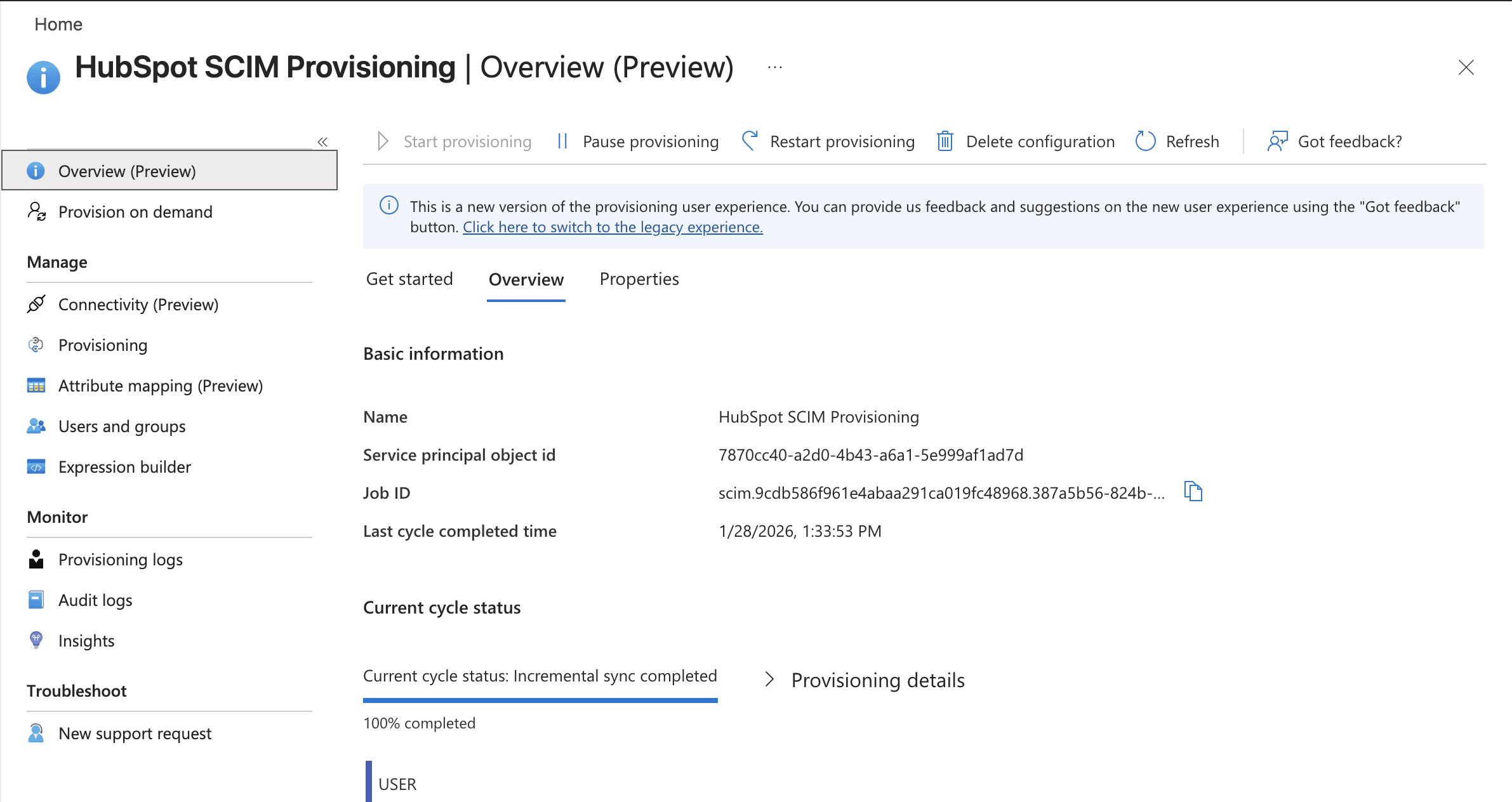
4.2 Configure Provisioning
Open the application
Go to:
ProvisioningSelect:
AutomaticEnter the following:
Tenant URL
➡ Paste the SCIM Endpoint URL from Joinly
Secret Token
➡ Paste the SCIM Secret Token from Joinly
Click:
Test ConnectionIf successful:
✅ HTTP 200 OK
Click:
SaveStep 5 — Assign Users & Groups
Go to:
Users and groupsClick:
Add user/groupAdd:
Test user
OREntra group (recommended)
Verify:
➡ Assigned roles match the Joinly role mapping
Step 6 — Configure Provisioning
6.1 Verify Attribute Mapping
Go to:
Provisioning → MappingsVerify that the following actions are enabled:
✔ Create users
✔ Update users
✔ Disable users
Joinly uses the standard SCIM schema mapping by default.
6.2 Run On-Demand Provisioning Test
Go to:
Provision on-demandSelect a test user
Click:
ProvisionCheck the logs:
✅ Success
❌ No errors
6.3 Start Provisioning
Return to:
ProvisioningClick:
Start provisioning⏱ Initial synchronization typically takes 20–40 minutes.
Step 7 — Validation
New User Test
Create a new user in Entra ID
Assign the user to the Joinly SCIM application
Check HubSpot:
✅ Account created
✅ Correct role assigned
✅ Active status
Update Test
Modify in Entra ID for example:
Name
Department
Role
Verify that changes appear in HubSpot.
Deactivation Test
Disable the user in Entra ID.
Verify:
✅ User deactivated in HubSpot
✅ Access revoked
Done ✅
Your HubSpot provisioning is now fully automated through Joinly and Microsoft Entra ID.
HR or IAM is now your single source of truth for HubSpot access management.
More manuals
- Guide for setting up ActiveCampaign SCIM integration
- Link TOPdesk SSO and user provisioning via Joinly
- Microsoft Entra: Correct employee data in bulk with export and import
- How to install the IAM connectors from Joinly in your AFAS environment
- Automatically assign Microsoft 365 licenses via a security group
See what Joinly can do for your organisation?
Start a free trial today or get in touch for advice on your HR and Microsoft environment.